How To Sync Real Time Translation Earbuds With Zoom Meetings?
You just joined a Zoom meeting with a team spread across five countries. Someone starts talking in Japanese. Another person responds in Portuguese. You sit there, lost. Sound familiar? Real time translation earbuds promise to fix this exact problem. But the setup process can feel confusing. How do you actually get those earbuds to work inside a Zoom call?
Many professionals now rely on translation earbuds for face to face conversations. The challenge comes when they try to bring that same experience into virtual meetings. Bluetooth pairing quirks, audio routing issues, and software conflicts can turn a simple task into a frustrating puzzle.
This guide gives you clear, practical steps to sync your translation earbuds with Zoom meetings. You will also learn how to fix common problems, reduce audio delay, and get the best translation quality during your calls.
Key Takeaways
- Translation earbuds connect to your device through Bluetooth and work with Zoom by serving as your audio input and output device. You must select them manually in Zoom’s audio settings for proper operation.
- Zoom offers its own built in language interpretation feature, but it requires a paid plan (Business Plus or higher) and a human interpreter assigned by the host. Translation earbuds provide an alternative that works independently.
- Audio latency is the most common issue users face when pairing Bluetooth translation earbuds with Zoom. Disabling automatic microphone adjustment in Zoom settings and re-pairing your earbuds can often fix this.
- Companion apps for your translation earbuds must run simultaneously with Zoom on your device. Close unnecessary background applications to prevent resource conflicts and audio dropouts.
- Third party AI translation software can bridge the gap between your earbuds and Zoom, providing real time translated captions and voice output across more than 60 languages without needing a human interpreter.
- A stable internet connection is essential for both Zoom video quality and translation accuracy. Use a wired Ethernet connection or a strong Wi-Fi signal to get the best results from both systems.
What Are Real Time Translation Earbuds And How Do They Work
Real time translation earbuds are wireless earphones that use artificial intelligence to convert spoken language into another language almost instantly. They look like regular Bluetooth earbuds. The difference is the AI software running behind them.
The translation process follows three core steps. First, the earbud captures your voice and uses speech recognition to convert it into text. Second, machine translation processes that text and converts it into the target language. Third, text to speech synthesis turns the translated text back into natural sounding audio.
Most translation earbuds connect to a companion app on your smartphone through Bluetooth. The app handles language selection, translation engine management, and settings customization. Some models process translations on device, while others send audio to cloud servers for faster and more accurate results.
Modern translation earbuds support 40 to 80 languages depending on the brand and model. Top performing devices translate speech in under one second with accuracy rates above 90% for supported language pairs. The AI also distinguishes between human speech and background noise, so ambient sounds do not interfere with translation.
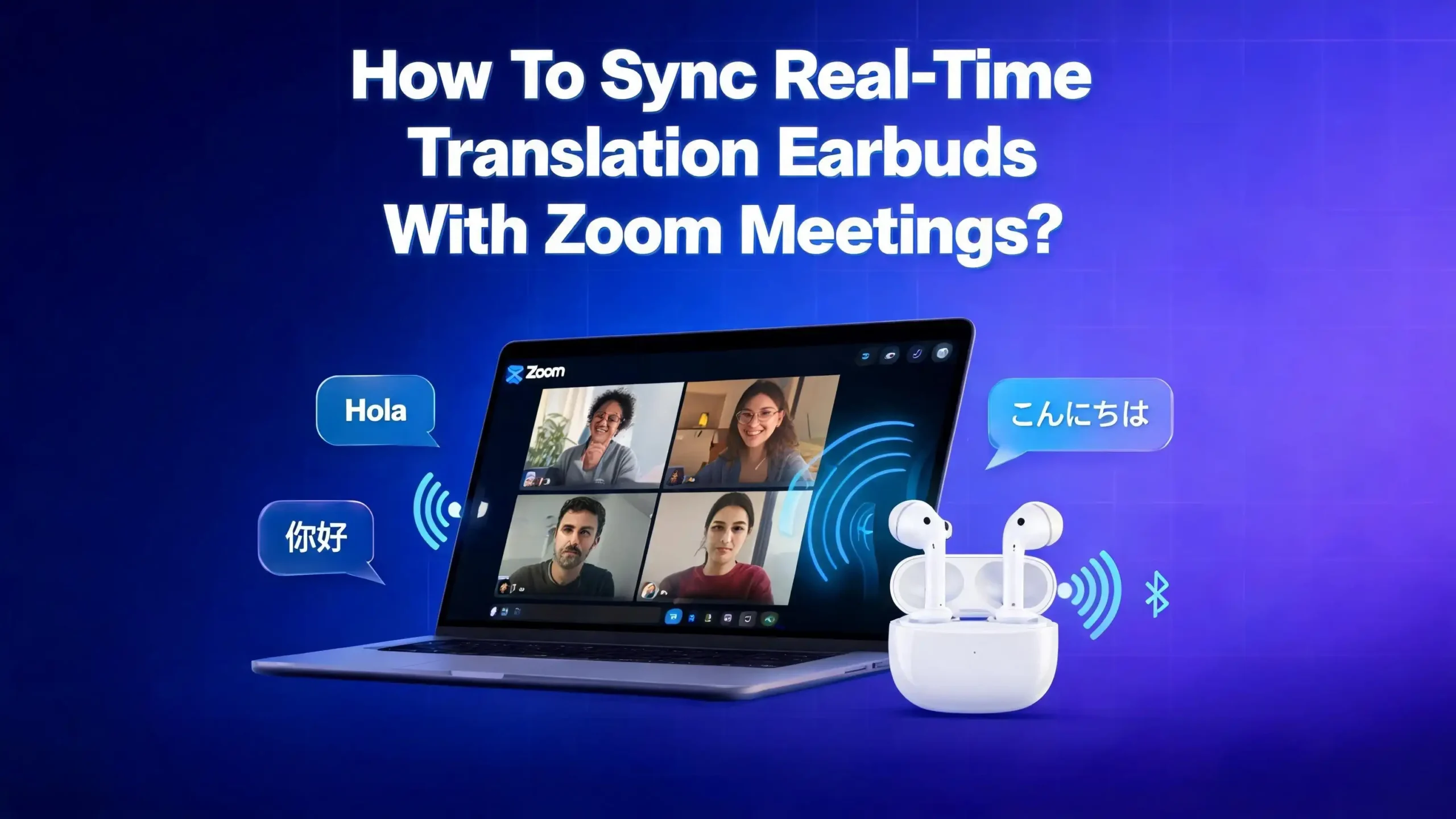
For Zoom meetings, these earbuds serve a dual purpose. They act as your audio headset for the meeting and simultaneously translate incoming speech into your preferred language. This setup requires proper configuration, which we will cover in detail below.
Why You Might Need Translation Earbuds For Zoom Meetings
Global remote work has made multilingual Zoom calls a daily reality for millions of professionals. You may work with developers in Ukraine, designers in South Korea, or clients in Brazil. Each conversation presents a potential language gap.
Zoom’s own translation tools have significant limits. The built in translated captions feature requires a Business Plus plan or higher. It only works when the host enables it. Free and Pro plan users must purchase a separate add on at $5 per user per month. Even then, the feature provides text captions only and does not deliver translated audio into your ears.
Translation earbuds solve this problem independently. You do not need the meeting host to enable anything. You do not need a specific Zoom plan. You simply wear the earbuds, run the companion app, and hear translated speech in real time. This makes them ideal for attendees who join meetings hosted by others and have no control over the meeting settings.
Business professionals use translation earbuds for client negotiations, vendor calls, and cross border team standups. Remote freelancers use them to collaborate with international clients. Students and researchers rely on them during multilingual academic conferences and thesis presentations. The earbuds give you the freedom to understand and participate fully, regardless of what language others speak.
Check Your Equipment Before You Start
Before you dive into any Zoom setup, verify that your equipment meets the basic requirements. This step prevents most connectivity problems before they happen.
Start with your translation earbuds. Make sure they are fully charged. A low battery can cause Bluetooth dropouts during your meeting. Check that the earbuds have the latest firmware installed through their companion app. Firmware updates often fix audio sync issues and improve translation accuracy.
Next, check your device. Whether you use a Windows PC, Mac, or mobile device, update your operating system to the latest version. Outdated operating systems sometimes conflict with Bluetooth audio profiles. Ensure your device has Bluetooth 5.0 or higher for the most stable wireless connection.
Update the Zoom application to the latest version. Zoom frequently releases patches that fix audio device recognition issues. An outdated Zoom client might not detect your earbuds properly or could route audio to the wrong device.
Verify your internet connection. Both Zoom and translation earbuds rely on a stable internet connection. Translation earbuds that use cloud based processing need upload and download bandwidth to send speech data and receive translations. A speed test showing at least 10 Mbps download and 5 Mbps upload should give you smooth performance. A wired Ethernet connection is always more reliable than Wi-Fi for this purpose.
Finally, close unnecessary applications on your device. Video conferencing and real time translation both consume significant processing power. Running too many programs at once can cause audio lag, video stuttering, or translation delays.
How To Pair Your Translation Earbuds With Your Device
Proper Bluetooth pairing is the foundation of everything that follows. A weak or unstable Bluetooth connection will cause problems during your Zoom meeting.
Remove your earbuds from the charging case to activate them. Most models enter pairing mode automatically the first time you use them. If the earbuds have been paired with a different device before, you may need to hold the touch sensor or button for several seconds to enter pairing mode. The LED indicator will typically flash blue and white or alternate colors to signal readiness.
Open your device’s Bluetooth settings. On Windows, go to Settings, then Devices, then Bluetooth. On Mac, open System Settings and select Bluetooth. On Android or iOS, go to Settings and tap Bluetooth. Your translation earbuds should appear in the list of available devices. Tap or click their name to pair.
Wait for the connection to confirm. Your device should display a “Connected” status. Some translation earbuds register as two separate devices: one for audio output (music/media) and one for the microphone (hands free). Make sure both profiles are connected. If only one profile connects, you may hear audio but Zoom will not detect your microphone, or vice versa.
Open the companion app for your translation earbuds and confirm the connection there as well. Select your source language (the language others will speak) and your target language (the language you want to hear). Save these settings before joining your Zoom meeting.
Pro tip: If you experience connection drops, “forget” the earbuds from your Bluetooth settings and pair them again from scratch. This clears cached connection data that sometimes causes instability.
How To Configure Zoom Audio Settings For Your Earbuds
Once your earbuds are paired with your device, you need to tell Zoom to use them. Zoom does not always select the correct audio device automatically.
Open the Zoom desktop application and click the gear icon in the top right corner to access Settings. Select the Audio tab from the left sidebar. You will see two dropdown menus: one for Speaker and one for Microphone.
Click the Speaker dropdown and select your translation earbuds from the list. They may appear by their brand name or as a generic Bluetooth audio device. Click “Test Speaker” to confirm audio plays through your earbuds. You should hear a test tone in both ears.
Click the Microphone dropdown and select your earbuds again. Click “Test Mic” and speak a few words. The input level bar should move in response to your voice. If the bar does not move, your earbuds’ microphone may not be properly connected. Go back to your Bluetooth settings and verify both audio profiles are active.
Disable the “Automatically adjust microphone volume” option. This setting is known to cause audio latency and sync issues with Bluetooth devices. Unchecking it gives you more stable audio performance during your meeting.
For mobile users, the process is slightly different. During a Zoom meeting on your phone, tap the screen and look for the audio source icon in the upper left corner. Tap it and select your Bluetooth earbuds from the list of available audio devices. On Android, you may also need to grant Zoom permission to access nearby Bluetooth devices through your phone’s app settings.
How To Use Translation Earbuds During A Live Zoom Meeting
Now comes the moment you have been preparing for. Your earbuds are paired, Zoom recognizes them, and your companion app is set up. Here is how everything works together during a live call.
Join your Zoom meeting as you normally would. Once inside the meeting, verify that Zoom is still using your earbuds as the audio device. You can check this by clicking the small arrow next to the microphone icon at the bottom of the Zoom window. Confirm your earbuds are selected for both speaker and microphone.
Open your translation earbud’s companion app if it is not already running. The app listens to the incoming audio from your earbuds and processes translations in the background. Some apps display real time translated subtitles on your screen while playing translated audio into your ears simultaneously.
Speak clearly and at a natural pace during the meeting. The AI processes complete thoughts before translating, so avoid cutting sentences short or trailing off. Pause briefly between sentences to let the translation engine finish processing before you continue.
Listen for the translated audio delivered through your earbuds. You will hear the original meeting audio at a lower volume while the translated speech plays over it. Some companion apps let you adjust the balance between original and translated audio.
If multiple people speak different languages in the meeting, your earbuds will typically detect the source language automatically and translate each speaker’s words into your target language. This feature depends on your specific earbud model and companion app capabilities.
How To Use Third Party AI Translation Software With Zoom
If your translation earbuds alone do not provide the Zoom integration you need, third party AI translation software can fill the gap. These tools run alongside Zoom on your computer and provide real time translation without requiring the host to enable any special features.
AI translation apps like Transync AI and Deeptrue work by capturing all meeting audio from your system and processing it through AI translation engines. They display translated captions on your screen and can output translated speech through your headphones or earbuds.
The setup process is straightforward. Download and install the translation software on your computer. Open the application and select your source and target languages. Join your Zoom meeting. The software automatically detects the meeting audio and begins translating in real time. Some tools feature a “Mixed Audio” mode that recognizes different speakers and handles both incoming meeting audio and your microphone input.
These tools offer several advantages over using earbuds alone. They work across multiple platforms including Zoom, Google Meet, and Microsoft Teams. They provide both text and audio translation output. They generate AI meeting notes and transcripts automatically. Translation latency stays under 0.5 seconds in most cases.
The main consideration is system resources. Running Zoom, a translation app, and your earbud companion app simultaneously requires a capable computer. Close all non-essential programs. A machine with at least 8 GB of RAM and a modern processor handles this workload comfortably. If your computer struggles, consider using the translation software alone and disabling the earbud companion app, since the third party tool can deliver translations directly to your earbuds through your device’s audio routing.
Understanding Zoom’s Built In Language Interpretation Feature
Zoom has its own language interpretation tool that is worth understanding, even if you prefer using translation earbuds. Knowing how it works helps you decide the best approach for your specific situation.
Zoom’s language interpretation feature allows the meeting host to designate up to 20 participants as interpreters. These interpreters listen to the original audio and provide live translation into specific languages through dedicated audio channels. Meeting attendees can then select their preferred language and hear the interpreter’s translation.
This feature requires a paid Zoom plan. It is available on Business Plus, Education, and Enterprise accounts. Pro plan users do not have access unless they contact Zoom support or purchase additional add ons. The host must enable the feature in Zoom Web Portal settings under Meeting (Advanced) before scheduling the meeting.
The process works like this. The host schedules a meeting and enables language interpretation. They assign interpreter email addresses and specify which languages each interpreter will cover. During the meeting, the host starts interpretation. Attendees see a globe icon at the bottom of their screen and can select their preferred language channel.
The key limitation is the human interpreter requirement. Unlike translation earbuds that use AI, Zoom’s built in feature relies on real people providing live interpretation. This means you need to find, hire, and schedule interpreters in advance. It also means interpretation quality depends entirely on the interpreter’s skill level.
For small teams with regular multilingual meetings, translation earbuds often prove more practical and cost effective than hiring professional interpreters for every Zoom call.
Troubleshooting Audio Delay And Sync Issues
Audio delay is the single most frustrating problem users encounter when combining Bluetooth translation earbuds with Zoom. Bluetooth inherently introduces some latency, and adding translation processing on top creates noticeable delay if not managed properly.
The first fix is simple but effective. Disable “Automatically adjust microphone volume” in Zoom’s audio settings. Multiple users on the Zoom developer forum report that this single change eliminated their Bluetooth audio delay completely.
Re-pair your earbuds after changing this setting. Turn off Bluetooth on your device, wait ten seconds, and turn it back on. Let the earbuds reconnect fresh. Then restart the Zoom application completely. Do not just close and reopen the meeting window. Quit the application entirely and launch it again.
Check for Bluetooth interference. Other Bluetooth devices connected to your computer, such as a wireless mouse or keyboard, can compete for bandwidth. This causes audio dropouts and increased latency. If possible, switch your mouse and keyboard to wired connections during important Zoom meetings.
Reduce your device’s processing load. Close web browsers with many open tabs. Shut down background applications like cloud sync services, music players, or software update managers. Every bit of freed processing power helps maintain smooth audio synchronization.
If problems persist, test with a wired connection. Some translation earbud models offer a wired audio option or come with a USB dongle that provides a more stable connection than Bluetooth. Using a wired connection eliminates Bluetooth latency entirely and gives you the most reliable audio performance during Zoom meetings.
Tips For Getting The Best Translation Quality On Zoom
Translation accuracy during a Zoom meeting depends on several factors you can control. Small adjustments in behavior and environment make a big difference.
Speak in short, complete sentences. The AI translation engine works best with clear, grammatically complete statements. Avoid mumbling, interrupting yourself, or using sentence fragments. The system waits to understand the full context of what you are saying before it translates, so complete thoughts produce better results.
Minimize background noise in your environment. Although modern translation earbuds use AI to filter out non-speech sounds, a quiet room always produces better results. Close windows to block street noise. Turn off fans, televisions, or music. Mute yourself when you are not speaking so the translation engine does not pick up ambient sounds.
Ask other meeting participants to speak one at a time. Overlapping speech confuses both Zoom’s audio processing and your translation engine. Use Zoom’s “Raise Hand” feature or agree on a speaking order for important discussions.
Use the correct language settings. Double check that your source and target languages are set correctly in your companion app before the meeting starts. Some languages have regional variants (for example, European Portuguese vs. Brazilian Portuguese) that affect translation accuracy.
Maintain a strong internet connection throughout the meeting. If you notice translations becoming slower or less accurate, your connection may be degrading. Move closer to your Wi-Fi router or switch to a wired connection. Cloud based translation earbuds need consistent bandwidth to send audio data and receive translations without interruption.
Mobile Vs Desktop: Which Setup Works Better For Translation Earbuds On Zoom
You can use translation earbuds with Zoom on both mobile devices and desktop computers. Each platform has advantages and trade offs worth considering.
Desktop setups offer more control and stability. The Zoom desktop client provides granular audio settings, including the ability to select specific speaker and microphone devices from dropdown menus. You can run third party translation software alongside Zoom. Screen real estate lets you see translated captions, meeting participants, and shared content all at once. Desktop processors generally handle the combined workload of Zoom and translation more smoothly than mobile chips.
Mobile setups offer convenience and portability. Your phone is always with you, and most translation earbud companion apps are designed for mobile first. Bluetooth pairing is usually more straightforward on phones. You can join a translated Zoom meeting from anywhere with cellular data. However, the Zoom mobile app provides fewer audio configuration options. Switching between the Zoom app and your translation companion app can be cumbersome on a small screen.
One important mobile consideration involves audio routing. On iOS, Zoom sometimes overrides Bluetooth audio routing when you switch between apps. This can cause your earbuds to disconnect or your translation app to lose audio input. Keep both apps open and avoid switching away from them during the meeting.
On Android, you may need to grant Zoom specific Bluetooth permissions. Go to Settings, then Apps, then Zoom, then Permissions, and add “Nearby Devices” permission. Without this, Zoom may not detect your Bluetooth earbuds at all.
For high stakes meetings where accuracy matters most, the desktop setup is the recommended choice. For casual check ins or quick multilingual calls, mobile works well enough with proper preparation.
Privacy And Security Considerations
Using translation earbuds during Zoom meetings involves sending audio data through multiple services. Understanding the privacy implications helps you make informed decisions.
Most translation earbuds process audio through cloud servers. Your spoken words travel from the earbuds to your phone, then to the translation engine’s servers, and back. This means a third party handles your meeting audio. Review the privacy policy of your translation earbud manufacturer to understand how they store, process, and protect your audio data.
Zoom itself encrypts meeting audio and video in transit. However, the translated audio flowing between your earbud’s companion app and cloud translation servers may follow different encryption standards. Check whether your translation service uses end to end encryption for audio data.
For confidential business meetings, consider using translation earbuds that offer on device processing. Some newer models handle translation locally without sending data to external servers. This keeps your meeting audio entirely on your device. The trade off is typically fewer supported languages and slightly lower accuracy compared to cloud based translation.
Corporate IT policies may restrict Bluetooth devices or third party software on company managed computers. Check with your IT department before installing translation companion apps on your work machine. Some organizations have approved lists of Bluetooth peripherals that are cleared for use during confidential meetings.
Inform other meeting participants that you are using translation earbuds. Transparency builds trust, especially in business settings. In some regions, recording or processing others’ speech without their knowledge may have legal implications. A simple heads up at the start of the meeting keeps everyone comfortable.
Future Of Translation Earbuds And Zoom Integration
The technology connecting translation earbuds with video conferencing platforms improves rapidly. Several developments are on the horizon that will make the experience smoother.
Zoom announced plans for an AI powered “Real Time Voice Translation” feature. This will convert a speaker’s voice directly into another language during the session, so participants hear translated speech rather than reading captions. This feature will bring Zoom closer to what translation earbuds already offer today, but built directly into the platform.
Translation earbud manufacturers are building deeper integrations with video conferencing platforms. Future models may connect directly with Zoom’s API, eliminating the need for companion apps running in the background. This would reduce system resource usage and simplify the setup process significantly.
AI translation accuracy continues to improve. Current top models achieve 96% accuracy across supported language pairs. Machine learning models get better with each update, and direct language to language translation (without routing through English as an intermediary) preserves meaning more faithfully. As these models improve, the gap between AI and human interpretation will continue to narrow.
On device processing is becoming more powerful. As mobile and earbud processors advance, more translation work will happen locally rather than in the cloud. This will reduce latency, improve privacy, and allow translation earbuds to work in areas with poor internet connectivity. For Zoom users, this means more reliable translations even on unstable networks.
The combination of better AI models, stronger hardware, and deeper platform integrations points toward a future where language barriers in virtual meetings disappear almost entirely.
Frequently Asked Questions
Can I use any Bluetooth earbuds as translation earbuds on Zoom?
No. Regular Bluetooth earbuds only transmit audio. They do not translate speech. You need earbuds specifically designed for real time translation, with built in AI processing or a companion app that handles speech recognition and translation. Regular earbuds work as standard Zoom headsets for listening and speaking, but they will not convert one language into another.
Do both meeting participants need translation earbuds for it to work?
Not necessarily. You only need the earbuds on your end to hear translated speech. Your translation earbuds or companion app will process the incoming Zoom audio and deliver the translation to you. The other participants do not need any special equipment. However, if you want them to understand your language as well, they would need their own translation solution or you would need to speak in their language.
Does using translation earbuds affect Zoom meeting recording quality?
The translation processing happens on your device or through your companion app. It does not alter the original Zoom meeting audio. If the host records the meeting, the recording captures the original untranslated audio as spoken by all participants. Your translated audio is private to your earbuds only.
How much audio delay should I expect with translation earbuds on Zoom?
Bluetooth itself adds roughly 100 to 300 milliseconds of delay. Translation processing adds another 300 to 500 milliseconds depending on your device and internet speed. Total delay ranges from about 0.5 to 1 second in most setups. This is fast enough that conversations feel natural with brief pauses between speaking turns. Disabling automatic microphone adjustment in Zoom settings helps minimize additional delay.
Can I use translation earbuds with Zoom on my iPad or tablet?
Yes. The Zoom app for iPad supports Bluetooth audio devices. Pair your translation earbuds with your iPad through Bluetooth settings, then select them as your audio device in the Zoom app. Run your earbud companion app alongside Zoom. Tablets offer a good middle ground between the large screen of a desktop and the portability of a phone, making them a strong choice for translated Zoom meetings.
What internet speed do I need for translation earbuds and Zoom to work together?
Zoom recommends at least 3.8 Mbps for high quality video calls. Cloud based translation earbuds need additional bandwidth for sending audio and receiving translations. A combined minimum of 10 Mbps download and 5 Mbps upload gives you reliable performance for both services. Test your connection speed before important meetings and switch to a wired Ethernet connection if your Wi-Fi is inconsistent.

Hi, I’m Hana! I’m a tech lover who geeks out over software, gadgets, and all things digital. I started UniConverterBox to help everyday people navigate the overwhelming world of tech with honest reviews, clear comparisons, and simple guides. Got questions? I’m always happy to help!