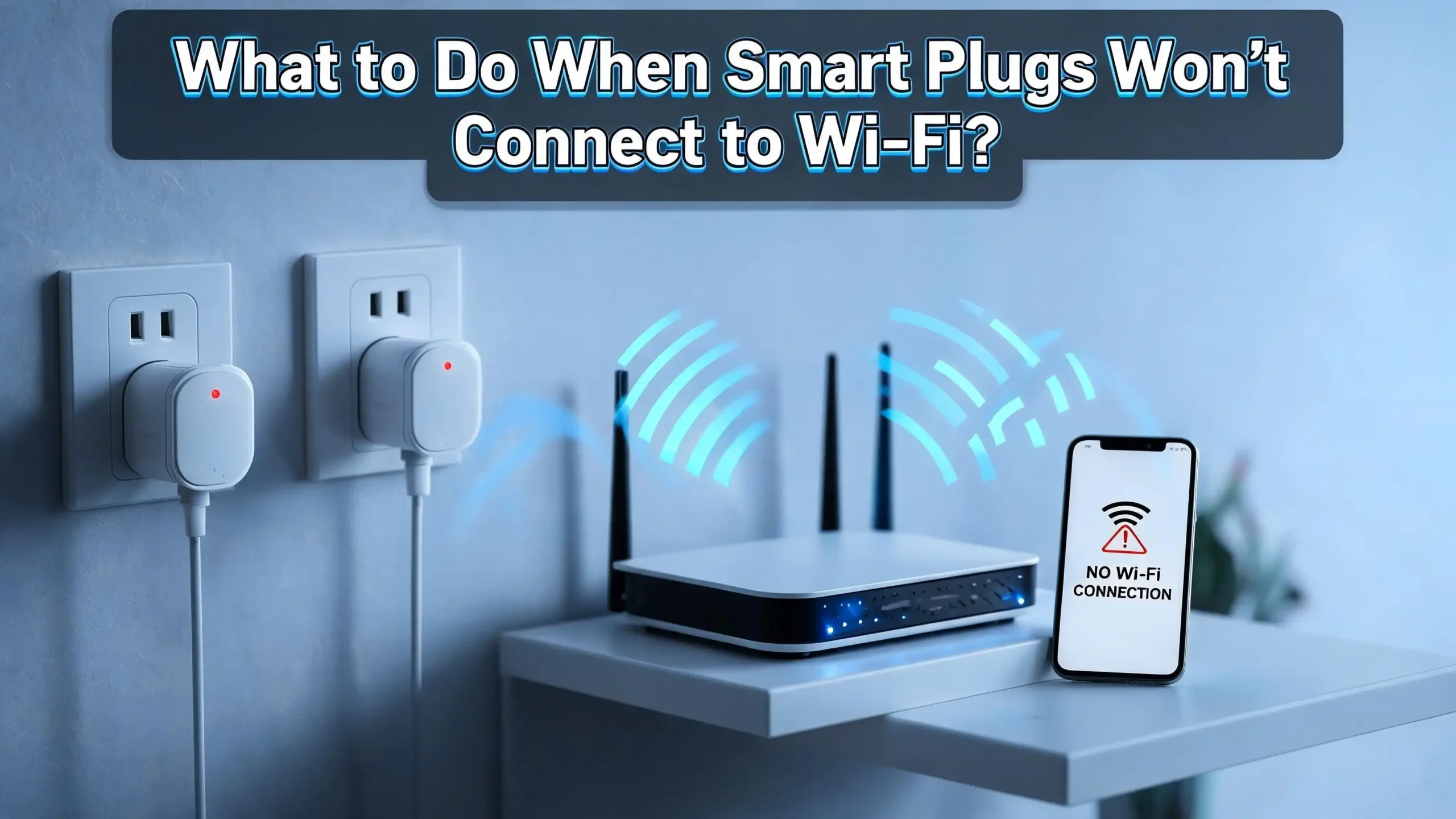
What to Do When Smart Plugs Won’t Connect to Wi-Fi?
You just bought a smart plug, or maybe yours suddenly stopped working. You open the app, follow the steps, and nothing happens. The light blinks, the app spins, and the connection fails every single time.
This is one of the most common smart home frustrations people face, and the good news is that most of these problems have simple fixes.
This guide walks you through every possible reason your smart plug refuses to connect to Wi-Fi and gives you clear, step-by-step solutions that actually work.
Key Takeaways
- Most smart plugs only work on 2.4 GHz Wi-Fi networks, not 5 GHz. This single issue is the number one reason smart plugs fail to connect, and checking your network band first can save you a lot of time.
- A factory reset clears all stored network data from your smart plug. If your plug is stuck in a bad state, resetting it and starting fresh is usually the fastest path to a working connection.
- Your phone must be connected to the same Wi-Fi network you want to assign to the smart plug during setup. If your phone is on 5 GHz and your plug only supports 2.4 GHz, pairing will fail.
- Router interference, signal strength, and outdated firmware can all break a smart plug connection that previously worked fine. A router restart and a firmware update through the manufacturer’s app solve many recurring issues.
- App problems are more common than people think. A corrupted app cache, an outdated app version, or a missing permission (like location access) can silently block a successful pairing.
- Special router settings like AP Isolation, MAC filtering, and VPN configurations can prevent smart plugs from communicating with the network even when they appear to be connected to Wi-Fi.
Why Smart Plugs Struggle With Wi-Fi Connections?
Before jumping into fixes, it helps to understand why this problem is so common. Smart plugs are low-power IoT devices. They are built to stay connected using minimal processing power and simple network protocols.
Unlike smartphones or laptops, smart plugs do not handle complex network environments well. They cannot switch between Wi-Fi bands automatically. They cannot deal with strict router security policies. They rely on app-based pairing, which means any problem between your phone, your router, and the plug can stop the connection from forming.
The most reported causes of smart plug Wi-Fi failure include wrong Wi-Fi band selection, weak signal, outdated firmware, app pairing errors, incorrect router settings, and hardware faults. In most cases, the issue sits in your network or phone setup, not in the plug itself. That means you can almost always fix it without buying a replacement.
Check Your Wi-Fi Band First — 2.4 GHz vs 5 GHz
This is the single most common reason smart plugs refuse to connect, and it is always the first thing to check. The vast majority of smart plugs only support the 2.4 GHz Wi-Fi band. They do not work on 5 GHz networks, and they will not tell you clearly when this is the problem.
Most modern routers broadcast two separate networks. One runs on 2.4 GHz, which has longer range and better wall penetration. The other runs on 5 GHz, which is faster but covers less distance. If your phone is connected to the 5 GHz band during setup, the smart plug cannot complete pairing because it simply cannot see that network.
Here is what to do. Open your phone’s Wi-Fi settings and look at the network you are connected to. Many routers give their two bands the same name with either a “5G” or “2.4G” label at the end. If you see “HomeNetwork_5G,” switch to “HomeNetwork_2.4G” before starting setup.
If your router uses the same name for both bands (called band steering), you may need to log into your router’s admin panel and temporarily separate the two networks with different names. This gives your plug a clear target. Once setup is complete, you can merge the names again if you prefer.
Why does this matter so much? Because even if you think you are on the right network, your phone might auto-switch back to 5 GHz during the pairing process. Disable auto-switch or turn off 5 GHz temporarily to prevent this. This small change alone solves the problem for a large number of users.
Restart Everything Before Doing Anything Else
This step sounds too simple, but it solves a surprising number of connection failures. Network devices build up errors over time, and a fresh restart clears those errors completely.
Start with your router. Unplug it from the power outlet, wait a full 30 seconds, then plug it back in. Do not just press the restart button on the router if it has one. A full power cycle forces all internal memory to clear. Wait another 60 to 90 seconds after the router restarts before trying to connect your plug, since routers take time to fully re-establish their network.
Next, unplug your smart plug from the wall outlet. Wait at least 15 seconds, then plug it back in. This gives the plug’s internal processor a clean reset without erasing your settings.
Finally, close the smart plug app on your phone completely. On iPhone, swipe it away from the app switcher. On Android, use the recent apps button and close it. Then reopen the app and try the setup process again.
Many connection failures happen because one device is stuck in a bad state. Restarting the router, the plug, and the app together clears three potential problem points at once. If this does not work on its own, continue to the next steps with a clean starting point.
Move the Smart Plug Closer to Your Router
Distance and physical obstacles between your router and your smart plug can stop a connection from forming, especially during the initial setup process. During first-time pairing, your smart plug needs a strong, stable signal. A weak signal during setup can cause the pairing process to time out, even if the plug might work fine at that distance after it is connected.
Walk your router and plug through a simple signal test. Temporarily plug your smart plug into an outlet within 10 feet of your router. Remove any walls, furniture, or appliances between the two devices. Try the full setup process from this close distance.
If the plug connects successfully when it is close to the router but fails when placed in its intended location, you have a signal strength problem. The solution is either to move your router closer to the outlet, use a Wi-Fi range extender to boost the signal in that area, or use a mesh Wi-Fi system that provides more consistent coverage throughout your home.
Microwaves, cordless phones, and baby monitors all operate on the 2.4 GHz frequency. They can interfere with your smart plug’s signal, especially when they are actively running. If your plug is near any of these devices, try setting up the plug when they are turned off to rule out interference.
Perform a Factory Reset on the Smart Plug
If restarting and repositioning your plug did not work, a factory reset is your next move. A factory reset wipes all stored network data from the plug and returns it to its out-of-the-box state. This is especially helpful when a plug was previously connected to a different network or a different app.
The reset method varies by brand, but the general process is the same for most plugs:
- Locate the physical button on your smart plug. This is usually the main power button on the side or front of the device.
- Press and hold the button for 5 to 10 seconds. You will typically see the LED indicator blink rapidly to confirm that the reset is starting.
- Keep holding until the light changes behavior, usually switching from rapid blinking to a slower blink or a different color.
- Release the button. The plug is now in pairing mode, ready for a fresh setup.
For Amazon Smart Plugs specifically, hold the button for 12 seconds until the red LED turns on, then a blue LED blinks to confirm the reset is complete. For TP-Link Kasa plugs, holding for 5 seconds triggers a soft reset, while holding for 10 seconds performs a full factory reset.
After resetting, always use the manufacturer’s app to reconnect the plug from scratch. Do not try to reconnect from a previously saved device in the app. Delete the old device entry first, then add the plug as a brand-new device.
Understand Your Smart Plug’s LED Light Signals
Your smart plug communicates its connection status through LED blinking patterns. Reading the LED correctly tells you exactly what stage the plug is at and helps you decide what to do next.
A rapidly blinking blue or white light usually means the plug is in pairing mode and waiting for a connection. This is what you want to see when starting setup. A slowly blinking light often means the plug is trying to connect to a network but has not succeeded yet.
A solid blue or green light means the plug is connected and working correctly. A red light or a light alternating between red and blue typically signals an error. For Amazon plugs, a red light that stays solid after a reset attempt means you need to try the reset again.
If your plug’s light is completely off and does not respond to button presses, the issue may be a power problem rather than a network problem. Try a different outlet to rule out a dead wall socket before doing anything else.
Different brands use slightly different color codes. Check your plug’s manual or the manufacturer’s support page for exact meanings. Knowing what your LED is telling you prevents you from troubleshooting the wrong problem.
Fix Issues With the Smart Plug App
The app on your phone plays a critical role in the pairing process. App-related problems block smart plug connections more often than most people realize. Common app issues include outdated versions, corrupted cache data, and missing permissions.
Start by checking if your app has a pending update. Go to the App Store on iPhone or the Google Play Store on Android, search for your plug’s app, and install any available updates. Outdated app versions often have bugs that were fixed in newer releases.
Next, clear the app’s cache. On Android, go to Settings, then Apps, find your smart plug app, and tap “Clear Cache.” On iPhone, you may need to delete and reinstall the app since iOS does not have a direct cache-clearing option.
Check your app permissions carefully. Smart plug apps typically need location access to find your Wi-Fi network and Bluetooth to assist with pairing on some devices. If location permission is set to “Never” or “Ask,” the app may not be able to detect your network. Go to your phone’s app permissions and set location access to “Always” or “While Using the App.”
Also confirm that Bluetooth is enabled on your phone. Many newer smart plugs use Bluetooth as part of the initial handshake before switching to Wi-Fi. Without Bluetooth, some apps cannot even begin the pairing process.
Check Your Router’s Security and Advanced Settings
Your router has several security features that can silently block smart plugs from connecting. Most users never touch these settings, which is why this cause often goes unnoticed. The main settings to check are AP Isolation, MAC address filtering, and firewall rules.
AP Isolation (also called Client Isolation or Wireless Isolation) prevents wireless devices from communicating with each other on the same network. This feature is great for security in public Wi-Fi, but it breaks smart plug functionality. Log into your router admin panel, usually at 192.168.1.1 or 192.168.0.1 in your browser, and look for AP Isolation in the wireless settings. Make sure it is turned off.
MAC address filtering is another setting that blocks unknown devices. If your router only allows specific devices to connect based on their MAC addresses, your new smart plug will be rejected automatically. Find the MAC address on the label on the back of your plug, then add it to your router’s allowed device list.
Some routers also have firewall rules that block outgoing connections from IoT devices. Smart plugs need to reach external servers to complete their setup and function properly. Check your router’s firewall settings and ensure there are no rules blocking IoT devices or unfamiliar IP ranges.
Try AP Mode (Access Point Mode) for Setup
If your smart plug failed during the standard EZ Mode setup, switching to AP Mode (also called Access Point Mode) is often the fix that finally gets things working. AP Mode bypasses some network-level obstacles by creating a direct connection between your phone and the plug during setup.
In AP Mode, your smart plug creates its own temporary Wi-Fi network. Your phone connects to that temporary network directly. You then enter your home Wi-Fi details through the app, and the plug uses that information to connect to your home network. Once connected, the plug drops its temporary network.
To activate AP Mode, start the device pairing process in your smart plug app. When the app shows the EZ Mode option, look for an option to switch to AP Mode. Tap it. The app will instruct you to press the plug’s button a specific number of times until the LED blinks slowly instead of rapidly.
Follow the in-app instructions to connect your phone to the plug’s temporary Wi-Fi network. This appears in your phone’s Wi-Fi list as something like “SmartLife-XXXX” or a similar name. Once your phone connects to that temporary network, go back to the app and enter your home Wi-Fi password. The plug will then connect to your home network.
This method is more reliable for users with complex router setups or dual-band routers that cause problems during standard setup.
Update Your Smart Plug’s Firmware
Outdated firmware on your smart plug can cause persistent connection problems, especially after a router upgrade or an app update. Firmware is the internal software that runs your plug, and manufacturers regularly release updates to fix bugs and improve connectivity.
Most smart plug apps check for firmware updates automatically, but only when the plug is already connected to Wi-Fi. This creates a catch-22 situation: you need to connect to update, but you need to update to connect. In many cases, getting the plug connected through AP Mode or by moving it close to the router gives you the chance to run the update.
Once your plug is connected, open the manufacturer’s app and navigate to the device settings for your plug. Look for a “Firmware Update,” “Software Update,” or “Check for Updates” option. Tap it and follow the prompts.
Do not unplug your smart plug while a firmware update is in progress. Interrupting a firmware update can permanently damage the plug’s internal software. Make sure your plug is in a stable outlet and your router is working reliably before starting an update.
After the update installs, the plug usually restarts automatically. Give it about 60 seconds to come back online. If it connects after the update, the firmware was likely the root cause of your original problem.
Check for IP Address Conflicts and DHCP Issues
Your router assigns a unique IP address to every device on your network through a process called DHCP. When two devices share the same IP address, or when the router runs out of available addresses to assign, smart plugs can fail to connect or drop off the network.
If you have many devices on your home network (phones, tablets, computers, smart TVs, game consoles, and other smart home devices), your router’s DHCP address pool may be exhausted. Most home routers are configured to hand out a limited range of addresses, such as 192.168.1.2 through 192.168.1.50.
Log into your router’s admin panel and check the DHCP settings. Expand the range of available IP addresses if it is small. Also look at the list of currently connected devices. If you see the same IP address assigned to two different devices, you have a conflict that needs to be resolved.
Another helpful fix is to assign a static IP address to your smart plug. This gives the plug a permanent address and prevents it from competing with other devices. You do this through your router’s DHCP reservation settings, using the plug’s MAC address as the identifier. Once reserved, the router always gives that specific plug the same IP address.
Make Sure Your Wi-Fi Password Is Correct
This might seem like an obvious point, but entering the wrong Wi-Fi password is one of the most common reasons smart plug setup fails. The tricky part is that the app usually does not tell you clearly that the password was wrong. Instead, it times out and shows a generic “connection failed” message.
Wi-Fi passwords are case-sensitive. A lowercase “a” and an uppercase “A” are treated as completely different characters. Double-check every character as you type your password into the app. Use the “show password” option if your app offers it.
Watch out for commonly confused characters. The number “0” and the letter “O” look similar. The number “1” and the letter “l” (lowercase L) can also be hard to tell apart. If your password includes any special characters like “@,” “!” or “$,” make sure you are entering them correctly on a mobile keyboard.
If you are unsure of your exact Wi-Fi password, log into your router’s admin panel or check the sticker on the back of your router for the default password. Alternatively, on a Windows PC that is already connected to the network, go to Network Settings, find your Wi-Fi network, and view the security key to confirm the password.
Consider VPN and Network Isolation Settings
Many users run VPN apps on their phones without realizing how much they affect smart plug setup. If your phone is connected to a VPN during the smart plug pairing process, the app may not be able to see your local Wi-Fi network correctly, causing the setup to fail.
Turn off any active VPN on your phone before attempting to set up or reconnect your smart plug. Go to your phone’s settings, find the VPN section, and disconnect or disable any active VPN profile. Then restart the setup process from the beginning.
Guest networks are another common cause of smart plug issues. Some users connect their smart plug to a router’s guest network for security reasons. While this works for some devices, many smart plug apps require the phone and the plug to be on the same network to communicate. If your phone is on the main network but the plug is on the guest network, the app may not detect the plug at all.
Keep both your phone and your smart plug on the same main Wi-Fi network during setup. After the plug is connected and working, you can experiment with guest network settings if isolation is a priority for you.
When to Contact Manufacturer Support or Replace the Plug
If you have tried every step in this guide and your smart plug still will not connect, there are two remaining possibilities. Either the plug has a hardware defect, or there is a network-specific issue that requires direct support.
Signs of a hardware defect include:
- The LED light does not respond to any button press, even after trying multiple outlets.
- The plug resets fine but never enters pairing mode, no matter how many times you try.
- The plug connects to Wi-Fi but immediately drops the connection every time.
- The plug generates heat, makes noise, or smells unusual.
If any of these apply, the plug likely has an internal fault. Contact the manufacturer’s customer support with your purchase receipt. Most reputable brands offer a one-year warranty and will send a replacement for defective units.
Before contacting support, collect key information: your plug’s model number, the app version you are using, your router brand and model, and a description of the exact step where the process fails. This speeds up the support process significantly.
If the plug is out of warranty and the manufacturer cannot help, consider testing it on a completely different Wi-Fi network, such as a mobile hotspot. If it connects to the hotspot but not your home network, the problem is with your router configuration rather than the plug itself.
Prevent Future Connection Problems With These Simple Habits
Once your smart plug is connected and working, a few simple practices will keep it running reliably for the long term. Prevention is always easier than troubleshooting.
Keep your smart plug app updated at all times. Developers regularly release fixes for connectivity bugs, and running an outdated app exposes you to known problems that are already solved in newer versions.
Assign your smart plug a static IP address through your router’s DHCP reservation feature. This prevents IP conflicts as more devices join your network and ensures your plug always has a stable network identity.
Avoid placing your plug near microwave ovens, cordless phone bases, or Bluetooth speakers that operate on the 2.4 GHz frequency. Consistent interference from these devices can cause your plug to drop its connection repeatedly over time.
Restart your router once a month. This clears accumulated connection tables and refreshes the network environment. Many routers also allow you to schedule automatic weekly restarts, which you can set and forget. Keeping your router’s firmware updated is equally important, as router manufacturers regularly fix bugs that affect IoT device compatibility.
FAQs
Why does my smart plug keep blinking and not connecting?
A rapidly blinking LED means your plug is in pairing mode but has not yet connected to a network. This usually happens because the plug cannot find the correct Wi-Fi band, the password entered was wrong, or the app pairing process timed out. Make sure your phone is connected to a 2.4 GHz network, reset the plug by holding the button for 5 to 10 seconds, and try the setup process again from the beginning.
Can a smart plug work on a 5 GHz Wi-Fi network?
Most smart plugs are designed only for 2.4 GHz Wi-Fi networks. A small number of newer models support both 2.4 GHz and 5 GHz, but these are less common. Check your plug’s specifications on the box or the manufacturer’s website. If it is 2.4 GHz only, connect your phone to the 2.4 GHz band before running the setup.
Why did my smart plug suddenly stop connecting after working fine?
This usually happens after a router change, a Wi-Fi password update, or a network name change. The plug’s stored network credentials no longer match your current network. Perform a factory reset on the plug and run the setup process again using your current Wi-Fi details. Also check if your router received a firmware update that changed security settings.
How do I know if my router is blocking my smart plug?
Signs that your router is blocking your smart plug include the plug entering pairing mode correctly but always timing out during the final connection step. Log into your router admin panel and check for AP Isolation being enabled, MAC address filtering being active, or firewall rules that restrict IoT devices. Disabling these settings usually resolves the issue.
Do smart plugs work with mobile hotspots?
Yes, smart plugs can connect to mobile hotspots in most cases, as long as the hotspot broadcasts on 2.4 GHz. Connecting a smart plug to a mobile hotspot is actually a useful diagnostic step. If the plug connects to the hotspot but not your home router, the issue is with your router’s settings rather than the plug itself.
How long does it take for a smart plug to connect to Wi-Fi?
The pairing process typically takes between 30 seconds and 2 minutes under normal conditions. If your app is still showing a loading screen or a “connecting” status after 3 minutes, the process has likely failed. Cancel the process, restart the plug and the app, and try again. A successful connection is usually indicated by the LED changing from rapid blinking to a slow blink or a solid light.
Does resetting a smart plug delete my automation settings?
Yes, a factory reset erases all stored data on the plug, including network credentials and any automation routines tied to the device. However, automations stored within the app (like schedules on Google Home, Amazon Alexa, or the manufacturer’s app) are saved to the cloud and can be reassigned once you reconnect the plug. You will simply need to re-pair the plug as a new device and relink it to your automations.

Hi, I’m Hana! I’m a tech lover who geeks out over software, gadgets, and all things digital. I started UniConverterBox to help everyday people navigate the overwhelming world of tech with honest reviews, clear comparisons, and simple guides. Got questions? I’m always happy to help!