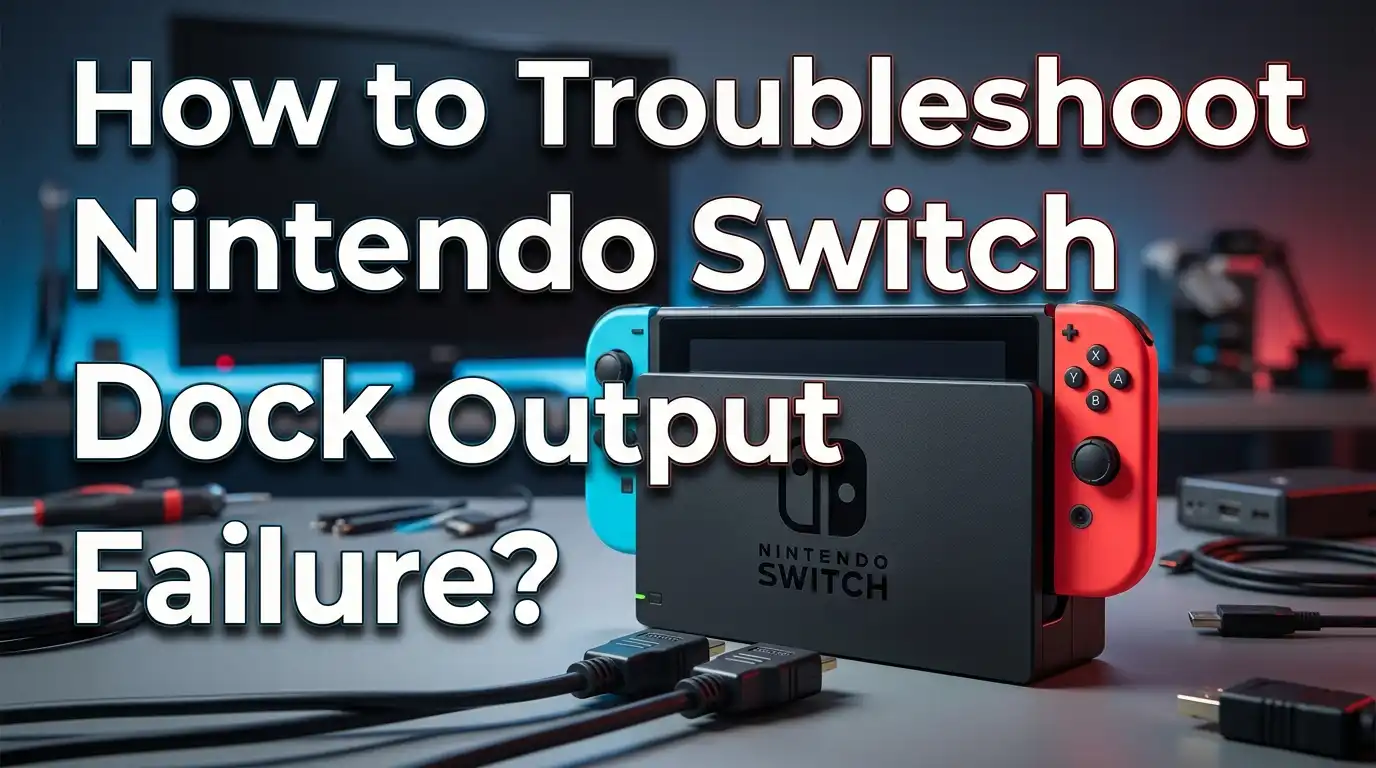
How to Troubleshoot Nintendo Switch Dock Output Failure?
Your Nintendo Switch dock should send the picture straight to your TV. But sometimes you slide the console in, and the screen stays black. The green light glows, the console charges, yet nothing shows up on your television. This problem frustrates many Switch owners, and it usually has a simple cause.
Dock output failure happens when the dock charges your console but fails to display the game on your TV. The good news is that most cases come from loose cables, wrong cable order, bad HDMI ports, or skipped firmware updates. You can fix the majority of these issues at home in minutes.
This guide walks you through every step. You will learn how to test your console, check your cables, reset the hardware, and spot real damage. Each section gives you clear actions you can follow right away. Let’s bring your big screen gaming back to life.
Key Takeaways
- The green light only means charging. It does not confirm video output. A glowing light with a black TV is a common and fixable issue.
- Cable order matters a lot. Always plug in the AC adapter first, then the HDMI cable, then the console. Wrong order causes many failures.
- Use the official Nintendo AC adapter. Third party chargers often fail to trigger TV mode. The dock needs enough power to send video.
- A simple power cycle fixes most cases. Unplug everything for 30 seconds, then reconnect in the right order. This clears stuck states fast.
- Check the HDMI port and cable next. Swap the cable, change the TV port, and test another TV. These quick swaps reveal the weak link.
- Firmware and damage are the deeper causes. Update your console and dock, then inspect for bent pins or a loose USB-C port if nothing else works.
Understand What Dock Output Failure Really Means
Dock output failure sounds scary, but the meaning is simple. Your dock fails to pass the video signal from your console to your TV. The console may still charge. The TV may still turn on. Yet the game never appears on the big screen.
Many people confuse charging with video output. These are two different jobs. The dock has one job to keep your console powered. It has a second job to send picture and sound through the HDMI cable. One job can work while the other fails.
The green light on the dock only tells you about power. It does not promise video. When you see the green light but a blank TV, the power path works while the video path does not. This narrows your search.
Output failure can come from many sources. The cable might be loose. The HDMI port might be dead. The console might sit at the wrong angle. The firmware might be outdated. The USB-C connection inside the dock might be damaged.
Knowing the real problem helps you fix it faster. You will not waste time replacing parts that work fine. Instead, you will test each link in the chain one at a time. The next sections show you exactly how to do that, starting with the easiest checks.
Confirm Your Console Works in Handheld Mode First
Before you blame the dock, test the console alone. This step rules out a broken screen or a dead console. If the console works in your hands, the problem lives in the dock or the cables.
Take the console out of the dock. Press the power button on the top left edge. Wait a few seconds for the home screen to appear. If you see your games and menus, the console runs fine.
If the screen stays black in handheld mode, the issue is not the dock. Your console may need charging or service. Plug the AC adapter directly into the console and wait fifteen minutes. Then try the power button again.
A working handheld mode is a strong sign. It tells you the console hardware and screen are healthy. Now you can focus all your attention on the dock setup and the TV connection.
While the console is out of the dock, check the battery icon. A very low battery can stop the console from booting. Let it charge until you see at least one bar.
This simple test saves hours of guessing. Many users panic and assume their console died, when really only the dock connection failed. Confirm handheld mode works, then move on to the cable and power checks below with confidence.
Check the Power Order When You Connect the Dock
Cable order is one of the biggest hidden causes of dock failure. Nintendo recommends a strict order, and skipping it can break the video signal. Follow this sequence every time you set up the dock.
First, open the back cover of the dock. Plug the AC adapter into the top port labeled AC ADAPTER. Then plug the adapter into a wall outlet directly, not a power strip if you can avoid it.
Second, plug the HDMI cable into the port labeled HDMI OUT. Connect the other end to your TV. Make sure both ends click in fully. A loose end is enough to kill the picture.
Third, turn on your TV and pick the right HDMI input. Only after these steps should you slide the console into the dock. Docking the console last gives the dock time to set up the power and video paths.
Many users dock the console before plugging in power. This order can confuse the dock. The dock then fails to switch into TV mode, and you get a blank screen with a green light.
If your screen is blank right now, try the full reset of order. Pull out the console, unplug both cables, then reconnect in the exact sequence above. This small fix solves a surprising number of cases. Take your time and confirm each connection feels firm.
Power Cycle the Dock and Console Together
A power cycle clears stuck states inside your hardware. This is the single most effective fix for dock output failure. It costs nothing and takes under a minute.
Start by powering off your TV completely. Then disconnect every cable from the dock. Remove the HDMI cable and unplug the AC adapter from both the wall and the dock. Take the console out too.
Now leave everything unplugged for at least 30 seconds. This pause lets the small electrical charge inside the dock drain away. That drain is what resets the stuck state.
After 30 seconds, reconnect in the correct order. Plug the AC adapter into the dock and the wall first. Next, connect the HDMI cable to the dock and the TV. Then power on the TV and select the right input. Finally, place the console in the dock.
Watch the TV closely after you dock the console. Within a few seconds, the Nintendo logo or your home screen should appear. If it does, your problem is solved.
A power cycle works because electronics sometimes freeze in a bad mode. The dock might get stuck thinking it is still in a previous state. Cutting power forces a fresh start. If the first try does not work, repeat the cycle once more and wait a full minute this time. Patience often pays off here.
Inspect Your HDMI Cable for Damage
The HDMI cable carries your entire picture and sound. A damaged cable causes a black screen even when everything else works. This part is easy to overlook because cables look fine from a distance.
Pick up the cable and run your fingers along its full length. Feel for kinks, bends, or flat spots. Look closely at both metal connectors for bent pins or rust. Even small damage can break the signal.
Check where the cable meets the connector. This spot bends often and wears out first. If the rubber looks cracked or the connector feels loose, the cable is likely the problem.
The best test is a simple swap. Grab any spare HDMI cable from another device and try it. TVs, soundbars, and streaming sticks all use the same HDMI cables. Borrow one for a quick test.
If the borrowed cable shows your game, your old cable was the culprit. Replace it with any standard high speed HDMI cable. You do not need an expensive brand for the Switch.
Also make sure both ends sit fully in their ports. A cable can look connected while sitting slightly loose. Push each end in until you feel it seat firmly. Wiggle it gently to confirm it holds. Many blank screens come down to nothing more than a half plugged cable that just needs a firm push.
Test Different HDMI Ports on Your TV
Your TV has more than one HDMI port for a reason. One port can fail while the others work perfectly. This makes port testing a fast and useful step.
Look at the back or side of your TV. Most modern TVs have two to four HDMI ports. They carry labels like HDMI 1, HDMI 2, and HDMI 3. Note which port your dock uses right now.
Move the HDMI cable from your current port to a different one. Then use your TV remote to switch the input to match. If you moved the cable to HDMI 2, select HDMI 2 on the TV menu.
Watch for the picture to appear on the new port. If your game shows up, the old port was dead or faulty. Just keep using the working port from now on.
Some TV ports support special features. One port might be marked HDMI ARC or eARC. These ports sometimes behave differently with game consoles. Try a plain numbered port without the ARC label first.
Also double check that you picked the correct input on the TV. People often forget this simple step. Press the input or source button on your remote and cycle through each option. Give each input a few seconds to load. The Switch picture might be waiting on an input you have not selected yet. This tiny oversight fools many users every day.
Remove Any Extra Devices Between the Dock and TV
Extra devices in the chain can block your signal. Soundbars, AV receivers, and HDMI splitters often confuse the Switch dock. Removing them helps you find the true problem.
Many people route the dock through a soundbar or home theater system. The signal travels from the dock, into the soundbar, then out to the TV. Each extra step adds a chance for failure.
To test this, connect the dock straight to the TV. Skip the soundbar and any other box. Run the HDMI cable directly from the dock to a TV port. A direct connection removes all middle devices.
If the picture appears with the direct setup, one of those middle devices caused the block. The soundbar might not support the Switch resolution. The receiver might be set to the wrong input.
HDMI splitters and switches are common troublemakers. These small boxes let you connect many devices to one TV port. But cheap splitters often fail with the Switch handshake. Remove the splitter and test again.
Once you confirm the direct setup works, add devices back one at a time. Connect the soundbar, test the picture, then add the next device. This step by step approach shows you which device breaks the chain. You can then adjust its settings or replace it. Going slow here saves you from guessing later.
Use the Official Nintendo AC Adapter
The power adapter does more than charge your console. The dock needs the official Nintendo adapter to switch into TV mode. Many third party chargers fail this job.
The Nintendo Switch AC adapter carries the model number HAC-002. It delivers the exact power the dock needs to drive video output. Lower power adapters charge the console but cannot trigger the TV signal.
Many cheap USB-C chargers look the same but lack the right power profile. They charge slowly and never reach the level the dock requires. The result is a green light with no picture.
Check the label on your adapter for the HAC-002 number. If you see a different brand or no model number, this could be your problem. Borrow or buy the official adapter and test again.
This issue trips up people who lost their original adapter. They grab a phone charger or a laptop charger that fits. The plug fits, the console charges, but the TV stays black. The dock simply will not enter TV mode without proper power.
Phone and tablet chargers almost never work for docked play. The Switch dock uses a specific USB-C Power Delivery setup. Only adapters built for that standard will work. When in doubt, use the genuine Nintendo adapter that came with your console. It is the safest and most reliable choice for TV mode.
Update Your Nintendo Switch System Software
Outdated software can cause display problems. Nintendo releases updates that fix bugs and improve dock support. Keeping your console current prevents many issues.
To update, you need internet access. Take the console out of the dock and turn it on in handheld mode. Connect to your Wi-Fi network through the settings menu. A stable connection makes the update smooth.
Open System Settings from the home menu. Scroll all the way down to System. Then select System Update. The console checks for new versions and downloads any it finds.
Let the update finish completely before you dock the console. Do not turn off the console during the process. A broken update can cause worse problems than the original one.
Updates often include fixes for display and dock behavior. A past bug once stopped some consoles from showing on certain monitors. Nintendo patched it through a system update. Your issue might have a similar fix waiting.
After the update completes, dock the console again. Follow the correct cable order from earlier. Then check if the picture returns. Many users find their dock works fine right after a fresh update.
Make this a habit going forward. Check for updates every few weeks. Staying current keeps your console smooth and avoids future surprises. It only takes a few minutes and saves you from headaches down the road.
Update Your Dock Firmware if It Has a LAN Port
Some docks have their own firmware. Docks with a built in LAN port can receive updates separately from the console. Skipping this update can break TV output.
The newer Nintendo dock with a LAN port carries the model number HEG-007. This dock has a wired internet port on the back. That extra hardware needs its own software to run well.
If you own this dock, connect it to your console and the internet. The console will sometimes prompt you to update the dock. Follow the on screen steps and let the update run fully.
A dock with outdated firmware may fail to send video. This happens after the console gets a major update but the dock lags behind. The two pieces then stop talking to each other properly.
To check the dock firmware, go to your console system settings while docked. Look for any dock update prompt. Accept it and wait for the process to complete. Do not unplug anything during the update.
This step matters most for people with the LAN port dock. The standard dock without the LAN port does not need this. If your dock has no wired internet port, you can skip this section and move on.
Third party docks face their own firmware issues too. Some stopped working after console updates. If you use a non Nintendo dock, check the maker website for any firmware fix they offer.
Inspect the Dock USB-C Connector for Damage
The USB-C connector inside the dock is fragile. This connector carries both power and video, so damage here kills your output. A close look can reveal the problem.
Open the dock and look at the USB-C connector at the bottom. This is the part that touches your console. Check for bent pins, debris, or a connector that leans to one side.
Dust and lint often collect inside this connector. Use a flashlight to peer inside. If you see fluff or dirt, gently blow it out with a can of compressed air. Do not poke metal tools inside.
A pushed in or loose connector is a common failure point. Repeated docking wears it out over time. If the connector wobbles or sits crooked, it may not touch the console pins correctly.
The console screen must align with the front of the dock. When you slide it in, it should feel smooth and seat firmly. If it feels loose or tilts, the connection may break. Try holding the console steady against the connector while it sits in the dock.
Some users find that gentle pressure restores the picture. This points to a worn connector inside. While a small push helps short term, the connector likely needs repair for a lasting fix.
If the connector is clearly damaged or pushed in, home repair is hard. It requires soldering skills and special tools. At that point, a replacement dock or professional service is the safer path.
Try a Different Dock to Isolate the Problem
Sometimes the only way to confirm a bad dock is to swap it. Testing with a second dock tells you exactly where the fault lives. This step gives you a clear answer.
Borrow a working dock from a friend or family member. Many Switch owners have a spare. Set it up with your own console and cables.
Follow the correct setup order. Plug in the AC adapter, then the HDMI cable, then the console. Use the same TV and the same input you tested before.
If the borrowed dock shows your game, your original dock is the problem. This confirms the fault and saves you from blaming the console or the cables. You then know a replacement dock will fix things.
If the borrowed dock also fails, the problem lies elsewhere. The cables, the TV, or the console may be at fault. Go back and recheck those parts using the earlier steps.
This swap test removes all doubt. Many people waste money replacing the wrong part. A quick dock swap points you straight to the real cause.
When you confirm the original dock is dead, you have options. You can buy a genuine replacement dock or send the unit in for service. Either way, you now act with confidence instead of guessing. The swap test is one of the most useful checks in this whole guide.
Adjust the TV Resolution Settings on Your Console
Resolution mismatch can cause a black screen. Some TVs reject a resolution the Switch tries to send. Lowering the setting often brings the picture back.
To change this, you first need the console working in handheld mode. Open System Settings and find the TV Output section. Look for the TV Resolution option inside.
The Switch usually sets resolution to automatic. This works for most TVs. But older TVs or some monitors cannot handle the auto choice. They show a blank screen instead.
Try setting the resolution to 720p manually. This lower setting works with almost every display. If your TV showed nothing on auto, the lower setting may fix it instantly.
You can change this setting in handheld mode before docking. The change saves to the console. Then dock the console and check the TV. A picture at 720p is far better than no picture at all.
Once you see the game, you can experiment. Try raising the resolution to 1080p and check if the TV holds the signal. If it stays clear, keep the higher setting. If it goes black again, drop back to 720p.
This step helps most with budget monitors and older televisions. Modern 4K TVs rarely need it. But if your screen is older or unusual, the resolution fix is worth a quick try before you give up.
Know When to Contact Nintendo for Service
Some problems need expert hands. When home fixes fail, professional service is the right move. Knowing when to stop saves you time and money.
You have tried the power cycle, the cable swaps, and the firmware updates. You have tested a second dock and checked for damage. If the screen still stays black, the hardware likely needs repair.
Nintendo offers an online service request process. You describe the problem and send the unit in. They diagnose and fix or replace the faulty part.
A damaged USB-C connector inside the dock usually needs service. This repair requires soldering and special tools most people lack. Trying it yourself can cause more harm.
If your console fails in handheld mode too, send the console in along with the dock. A fault in both points to a deeper hardware issue that home steps cannot solve.
Before you send anything, gather your details. Note your console serial number and write down every step you already tried. This helps the service team work faster.
Check if your console is still under warranty. A warranty repair often costs nothing. Even out of warranty, the repair fee is usually less than a full replacement. Reach out through the official Nintendo support contact page. Describe your symptoms clearly, and let the experts handle the rest with confidence.
Frequently Asked Questions
Why does my dock show a green light but no picture on the TV?
The green light only means your console is charging. It does not confirm video output. A blank TV with a green light usually points to a loose HDMI cable, the wrong TV input, a bad HDMI port, or a dock that failed to enter TV mode. Try the power cycle and check your cable order first.
Can I use a third party charger with my Switch dock?
You can use one to charge the console, but it often will not work for TV mode. The dock needs the official Nintendo AC adapter, model HAC-002, to send video. Many third party chargers lack the right power profile. If your TV stays black, switch back to the genuine Nintendo adapter and test again.
How long should I leave the dock unplugged during a power cycle?
Leave everything unplugged for at least 30 seconds. This pause drains the small charge stored inside the dock and clears any stuck state. If 30 seconds does not work, try again and wait a full minute. Then reconnect in the correct order, with the AC adapter first, the HDMI cable second, and the console last.
Does my dock need a separate firmware update?
Only docks with a built in LAN port need their own update. This is the newer dock model HEG-007 with a wired internet port. Standard docks without that port do not need separate firmware. If you own the LAN port dock, connect it to the internet and accept any update prompt that appears on your console.
What should I do if a second dock also fails to show a picture?
If a borrowed dock also fails, your dock is likely not the problem. Check your HDMI cable, your TV port, and your console instead. Test the console in handheld mode to confirm it works. Then swap the HDMI cable and try a different TV input. The fault probably lives in one of those parts rather than the dock itself.
Is it safe to fix a damaged USB-C connector in the dock myself?
It is not easy for most people. The connector is soldered to a board inside the dock, and replacing it needs special tools and skill. A wrong move can cause more damage. If the connector is bent, loose, or pushed in, the safer choice is a replacement dock or professional service through Nintendo support.

Hi, I’m Hana! I’m a tech lover who geeks out over software, gadgets, and all things digital. I started UniConverterBox to help everyday people navigate the overwhelming world of tech with honest reviews, clear comparisons, and simple guides. Got questions? I’m always happy to help!