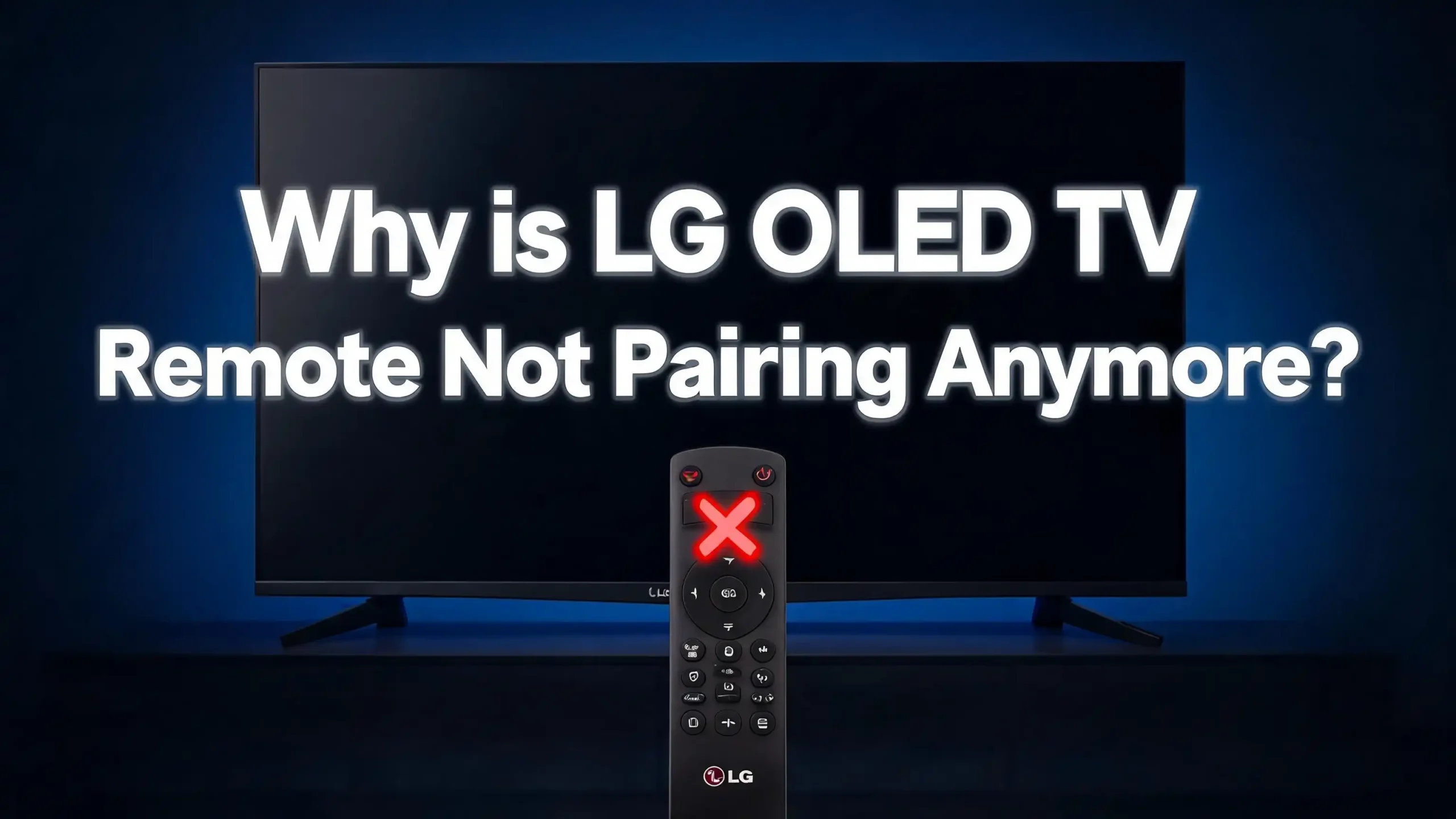
Why Is LG OLED TV Remote Not Pairing Anymore?
You grab your LG Magic Remote, press a button, and nothing happens. The TV just sits there, ignoring you. Maybe the pointer vanished from the screen. Maybe the remote worked fine yesterday but refuses to pair today. You are not alone. This is one of the most common frustrations LG OLED TV owners face.
The LG Magic Remote uses Bluetooth to communicate with your TV. That Bluetooth connection can break for several reasons. Dead batteries, software glitches, Bluetooth module errors, and even a recent firmware update can all cause the remote to stop pairing. The good news? Most of these issues have simple fixes you can do at home in minutes.
This post walks you through every possible reason your LG OLED TV remote stopped pairing and gives you clear, step by step solutions for each one. Read on to get your remote working again.
In a Nutshell
- Dead or weak batteries are the number one cause of LG Magic Remote pairing failures. The remote needs enough power to send a Bluetooth signal. Always start by replacing the batteries with fresh ones before trying anything else.
- A simple power cycle often fixes the problem. Unplug your LG OLED TV from the wall, wait 60 seconds, and plug it back in. This clears temporary Bluetooth glitches in the TV’s system and lets the remote pair fresh.
- Deregistering and re-registering the remote is the official LG fix. Press and hold the Home and Back buttons together for five seconds to unpair the remote. Then press the scroll wheel button to pair it again.
- The “Bluetooth service needs to be initialized” error means the TV’s Bluetooth module has crashed. A full power cycle with the TV unplugged for at least two minutes usually resolves this error.
- Not all Magic Remotes work with all LG TVs. Older Magic Remote models (like the MR600) may not be compatible with newer LG OLED TVs from 2022 or later. Check that your remote model matches your TV’s year.
- If nothing works, test the remote’s Bluetooth output using your smartphone. Deregister the remote, then press the OK button while scanning for Bluetooth devices on your phone. If “LGE MRXX” does not appear, the remote hardware may be faulty and needs replacement.
Dead or Weak Batteries Cause Most Pairing Failures
The LG Magic Remote relies on Bluetooth Low Energy to communicate with your TV. This Bluetooth signal requires sufficient battery power. When batteries run low, the remote may still power on and even turn the TV on using infrared. But it will not have enough energy to establish a Bluetooth connection.
Press any button on your remote. Look at the power LED at the top. If the LED does not light up, your batteries are dead. Even if the LED does light up faintly, the batteries may still be too weak for Bluetooth pairing.
Replace both batteries with brand new alkaline batteries. Do not mix old and new batteries together. Do not use rechargeable batteries unless they are fully charged, because rechargeable cells deliver slightly lower voltage.
Also inspect the battery compartment for signs of corrosion. White or greenish residue on the metal contacts means battery acid has leaked. Clean the contacts with a cotton swab dipped in white vinegar or isopropyl alcohol. Let the contacts dry completely before inserting new batteries. Corroded contacts create poor electrical connections and can prevent the remote from functioning even with fresh batteries.
How to Deregister and Re-register Your LG Magic Remote
LG’s official fix for pairing issues involves deregistering the remote and then pairing it again from scratch. This clears any corrupted Bluetooth pairing data stored in both the remote and the TV.
Here is the exact process. First, make sure your TV is turned on. You can use the physical power button on the TV itself if the remote cannot turn it on. Now pick up the Magic Remote and point it at the TV.
Press and hold the Home button and the Back button at the same time. Keep them pressed for at least five seconds. The power LED on the remote will blink three times. This confirms the remote has been deregistered.
Now wait a few seconds. Press the scroll wheel (OK button) on the remote while pointing it at the TV. A registration message should appear on the TV screen. The remote will pair automatically and the pointer cursor will appear.
If the remote does not deregister on the first attempt, try holding the buttons for a full 10 seconds. Some remote models (MR23, MR24) require a slightly longer hold. On much older models, you may need to press the Back button alone for five seconds instead.
Power Cycle Your LG OLED TV the Right Way
A quick power cycle can fix many Bluetooth and pairing glitches. But there is a right way and a wrong way to do it. Simply turning the TV off with the remote and back on again is not a proper power cycle.
Turn off the TV completely. Then unplug the power cord from the wall outlet. Do not plug it into a power strip and just flip the switch. Pull the actual plug from the wall. Now wait at least 60 seconds. Some users report that waiting a full two minutes produces more reliable results.
While the TV is unplugged, remove the batteries from the remote as well. This ensures both devices fully reset their Bluetooth modules. After the wait, plug the TV back in. Put the batteries back into the remote.
Turn the TV on using the physical power button on the TV, not the remote. Once the TV is fully booted to the home screen, press the scroll wheel on the remote to initiate pairing. This method works because unplugging the TV forces the Bluetooth module to reinitialize completely. Many users on LG forums have confirmed this exact sequence fixed their C3, C4, and G4 pairing issues.
The “Bluetooth Service Needs to Be Initialized” Error
Some LG OLED owners see a specific error message on their screen: “Bluetooth service needs to be initialized.” This message means the TV’s internal Bluetooth service has crashed or failed to start properly.
This error typically appears after a firmware update, a power outage, or when the TV has been left in standby mode for a long time. The TV’s webOS software manages the Bluetooth stack, and it can sometimes fail to load correctly.
The fix is straightforward. Turn off the TV. Unplug it from the wall. Wait a full five minutes for this particular error. The longer wait gives the TV’s capacitors time to fully discharge, which clears the Bluetooth module’s memory completely.
Plug the TV back in. Turn it on using the physical power button on the TV itself. Do not use the remote. Once the TV reaches the home screen, try pressing the scroll wheel on the remote to pair it. The error should disappear and the remote should register normally.
If the error persists after multiple power cycles, you may need to perform a network settings reset from the TV menu. Go to All Settings > General > Network > Reset Network Settings. This can sometimes clear Bluetooth conflicts without affecting your other preferences.
Firmware Updates Can Break Remote Pairing
LG pushes firmware updates to OLED TVs regularly. These updates sometimes introduce bugs that affect Magic Remote pairing. Several LG G4 and C4 owners have reported remote control issues immediately after installing a software update.
After a firmware update, the TV may change how it handles Bluetooth connections. The remote’s pairing profile can become outdated or incompatible with the new software. This forces you to manually re-pair the remote.
First, deregister and re-register the remote using the method described above. If that does not work, perform a full power cycle by unplugging the TV for two minutes.
If pairing still fails, check whether another update is available that patches the bug. Go to All Settings > General > About This TV > Check for Updates (you can use a USB keyboard or the LG ThinQ app to access the menu if the remote will not pair). LG often releases follow-up patches within a few weeks to fix these kinds of bugs.
You can also try disabling Quick Start+ in the settings. Go to All Settings > General > Devices > Quick Start+ and turn it off. This feature keeps certain TV services running in standby mode and can interfere with Bluetooth reinitialization after updates.
Check for Signal Interference Near Your TV
The LG Magic Remote uses Bluetooth operating at 2.4 GHz. Many other household devices also use this same frequency. Wi-Fi routers, wireless keyboards, baby monitors, microwave ovens, and other Bluetooth devices can all create interference.
If your remote paired before but suddenly stopped, a new device near your TV may be causing the problem. Think about what changed recently in your living room. Did you add a new wireless speaker? A new Wi-Fi mesh node? Even a new USB 3.0 device connected to the TV can generate 2.4 GHz interference.
Move other wireless devices away from the TV by at least three feet. Turn off nearby Bluetooth devices temporarily while you try to pair the remote. If possible, switch your Wi-Fi router to the 5 GHz band to reduce 2.4 GHz congestion.
Also make sure you are standing within 10 feet of the TV when attempting to pair. The Bluetooth signal from the Magic Remote is not very strong. Pairing from across a large room can fail even without other interference. Stand directly in front of the TV, about three to six feet away, for the best results during the pairing process.
Your Magic Remote May Not Be Compatible With Your TV
Not every LG Magic Remote works with every LG TV. LG releases new Magic Remote models each year, and older remotes may not support newer TVs. If you purchased a replacement remote or are using one from an older TV, compatibility could be the issue.
The Magic Remote MR600 was designed for 2016 LG TVs. The MR650 series covered 2017 models. The MR18, MR19, and MR20 each corresponded to their respective years. The MR21 through MR24 remotes support 2021 through 2024 LG TVs respectively.
If your TV displays the message “This remote is not supported on this TV,” you have a compatibility mismatch. The only solution is to get the correct Magic Remote model for your TV’s year.
Check your TV’s model number to confirm its year. The model number contains a letter code that indicates the year. For example, a model ending in “PUA” with “C3” in the name is a 2023 model. Match that year to the corresponding MR remote. Most LG Smart TVs from 2016 and newer running webOS support a Magic Remote, but you must use the right generation.
Use the LG ThinQ App as a Temporary Remote
While you troubleshoot your Magic Remote, you still need a way to control your TV. The LG ThinQ app is a free smartphone app that turns your phone into a remote control for your LG OLED TV.
Download the LG ThinQ app from the Google Play Store or the Apple App Store. Make sure your phone and your LG TV are connected to the same Wi-Fi network. Open the app and follow the prompts to add your TV.
Once connected, the app provides a full remote interface including a virtual touchpad that mimics the Magic Remote’s pointer function. You can change channels, adjust volume, open settings menus, and even use voice commands.
This is especially useful if you need to access the TV’s settings menu to reset network settings, check for firmware updates, or perform a factory reset. Without a working remote, these menus would be inaccessible unless you connect a USB keyboard and mouse to one of the TV’s USB ports. A USB keyboard is another backup option that works even without Bluetooth, since it connects through a wired USB connection.
Try a Full Factory Reset on Your LG OLED TV
If nothing else has worked, a factory reset clears all settings, apps, and configurations on your TV. This also completely resets the Bluetooth module and all pairing data. It is a last resort because you will need to set up your TV again from scratch.
You will need either the LG ThinQ app or a USB keyboard to access the reset menu, since your remote is not working. Once you have control, go to All Settings > General > System > Reset to Initial Settings. Confirm the reset when prompted.
The TV will restart and display the initial setup screen. During setup, it will prompt you to press the scroll wheel on your Magic Remote to register it. This fresh start often resolves persistent pairing issues because all old Bluetooth pairing data and software conflicts are wiped clean.
After the factory reset, do not immediately install firmware updates. First confirm that the remote pairs and works correctly. Then update the firmware. This approach helps you identify whether a firmware update was causing the problem in the first place. If the remote stops working again after updating, you will know the update is the culprit.
Test Your Remote’s Bluetooth With a Smartphone
LG recommends a Bluetooth test to determine whether your Magic Remote’s hardware is functioning. This test tells you if the remote is sending a Bluetooth signal at all. If it is not, the remote itself is likely broken.
First, deregister the remote from the TV by holding Home and Back for five seconds. Turn off the TV so it does not intercept the Bluetooth signal. Now grab your smartphone and open the Bluetooth settings.
Tap “Scan” or “Search for new devices” on your phone. While the phone is scanning, press the OK (scroll wheel) button on the Magic Remote. Watch your phone’s Bluetooth list carefully.
If the remote is working, a device called “LGE MRXX” (where XX is the remote model number) will appear in the list. Do not pair the remote with your phone. Just confirm it shows up. If it does appear, the remote hardware is fine and the problem is on the TV’s side.
If no LG device appears on your phone’s Bluetooth list, the remote’s Bluetooth transmitter is likely damaged. In this case, you will need a replacement remote. Contact LG support, as some users have received free replacements under warranty for this exact issue.
Disable Quick Start+ to Prevent Future Pairing Issues
Quick Start+ is a feature on LG OLED TVs that keeps certain services running even when the TV appears to be off. It makes the TV boot faster but also keeps the Bluetooth module in a semi-active state. This can cause conflicts over time that prevent the Magic Remote from pairing correctly.
Many LG OLED owners have found that disabling Quick Start+ permanently solved their recurring remote pairing problems. The TV takes a few extra seconds to boot, but the Bluetooth module initializes cleanly every time.
To disable Quick Start+, go to All Settings > General > Devices > TV Management > Quick Start+ and toggle it off. The exact menu path may vary slightly depending on your webOS version. On older models, it may be under All Settings > General > Quick Start+ directly.
After disabling this feature, turn off the TV, unplug it for 30 seconds, and plug it back in. Power on the TV and register the remote. With Quick Start+ disabled, the TV fully shuts down the Bluetooth module when powered off and restarts it cleanly on boot. This prevents the gradual Bluetooth corruption that causes pairing to fail after days or weeks of standby use.
When to Contact LG Support or Get a Replacement
If you have tried every fix in this guide and your Magic Remote still will not pair, the problem is likely a hardware defect in either the remote or the TV’s Bluetooth module.
Contact LG customer support through their website or by phone. Describe the troubleshooting steps you have already completed. This speeds up the process because the support agent will not ask you to repeat basic steps.
If your TV or remote is still under warranty, LG may provide a free replacement remote or arrange a service visit for the TV. Several users have reported receiving replacement Magic Remotes at no cost after explaining the issue to LG support.
If the TV itself has a faulty Bluetooth module, a technician may need to replace the Wi-Fi/Bluetooth board inside the TV. This is a relatively small circuit board and the repair is usually straightforward for a qualified technician. Out of warranty repairs for this component typically cost less than replacing the entire TV.
Before calling support, write down your TV model number, serial number, and the remote model number. Also note the firmware version currently installed on the TV. You can find this information on a sticker on the back of the TV or in the About This TV menu if you can access it through the ThinQ app.
Frequently Asked Questions
Why does my LG Magic Remote keep losing its pairing?
Recurring pairing loss is usually caused by the Quick Start+ feature or a firmware bug. Quick Start+ keeps the Bluetooth module in standby, which can corrupt pairing data over time. Disable Quick Start+ in your TV settings. Also check for firmware updates, since LG frequently patches Bluetooth related bugs. A full power cycle after disabling Quick Start+ often stops the recurring disconnections.
Can I use a regular IR remote with my LG OLED TV?
Yes, LG OLED TVs have an infrared sensor that accepts commands from standard LG IR remotes. You will lose features like the pointer cursor, voice control, and the scroll wheel. But basic functions like power, volume, channel changing, and menu access will work fine. This is a good temporary solution while you troubleshoot or replace your Magic Remote.
How do I know which Magic Remote model is compatible with my LG OLED TV?
Match the remote model year to your TV year. The MR21 works with 2021 TVs, the MR22 with 2022 TVs, the MR23 with 2023 TVs, and the MR24 with 2024 TVs. Check your TV’s model number on the back label. The model name usually includes the series (like C3 or G4) which tells you the year. LG’s support website also lists compatible accessories for each specific TV model.
Does a factory reset delete all my apps and settings?
Yes, a factory reset restores the TV to its original out of the box state. All installed apps, saved Wi-Fi passwords, picture settings, and account logins will be erased. You will need to go through the initial setup process again. Back up any important settings by taking photos of your preferred picture and sound configurations before performing the reset.
Why does my LG Magic Remote work for a few seconds after re-registering and then stop?
This specific symptom indicates a Bluetooth module conflict on the TV side. The remote hardware is fine, but the TV cannot maintain the connection. Perform a full power cycle by unplugging the TV for two minutes and removing the batteries from the remote. Plug the TV in, replace the batteries, power on the TV with the physical button, and then register the remote. Disabling Quick Start+ before doing this often resolves the issue permanently.
Can I pair my LG Magic Remote with a different LG TV?
Yes, a Magic Remote can be paired with a different compatible LG TV. Deregister it from the old TV first by holding Home and Back for five seconds. Then point it at the new TV and press the scroll wheel to register. The remote can only be paired with one TV at a time. Make sure the remote model is compatible with the new TV’s year and model.

Hi, I’m Hana! I’m a tech lover who geeks out over software, gadgets, and all things digital. I started UniConverterBox to help everyday people navigate the overwhelming world of tech with honest reviews, clear comparisons, and simple guides. Got questions? I’m always happy to help!