Why Is My Samsung Galaxy Watch 8 Sensor Not Tracking Sleep?
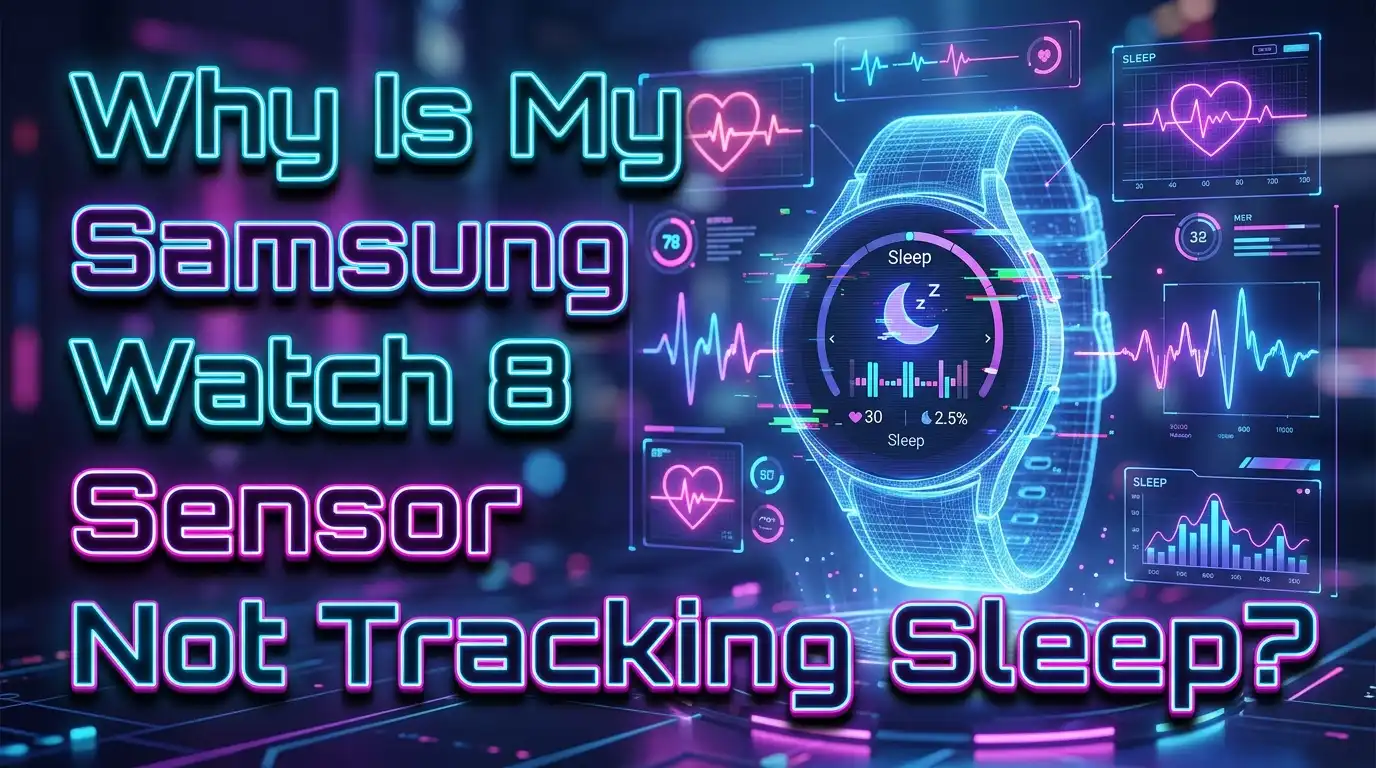
You went to bed wearing your Samsung Galaxy Watch 8, expecting to wake up with detailed sleep data. Instead, you found nothing. No sleep score. No sleep stages. Maybe just a partial recording that missed half the night. This is frustrating, especially when sleep tracking is one of the main reasons you bought the watch.
You are not alone. Thousands of Galaxy Watch users report the same problem. The watch either fails to detect sleep entirely, records the wrong sleep duration, or shows large gaps in the sleep graph. Sometimes it says you were awake when you were clearly asleep for hours.
The good news? Most of these problems have simple fixes. The issue usually comes down to sensor permissions, incorrect settings, a dirty sensor, a loose fit, or a software glitch. In this guide, you will find practical, step by step solutions that real users have tested and confirmed. Each fix targets a specific cause, so you can work through them quickly and get your sleep tracking back on track tonight.
Key Takeaways
- Sensor permissions are the most common cause. Many Galaxy Watch 8 users have fixed their sleep tracking by changing the Samsung Health sensor permission from “Allow only while in use” to “Allow all the time” in the watch’s Privacy settings. This single change has resolved the issue for a large number of people.
- A dirty or blocked sensor will give bad results. The BioActive sensor on the back of your Galaxy Watch 8 needs a clear path to your skin. Dust, sweat, lotion, or even a factory sticker left on the watch can block the sensor and prevent accurate readings.
- Watch fit and position matter more than you think. A loose watch cannot maintain consistent contact with your wrist. Wear the watch snugly, about one finger width above your wrist bone, for the best sensor readings during sleep.
- Power saving mode can limit sleep data. If your Galaxy Watch 8 is in power saving mode, it may restrict the sensors that track sleep stages. Disable power saving mode before bed or adjust its settings to allow health monitoring.
- Software updates and cache issues cause sudden failures. If sleep tracking stopped working after a software update, try clearing the Samsung Health cache on your watch. A simple restart or toggling power saving mode on and off can also reset the sensor.
- A factory reset is the last resort, but it works. If nothing else fixes the problem, a full reset of your Galaxy Watch 8 will restore all settings to default. Back up your data before doing this.
Check and Fix Samsung Health Sensor Permissions
This is the fix that solves the problem for the largest number of users. The Samsung Health app needs permission to access your watch’s sensors at all times, not just while the app is open. If this permission is set wrong, the watch cannot read your heart rate or movement while you sleep.
Here is how to check and fix this. Open the Settings app on your Galaxy Watch 8. Tap on Security and privacy. Then tap on Privacy, followed by Permission manager. Under Permission manager, tap on Sensors. Find Samsung Health in the list and tap on it. Select “Allow all the time.”
Many users discover that this permission was set to “Allow only while in use” by default or got reset after a software update. Since you are not actively using the Samsung Health app while asleep, the watch blocks sensor access. Changing this to “Allow all the time” gives Samsung Health the access it needs to monitor your sleep throughout the night.
After making this change, restart your watch and test it for one night. Several users on community forums have confirmed that this single fix completely restored their sleep tracking.
Clean the BioActive Sensor on the Back of Your Watch
The BioActive sensor on the bottom of your Samsung Galaxy Watch 8 uses green LED lights and other optical components to measure your heart rate and blood oxygen. If anything blocks these lights, the sensor cannot function properly during sleep.
Sweat, skin oils, dust, and lotion residue can build up on the sensor over time. Use a soft, slightly damp cloth to gently wipe the sensor area. Do this before bed each night for the best results. Avoid using harsh chemicals or abrasive materials that could scratch the sensor glass.
Here is something that sounds silly but has actually fixed the problem for several users: check for a factory sticker on the back of your watch. Some Galaxy Watch models ship with a small protective sticker or factory label on the underside. If you never removed it, it could be partially covering the sensor LEDs. One user reported months of sleep tracking failures that were instantly fixed by peeling off this forgotten sticker.
Also make sure your wrist is clean and dry before putting the watch on for sleep. Excess moisture or thick moisturizer between your skin and the sensor can interfere with the optical readings. A clean sensor and a clean wrist give you the most accurate sleep data.
Wear Your Watch Correctly for Sleep Tracking
How you wear your Galaxy Watch 8 has a direct impact on sleep tracking accuracy. The sensor needs consistent, firm contact with your skin throughout the night. If the watch slides around or sits too loosely, it will lose contact and create gaps in your sleep data.
Wear your watch snugly but comfortably. It should not pinch or leave deep marks, but it also should not slide freely on your wrist. A good rule is to position it about one finger width above your wrist bone. This area has better blood flow and fewer tendons that can interfere with the sensor.
Some users have found that switching the watch to their other wrist improved tracking accuracy. If you normally wear it on your dominant hand, try your non dominant hand, or vice versa. The amount of movement each wrist gets during sleep varies from person to person.
Tattoos on your wrist can also cause problems. Dark ink absorbs the green LED light that the sensor uses to detect blood flow. If you have wrist tattoos, try wearing the watch higher on your arm, above the tattooed area. Samsung has acknowledged that tattoos can affect sensor performance on Galaxy Watch devices.
If you use a third party watch band, make sure it holds the watch as securely as the original band. Loose or stretchy bands can cause the watch to shift during the night, breaking sensor contact.
Disable Power Saving Mode Before Sleep
Power saving mode on the Galaxy Watch 8 limits background processes to extend battery life. While this is helpful during the day, it can restrict or completely disable the health sensors that track your sleep.
Samsung’s own support page states that the watch may only record limited sleep data while in power saving mode. Some users report that their watch records no sleep data at all when this mode is active.
To disable power saving mode, go to Settings on your watch. Tap on Battery. Turn off the switch for Power saving mode. Make sure your watch has enough charge to last the night. A charge level of 30% or higher is usually sufficient.
If you rely on power saving mode because your battery drains fast, try a different approach. Charge your watch for 15 to 20 minutes before bed to top it off. Then turn off power saving mode just for the night. You can turn it back on in the morning.
Samsung also offers a specific fix for sleep tracking issues related to power saving mode. Toggle power saving mode on and then off again. This resets certain background processes and has fixed sleep tracking for some users without any other changes. Go to Settings, tap Battery, turn on Power saving, wait a few seconds, then turn it off again.
Set Your Sleep Schedule in Samsung Health
Samsung Health uses your sleep schedule to know when to start monitoring for sleep. If you don’t have a sleep target set, or if your target does not match your actual sleep times, the watch may miss part of your sleep or fail to detect it at all.
Open Samsung Health on your phone. Tap the Sleep widget on the Home tab. Tap the three vertical dots in the upper right corner. Select “Set target.” Tap the times inside the clock circle to set your bed time and wake time.
Set these times to match your real habits, with some buffer room. For example, if you usually go to bed around 11 PM and wake up at 7 AM, set your target from 10:30 PM to 7:30 AM. This gives the watch a clear window to actively monitor for sleep.
Night shift workers face a special challenge here. Samsung Health has limitations with non standard sleep windows. If you sleep during the day, you may need to adjust your sleep target to match your daytime sleep hours. Some users who work nights report that the watch fails to recognize daytime sleep as valid sleep data.
After setting your sleep target, wait at least three hours after your set wake up time before checking your sleep data. Samsung Health needs time to process and display the information accurately.
Enable Blood Oxygen and Continuous Heart Rate Monitoring
Your Galaxy Watch 8 tracks sleep stages using heart rate data and blood oxygen levels. If these features are turned off, the watch cannot distinguish between REM, light, deep sleep, and awake time. You might get a basic sleep duration, but it will lack detail and accuracy.
To enable blood oxygen during sleep, open the Samsung Health app on your watch. Swipe to Settings. Turn on the switch for “Blood oxygen during sleep.” This allows the watch to measure your SpO2 levels throughout the night.
Next, set your heart rate monitoring to continuous. Open Samsung Health on your watch. Go to Settings. Tap on Heart rate and select “Measure continuously.” This ensures the watch has a steady stream of heart rate data to calculate your sleep stages accurately.
Keep in mind that enabling these features will use more battery during the night. However, the difference is usually small. Most users report losing about 10 to 15 percent battery overnight with both features enabled. This is a worthwhile trade off for accurate sleep data.
If you had these features turned off and then turn them on, give the watch one or two nights to calibrate. The first night’s data might still look incomplete as the system adjusts to continuous monitoring.
Turn On Sleep Mode on Your Watch
Sleep mode (also called Bedtime mode) on the Samsung Galaxy Watch 8 does more than just silence notifications. It optimizes the watch’s behavior for sleep tracking by preventing accidental screen wake ups and reducing unnecessary sensor interruptions.
To enable Sleep mode, open the Settings app on your watch. Tap on Modes. Select Sleep mode. Toggle “Turn on now” if you are going to bed right away. You can also use the Schedule option to set Sleep mode to activate automatically at a specific time each night.
When Sleep mode is active, the screen stays off even if you move your wrist. This prevents the watch from misinterpreting arm movements as “awake” time. It also reduces battery consumption during the night, which helps the watch last through an entire sleep session.
Some users have found that activating Sleep mode resolved their tracking problems entirely. The watch seemed to “know” it should be monitoring sleep once this mode was active. Without it, the watch treated nighttime activity the same as daytime activity and sometimes failed to initiate sleep detection.
You can also connect Sleep mode to your smart home devices through the SmartThings app. This allows the watch to turn off lights or your TV when it detects you have fallen asleep. While this is not required for sleep tracking, it is a helpful bonus feature.
Clear Samsung Health Cache and Data
If your sleep tracking stopped working after a software update, or if the data looks corrupted with random gaps and incorrect times, clearing the app cache can fix the issue. This removes temporary files that may be causing conflicts without deleting your historical health data.
On your Galaxy Watch 8, swipe up to open the app drawer. Tap on Settings. Scroll down and tap Apps. Then tap “App list.” Find Samsung Health in the list and tap on it. Select Clear cache.
Do the same for the Health Platform app. This is the background service that Samsung Health depends on for sensor data collection. Clearing its cache can resolve issues that clearing Samsung Health alone does not fix.
After clearing the cache, restart your watch. Press and hold the Power button, tap the Power icon, and wait for the watch to shut down. Then press and hold the Power button again to turn it back on.
Some users have gone a step further and cleared the data for the Health Platform app. This resets the app to its default state and has resolved persistent sleep tracking failures. Be aware that clearing data is more aggressive than clearing cache and may reset some app settings.
Update Samsung Health and Watch Software
Samsung regularly releases updates to fix bugs and improve sensor accuracy. If you are running an outdated version of Samsung Health or your watch’s operating system, you might be affected by a known bug that has already been patched.
To update Samsung Health on your watch, swipe up to open the app drawer. Tap the Google Play Store icon. Scroll down and tap “Manage apps.” Then tap “Update all.” Wait for all updates to install and then restart your watch.
To update your watch’s software, open the Settings app on your watch. Scroll all the way down and tap “Software update.” Tap “Download and install.” Make sure your watch is connected to its charger and has location services turned on during the update.
Samsung has acknowledged sleep tracking bugs in certain One UI versions. In some cases, the company released specific patches to address inaccurate sleep data. Keeping your watch updated ensures you have the latest fixes.
After an update, your sleep tracking settings may reset. Go back through the permission and settings checks described earlier in this post to make sure everything is still configured correctly. Pay special attention to the sensor permissions, as updates sometimes revert these to default values.
Ensure Your Watch Stays Connected to Your Phone
Samsung Health on your Galaxy Watch 8 syncs sleep data with the Samsung Health app on your phone. If the Bluetooth connection between your watch and phone drops during the night, your sleep data may fail to sync or appear incomplete.
Before bed, open the Galaxy Wearable app on your phone and confirm that your watch shows as connected. If it shows disconnected, tap the Connect button and wait for the devices to pair again.
Keep your phone within Bluetooth range during the night. This usually means within about 30 feet (10 meters) of your watch. If you charge your phone in another room while you sleep, the connection may drop and affect data sync.
Low phone battery or low phone memory can also cause problems. Samsung’s support documentation notes that if your phone is low on memory or battery, it may not properly track or estimate health data. Plug your phone in overnight and close unnecessary background apps before bed.
If your sleep data is missing after a night where you know the watch tracked your sleep, try a manual sync. Open Samsung Health on your phone and pull down on the Home page to refresh. Tap the Sleep widget to check if the data appears after the refresh.
Respond to Samsung Health Sleep Notifications
Samsung Health sometimes sends notifications asking if you were asleep during certain hours. These notifications are important. The app uses your responses to learn your sleep patterns and improve tracking accuracy over time.
If the notification says you were asleep from 11 PM to 6:30 AM and that is correct, tap “Yes.” If the times are wrong, tap the option to input the correct time. This feedback helps Samsung Health calibrate its detection algorithm for your specific sleep behavior.
Many users ignore or dismiss these notifications without responding. This means Samsung Health never gets the feedback it needs to improve. Over time, the app’s ability to detect your sleep can actually get worse without this input.
The watch also learns from consistent behavior. If you go to bed and wake up at roughly the same times each day, the algorithm gets better at detecting your sleep. Irregular sleep patterns with wildly different bed times make it harder for the watch to know when you are actually sleeping versus just resting.
If you are not receiving these notifications, check that Samsung Health notifications are enabled on your phone. Go to your phone’s notification settings and make sure Samsung Health is allowed to send alerts.
Factory Reset Your Galaxy Watch 8 as a Last Resort
If you have tried every fix listed above and your Galaxy Watch 8 still refuses to track sleep properly, a factory reset is your final option. This will erase all data on the watch, including apps, settings, watch faces, and stored music. Back up your important data before proceeding.
To reset your watch, swipe up to open the app drawer. Tap Settings. Scroll down and tap General. Tap Reset. Tap NEXT and then confirm by tapping Reset again.
After the reset, your watch will restart and return to its initial setup screen. Pair it with your phone again through the Galaxy Wearable app. Reinstall Samsung Health and reconfigure all your sleep tracking settings from scratch.
Many users report that a factory reset completely resolves persistent sleep tracking issues. The reset clears out corrupted settings and data that accumulated over time or were introduced by buggy updates.
After the reset, go through all the steps in this guide. Set sensor permissions to “Allow all the time.” Enable blood oxygen and continuous heart rate monitoring. Set your sleep schedule. Turn on Sleep mode. Clean your sensor and wear the watch properly. This fresh start combined with correct settings should restore full sleep tracking functionality.
If sleep tracking still fails after a factory reset, the problem may be a hardware defect with the sensor itself. Contact Samsung Support or visit a Samsung service center to have your watch inspected and potentially replaced under warranty.
Frequently Asked Questions
Why does my Samsung Galaxy Watch 8 only track part of my sleep?
This usually happens because the watch loses sensor contact during the night or because the sensor permissions are set to “Allow only while in use.” Fix the permissions by going to Settings, Security and privacy, Privacy, Permission manager, Sensors, Samsung Health, and selecting “Allow all the time.” Also make sure the watch fits snugly on your wrist so the sensor maintains contact throughout the night.
Does power saving mode affect sleep tracking on the Galaxy Watch 8?
Yes, it does. Power saving mode limits background sensor activity, which can result in incomplete or missing sleep data. Samsung recommends turning off power saving mode before bed. You can also try toggling power saving mode on and then off again to reset the sensor processes.
How much battery does sleep tracking use on the Galaxy Watch 8?
With blood oxygen monitoring and continuous heart rate tracking enabled, most users report about 10 to 15 percent battery drain overnight. Make sure your watch has at least 30 percent charge before bed. A quick charge of 15 to 20 minutes before sleep is usually enough to get through the night.
Can wrist tattoos affect sleep tracking on a Samsung Galaxy Watch?
Yes. The optical heart rate sensor uses green LED light that can be absorbed by dark tattoo ink. This reduces the sensor’s ability to read your heart rate and blood oxygen. If you have wrist tattoos, try wearing the watch higher on your arm above the tattoo or on a different wrist that does not have ink.
Why did my Galaxy Watch 8 stop tracking sleep after an update?
Software updates sometimes reset app permissions and settings. Check that Samsung Health still has “Allow all the time” sensor permissions. Clear the cache for both Samsung Health and the Health Platform app on your watch. If the problem persists, Samsung may release a follow up patch. Keep your watch software updated and monitor community forums for known issues.
Should I factory reset my Galaxy Watch 8 to fix sleep tracking?
A factory reset should be your last resort after trying all other fixes. It erases everything on the watch and returns it to default settings. However, it is very effective at clearing corrupted data and resolving persistent software issues. Back up your data first, then reconfigure all settings carefully after the reset.

Hi, I’m Hana! I’m a tech lover who geeks out over software, gadgets, and all things digital. I started UniConverterBox to help everyday people navigate the overwhelming world of tech with honest reviews, clear comparisons, and simple guides. Got questions? I’m always happy to help!