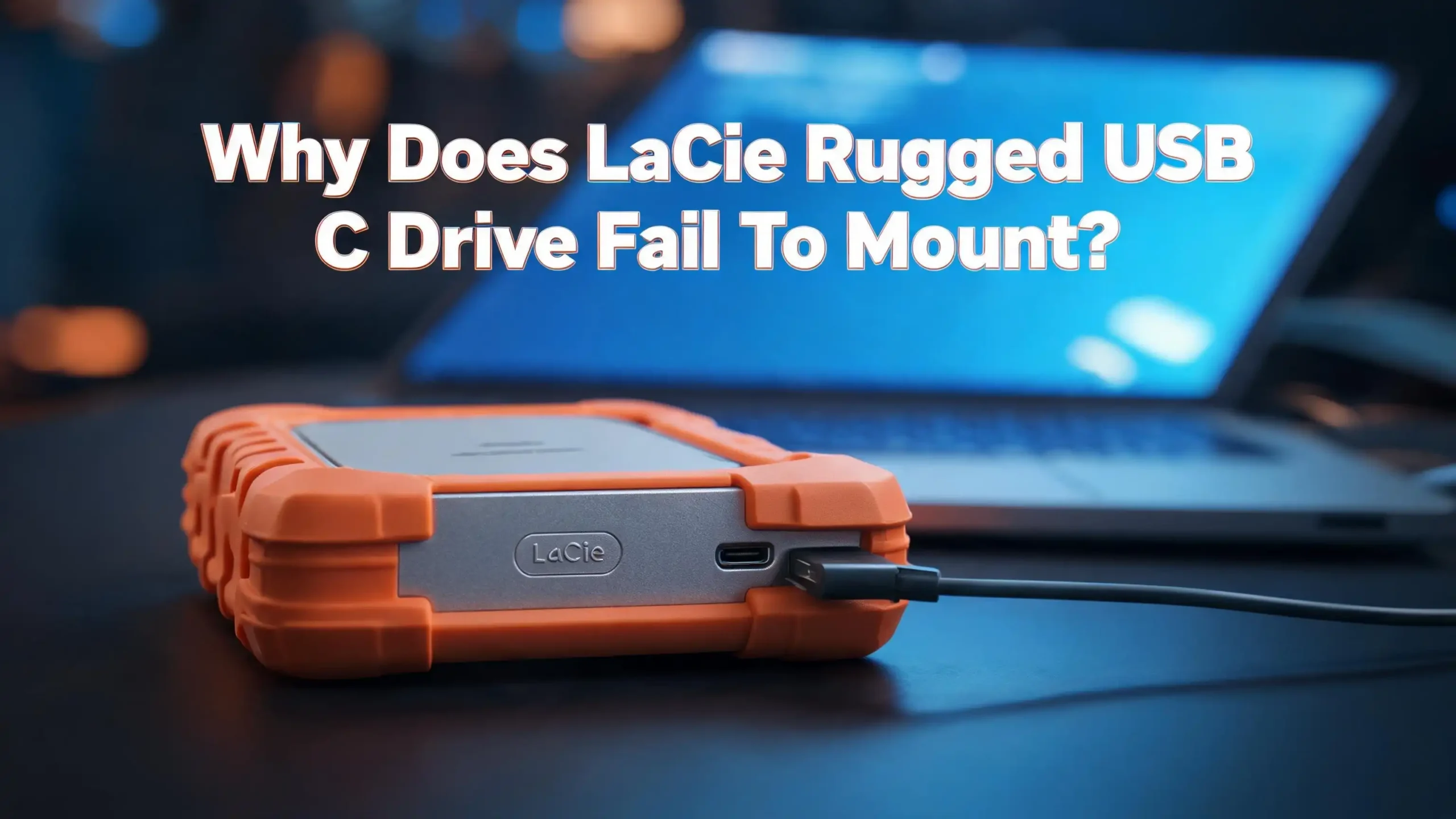
Why Does LaCie Rugged USB C Drive Fail To Mount?
The LaCie Rugged USB C is a popular external hard drive known for its durability and speed. Photographers, videographers, and professionals trust it to store critical files. So when it refuses to mount, panic sets in fast.
The good news? Most mounting failures have straightforward fixes. The problem could be as simple as a faulty cable or as involved as file system corruption. Either way, you can usually solve it without losing your data.
This guide walks you through every common reason your LaCie Rugged USB C drive fails to mount. You will get clear, step by step instructions to diagnose and fix the issue on both Mac and Windows.
Let’s dig into the causes and fixes so you can access your files again.
In a Nutshell
- Cable and port problems are the most common culprits. A damaged USB C cable or a malfunctioning port can prevent the drive from showing up entirely. Always test with a different cable and a different port before trying anything else.
- Your operating system may not recognize the file system. A drive formatted in APFS will not mount on Windows without third party software. Similarly, an NTFS drive may not fully mount on macOS without additional drivers.
- Disk Utility on Mac and Disk Management on Windows can reveal hidden drives. Sometimes the drive connects but does not appear on the desktop. These built in tools often show the drive and let you repair or reformat it.
- Corrupted partitions and file system errors cause frequent mount failures. Power loss during file transfers, unsafe ejection, and sudden disconnection can damage the drive’s file system. First Aid on Mac or CHKDSK on Windows can often repair these errors.
- Outdated drivers and firmware create compatibility issues. USB C technology continues to evolve. Old drivers or outdated drive firmware can block proper communication between the drive and your computer.
- Data recovery should come before any reformatting attempt. If your drive contains important files and will not mount, use data recovery software first. Reformatting erases everything and should only be a last resort.
Understanding Why Your LaCie Rugged USB C Drive Won’t Mount
A mount failure means your computer detects or fails to detect the drive but does not make it accessible. The drive might spin up. You might hear it click. But it never appears as a usable storage volume on your system.
Several layers of communication must work correctly for an external drive to mount. The USB C cable must deliver power and data. The port must function properly. The operating system must recognize the file system format. The drive’s partition table must be intact. And the drive’s internal hardware must be healthy.
A failure at any one of these layers stops the mounting process. The tricky part is figuring out which layer has the problem. That is why a systematic approach works best. You start with the simplest possibilities and work your way up to more advanced fixes.
LaCie Rugged drives use USB C connections, which adds another variable. USB C ports vary in capability. Some deliver full Thunderbolt 3 or 4 speeds. Others only support USB 2.0 data rates. A mismatched or underpowered port can cause erratic behavior, including mount failures.
Check Your USB C Cable and Port First
This is the simplest fix and the one most people overlook. USB C cables look identical on the outside but differ greatly in quality and capability. A cable that charges your phone may not support data transfer speeds required by the LaCie Rugged drive.
Try a different USB C cable first. Use the cable that came with the drive if possible. If you no longer have the original cable, choose one rated for USB 3.1 Gen 2 or Thunderbolt 3 data transfer. Cheap cables from unknown brands often lack proper shielding and fail under heavy data loads.
Next, try a different USB C port on your computer. If your laptop has two or more USB C ports, switch between them. Some ports share bandwidth with other components, and a busy port may not supply enough power to spin up the drive.
Also test the drive on a completely different computer. If the drive mounts on another machine, the issue is with your original computer’s port, drivers, or settings. If it fails on multiple computers, the problem is likely the drive itself or the cable.
Inspect the USB C connector on the drive for dust, lint, or visible damage. A compressed air canister can clear debris from the port. Bent or corroded pins inside the connector will require professional repair.
Verify the Drive Appears in Disk Utility or Disk Management
Your drive might actually be connected but invisible on the desktop. Both macOS and Windows have built in tools that show all connected storage devices, even ones that have not mounted properly.
On macOS, open Disk Utility from Applications > Utilities. Look in the left sidebar for your LaCie drive. If it appears there but is grayed out, the drive is connected but not mounted. Select the drive and click the Mount button at the top. If that works, your problem is solved.
If the drive appears but the Mount button does nothing, the file system may be damaged. You can try clicking First Aid to repair the drive. Disk Utility will scan for errors and attempt to fix them automatically.
On Windows, right click the Start button and select Disk Management. Look for your LaCie drive in the list of volumes. It may show up as “Unallocated,” “RAW,” or without a drive letter. If the drive appears without a letter, right click it and select Change Drive Letter and Paths. Assign a new letter and check if the drive becomes accessible.
If the drive does not appear in either tool, the connection between the drive and computer is not being established at all. Go back and recheck cables, ports, and try a different computer.
Run First Aid on Mac to Repair File System Errors
File system corruption is one of the leading causes of mount failures. This happens when data transfer gets interrupted. Pulling the cable out during a file copy, a power outage, or a system crash can all leave the file system in a broken state.
First Aid in Disk Utility is your first line of defense on macOS. Open Disk Utility, select your LaCie drive from the sidebar, and click First Aid. Then click Run. The tool will check the drive’s partition map, file system structure, and directory records for errors.
If First Aid finds and repairs errors, try mounting the drive again. In many cases, this single step resolves the problem entirely. The repaired file system allows macOS to read the drive and present it on your desktop.
However, First Aid does not always succeed. You may see a message that says “First Aid found corruption that needs to be repaired” but then fails to fix it. In that case, you have a more serious issue. The file system damage may be too extensive for basic repair.
Before you consider reformatting, try running First Aid a second time. Sometimes a second pass catches issues the first run missed. If it still fails, move on to data recovery options before erasing the drive.
Use CHKDSK on Windows to Fix Drive Errors
Windows users have a similar repair tool called CHKDSK. This command line utility scans a drive for file system errors and bad sectors. It works on drives formatted with NTFS or FAT32.
Open Command Prompt as an administrator. Type chkdsk X: /f /r and press Enter. Replace X with the drive letter assigned to your LaCie drive. The /f flag fixes file system errors. The /r flag locates bad sectors and recovers readable data from them.
The scan can take a long time depending on the drive’s size and the extent of the damage. Let it run to completion without interrupting it. Stopping CHKDSK mid scan can cause additional corruption.
If CHKDSK reports that it found and fixed errors, safely eject the drive and reconnect it. The drive should mount normally after the repair. If CHKDSK cannot access the drive at all, the drive may need to be reformatted or professionally repaired.
One important note: CHKDSK only works if Windows assigns a drive letter to the LaCie drive. If the drive shows up in Disk Management without a letter and you cannot assign one, CHKDSK will not help. You will need to explore other recovery options.
Update or Reinstall USB Drivers
Outdated or corrupted USB drivers prevent your computer from communicating with external devices properly. This is especially common after operating system updates. A major Windows update or macOS upgrade can sometimes break driver compatibility.
On Windows, open Device Manager by right clicking the Start button. Expand the Universal Serial Bus controllers section. Look for any entries with a yellow warning triangle. Right click the problematic entry and select Update driver. Choose the option to search automatically for updated driver software.
If updating does not help, try uninstalling the USB controller entirely. Right click it and select Uninstall device. Then restart your computer. Windows will reinstall the driver automatically during the reboot. This fresh installation often fixes corrupted driver files.
On macOS, driver issues are less common but still possible. Resetting the SMC (System Management Controller) and NVRAM/PRAM can resolve USB communication problems. For Apple Silicon Macs, a simple restart handles most of these resets automatically.
Also check if you have any USB hub or dock between the drive and computer. Hubs can introduce driver conflicts. Connect the LaCie drive directly to your computer’s USB C port to rule out hub related issues.
Check the Drive’s File System Format Compatibility
File system incompatibility is a silent but common cause of mount failure. The LaCie Rugged USB C often ships formatted in exFAT, which works on both Mac and Windows. But if someone reformats it, compatibility can break.
APFS and HFS+ are Mac only file systems. A drive formatted in either of these will not mount on Windows without third party software like Paragon or MacDrive. Similarly, NTFS is a Windows native file system that macOS can read but not write to by default. In some cases, macOS may refuse to mount an NTFS drive entirely.
If you know the drive was reformatted at some point, check its file system in Disk Utility or Disk Management. Disk Utility shows the format type next to the drive name. Disk Management shows it in the volume list.
The ideal format for cross platform use is exFAT. It supports large file sizes and works on Mac, Windows, and most Linux distributions. If you need to reformat, back up your data first and then erase the drive using exFAT as the format.
If you must use NTFS on a Mac or APFS on Windows, install the appropriate third party file system driver. This allows your operating system to read and write to the otherwise incompatible format.
Reset SMC and NVRAM on Your Mac
Sometimes the issue is not with the drive at all. Your Mac’s system management hardware can develop glitches that affect USB port behavior. Resetting the SMC and NVRAM clears these glitches and restores normal USB functionality.
For Intel based Macs, shut down the computer. Press and hold Shift + Control + Option and the power button simultaneously for 10 seconds. Release all keys and turn the Mac back on. This resets the SMC.
To reset NVRAM, restart the Mac and immediately press and hold Option + Command + P + R for about 20 seconds. Release the keys after the second startup chime or after the Apple logo appears and disappears twice.
For Apple Silicon Macs (M1, M2, M3, M4 chips), the SMC reset is built into the restart process. Simply shut down the Mac completely, wait 30 seconds, and turn it back on. NVRAM resets also happen automatically during a normal restart on these machines.
After the reset, connect your LaCie Rugged USB C drive and check if it mounts. Many users report that this simple step fixes persistent USB detection issues that other troubleshooting methods could not resolve.
Try Mounting the Drive Using Terminal Commands
If Disk Utility fails to mount your LaCie drive, the macOS Terminal offers more direct control. Terminal commands bypass the graphical interface and interact with the drive at a lower level.
Open Terminal from Applications > Utilities. Type diskutil list and press Enter. This command displays all connected disks and their partitions. Look for your LaCie drive in the list. Note its identifier, which looks something like disk2 or disk3.
Now type diskutil mountDisk /dev/disk2 (replace disk2 with your drive’s actual identifier). Press Enter. Terminal will attempt to mount all volumes on that disk. If successful, the drive will appear on your desktop.
If the mount command returns an error, try diskutil verifyDisk /dev/disk2 to check for problems. Then try diskutil repairDisk /dev/disk2 to fix any issues found. These commands are essentially what First Aid does, but running them through Terminal sometimes succeeds where the graphical tool fails.
Use extreme caution with Terminal commands. Targeting the wrong disk identifier can erase or damage your startup drive. Double check the identifier by comparing the disk size shown in diskutil list with your LaCie drive’s known capacity. A 2TB or 5TB entry is likely your external drive, not your internal system disk.
Recover Data Before Reformatting
If nothing else works and you are considering a reformat, stop and recover your data first. Reformatting erases all content on the drive. Any files you have not backed up will be lost permanently unless you extract them beforehand.
Several data recovery applications can read data from drives that refuse to mount. Disk Drill, R Studio, and Stellar Data Recovery are popular options that work on both Mac and Windows. These tools scan the drive at the sector level and reconstruct files even from damaged file systems.
Install the recovery software on your computer’s internal drive, not on the LaCie drive. Launch the application and select your LaCie drive from the list of available disks. Run a deep scan. This process can take several hours depending on the drive size, but it gives you the best chance of recovering all files.
Save recovered files to a different drive. Never recover data back onto the same drive you are scanning. Once you have confirmed that all important files are safe, you can proceed with reformatting the LaCie drive.
Professional data recovery services are another option if software tools fail. Companies like DriveSavers and Ontrack specialize in recovering data from physically damaged or severely corrupted drives. These services cost more but offer higher success rates for critical data.
Reformat the LaCie Rugged USB C Drive
Reformatting is the nuclear option. It wipes the drive clean and creates a fresh file system. This fixes almost every software related mounting issue, including corrupted partitions, damaged file systems, and incompatible formats.
On macOS, open Disk Utility and select your LaCie drive. Click Erase at the top of the window. Choose a name for the drive. Select exFAT as the format if you need the drive to work on both Mac and Windows. Select APFS if you only use Mac. Click Erase and wait for the process to complete.
On Windows, open Disk Management. Right click the LaCie drive’s volume and select Format. Choose exFAT or NTFS as the file system. Check the Quick Format box for a faster process. Click OK and confirm the action.
If the drive does not appear as a formattable volume, you may need to delete the existing partition first. In Disk Management, right click the drive and select Delete Volume. Then right click the resulting unallocated space and select New Simple Volume. Follow the wizard to create a fresh partition and format.
After reformatting, safely eject the drive and reconnect it. The drive should mount immediately with a clean, empty file system ready for use.
Check for Physical Damage or Hardware Failure
If your LaCie Rugged USB C drive still will not mount after all software fixes, physical damage may be the cause. Despite the drive’s rugged design, internal components can still fail over time.
Listen for unusual sounds when you connect the drive. Clicking, grinding, or beeping noises indicate mechanical failure inside the hard drive. These sounds mean the read/write heads or the motor are damaged. No software fix can resolve a mechanical failure.
Check if the drive feels unusually hot or if it vibrates erratically. Overheating can cause drives to shut down as a protective measure. Let the drive cool down completely and try again. If overheating persists, the internal components may be failing.
The LaCie Rugged USB C also has a built in USB C connector that can wear out over time. Frequent plugging and unplugging stresses the solder joints inside the housing. If the connector feels loose or wobbly, the internal connection may be broken. A professional repair technician can sometimes re solder or replace the connector.
For drives still under warranty, contact LaCie or Seagate support directly. They can arrange a replacement if the drive has a confirmed hardware defect. Keep your proof of purchase handy when making a warranty claim.
Prevent Future Mount Failures
Prevention saves you time and stress. A few simple habits will keep your LaCie Rugged USB C drive healthy and mounting reliably for years.
Always eject the drive properly before disconnecting it. On Mac, right click the drive icon and select Eject. On Windows, click the Safely Remove Hardware icon in the system tray. Pulling the cable without ejecting is the number one cause of file system corruption.
Keep your operating system and drivers updated. System updates often include fixes for USB compatibility issues and improved file system support. Set your computer to install updates automatically so you do not fall behind.
Avoid using the drive in extreme temperatures. The LaCie Rugged is built tough, but electronics still perform best at moderate temperatures. Very hot or very cold environments can cause temporary or permanent damage to internal components.
Store the drive in a protective case when not in use. Even though it has a rubber bumper, prolonged exposure to dust and moisture can degrade the USB C connector and internal seals.
Run periodic health checks on your drive. On Mac, use First Aid in Disk Utility every few weeks. On Windows, run CHKDSK periodically. Catching errors early prevents them from snowballing into mount failures.
Finally, maintain a backup of your drive’s contents. Use cloud storage or a second external drive. If your LaCie drive ever fails catastrophically, a backup ensures you never lose irreplaceable files.
Frequently Asked Questions
Why does my LaCie Rugged USB C drive spin but not mount?
A spinning drive that does not mount usually has a file system issue or driver problem. The hardware connection works because the drive receives power and spins up. But the operating system cannot read the file system. Open Disk Utility on Mac or Disk Management on Windows to check if the drive appears there. Run First Aid or CHKDSK to repair file system errors. If the drive still does not mount, the partition table may be damaged and a reformat might be necessary after data recovery.
Can a bad USB C cable cause a LaCie drive to not mount?
Yes. A damaged or low quality USB C cable is one of the most common reasons for mount failure. USB C cables vary in data transfer capability. Some only support charging or USB 2.0 speeds. Your LaCie Rugged drive needs a cable that supports USB 3.1 Gen 2 or Thunderbolt 3 for proper operation. Always test with the original cable or a known high quality replacement before assuming the drive itself is faulty.
How do I fix a LaCie drive that shows as unreadable on Mac?
When macOS shows a drive as unreadable, it usually cannot recognize the file system. Click Initialize to open Disk Utility. Try running First Aid on the drive. If First Aid fails, the drive may be formatted in a system macOS cannot read, like NTFS. Install an NTFS driver for Mac or reformat the drive to exFAT or APFS after recovering your data.
Is it safe to reformat my LaCie Rugged USB C drive?
Reformatting is safe for the drive itself but erases all stored data permanently. Only reformat after you have backed up or recovered all important files. Use data recovery software like Disk Drill or Stellar Data Recovery to extract files from a drive that will not mount. Once your files are safe, reformatting creates a clean file system and resolves most software related mounting issues.
How long does a LaCie Rugged USB C drive typically last?
Most external hard drives, including the LaCie Rugged USB C, last between three and five years with regular use. SSD versions may last longer because they have no moving parts. Drive lifespan depends on usage patterns, storage conditions, and how often the drive is connected and disconnected. Running periodic health checks and practicing safe ejection habits will help extend your drive’s useful life.

Hi, I’m Hana! I’m a tech lover who geeks out over software, gadgets, and all things digital. I started UniConverterBox to help everyday people navigate the overwhelming world of tech with honest reviews, clear comparisons, and simple guides. Got questions? I’m always happy to help!