How To Calibrate Touch Sensitivity On Ultra Thin Flexible Glass Screens?
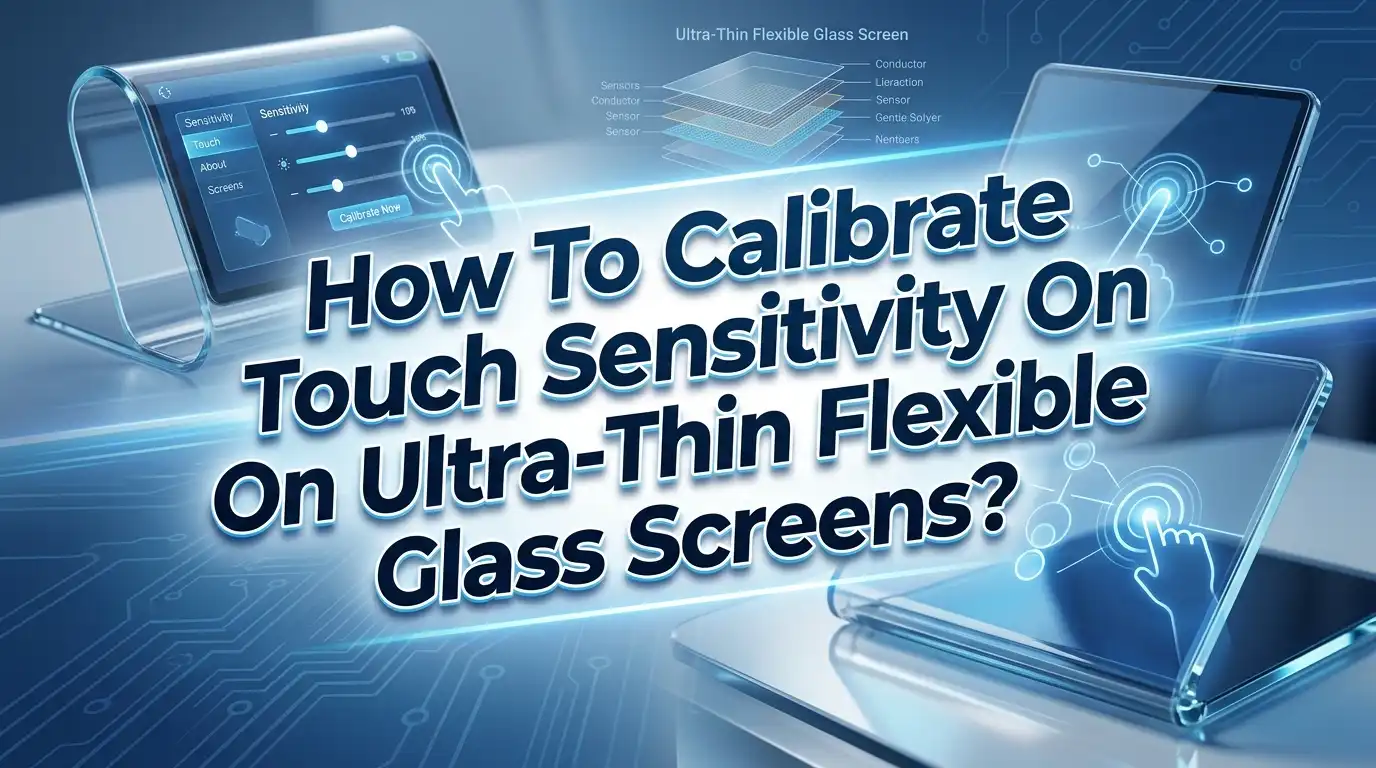
Ultra thin flexible glass screens have changed the way we interact with foldable phones, curved displays, and next generation devices. These screens use glass as thin as 30 micrometers, and they bend without breaking. But that same thinness creates a unique problem. Touch sensitivity can drift, lag, or become wildly inaccurate over time.
These issues frustrate millions of users around the world, and they are becoming more common as ultra thin glass (UTG) technology spreads across foldable smartphones and flexible displays.
The good news? Most of these problems have clear solutions. You can fix them at home without any special tools in many cases. This guide walks you through every practical method to calibrate, adjust, and restore touch sensitivity on ultra thin flexible glass screens.
In A Nutshell
- Ultra thin flexible glass screens require different calibration approaches than standard flat glass displays because their physical properties change with bending, temperature, and pressure. Here are the key points you need to know before reading further.
- Built in sensitivity settings exist on most modern devices. Samsung, Google, and other manufacturers include touch sensitivity toggles in their display settings. Turning this feature on is often the fastest fix for unresponsive screens on foldable phones.
- Third party calibration apps can help but have limits. Apps like Touchscreen Calibration by RedPi Apps (with over 5 million downloads) can reset your device’s touch profile. However, they cannot repair physical hardware damage.
- Environmental factors play a bigger role on flexible screens. Temperature shifts, humidity, and electromagnetic interference affect ultra thin glass more than standard screens. You may need to recalibrate after moving between extreme environments.
- Screen protectors and cases frequently cause touch problems. A thick or poorly installed screen protector creates a barrier between your finger and the digitizer. Removing it is a critical first diagnostic step.
- Factory reset is the last software option. If all other methods fail, a factory reset can eliminate deep software conflicts. But always back up your data first. If problems persist after a reset, you are likely dealing with hardware damage that needs professional repair.
What Is Ultra Thin Flexible Glass And Why Does It Affect Touch Sensitivity
Ultra thin flexible glass (UTG) is a special type of glass made thinner than a human hair. Companies like SCHOTT and Corning produce these glass sheets at thicknesses between 25 and 100 micrometers. Samsung Display introduced UTG in its Galaxy Z Flip series, replacing plastic film covers with glass that bends repeatedly without cracking.
This glass goes through a chemical strengthening process that increases its flexibility and impact resistance. The result is a screen cover that feels premium, resists scratches better than plastic, and allows clear optical performance.
But this extreme thinness creates a challenge for capacitive touch sensors. The digitizer layer sits directly beneath the ultra thin glass. Any change in the glass surface, such as bending pressure, temperature fluctuation, or added layers like screen protectors, alters how electrical signals travel between your finger and the sensor. Standard flat screens have a stable distance between the touch layer and your finger. Flexible screens do not.
This is why touch calibration matters more on UTG screens. The sensor must constantly adapt to changing physical conditions, and sometimes it needs your help to stay accurate.
Common Touch Sensitivity Problems On Flexible Glass Screens
Understanding the specific problem you face helps you pick the right solution. Flexible glass screens produce a few signature issues that differ from problems on standard flat displays.
Ghost touches are one of the most reported issues. Your screen registers taps or swipes you never made. This happens frequently near the crease area on foldable phones. Uneven pressure on the flexible display from the hinge mechanism or debris trapped inside the fold can trigger false inputs.
Dead zones appear as areas on the screen that do not respond to touch at all. On flexible glass, these often show up along the bend line or at screen edges where the glass curves. The digitizer in these areas may lose consistent contact with the glass layer.
Input lag is another frequent complaint. You touch the screen, and the response takes a noticeable fraction of a second. Temperature changes are a common cause, as capacitive sensitivity drops in cold conditions and rises in humid environments.
Offset touches occur when the screen registers your tap a few millimeters away from where you actually pressed. This calibration drift can develop after software updates, physical impacts, or long periods of use in folded positions.
How To Access Built In Touch Sensitivity Settings
The fastest fix for most touch sensitivity issues is a setting already on your device. Modern Android phones include a touch sensitivity toggle that adjusts how the digitizer reads your input. This setting was originally created for users with screen protectors, but it works well for flexible glass screens too.
On Samsung Galaxy devices (including the Z Fold and Z Flip series), go to Settings, then Display, and look for Touch Sensitivity. Toggle this option on. The screen will immediately increase how aggressively it scans for touch input, making it more responsive to lighter touches or touches through added layers.
On Google Pixel Fold and similar devices, the path is usually Settings, then Display, then Screen Protector Mode or Increase Touch Sensitivity. The exact name varies by manufacturer and software version.
If you cannot find this setting, try searching for “sensitivity” or “touch” in your device’s settings search bar. Some manufacturers bury this option under Advanced Features instead of Display.
Pros: Instant results, no downloads needed, completely reversible.
Cons: May increase accidental touches, does not fix hardware damage, limited adjustment range.
How To Use Developer Options For Touch Diagnostics
Before calibrating anything, you need to see exactly what your screen is registering. Android’s Developer Options include visual tools that display every touch point in real time.
To unlock Developer Options, go to Settings, then About Phone, and tap Build Number seven times. A confirmation message will appear. Now go back to your main Settings menu, open System, and find Developer Options.
Inside Developer Options, enable two settings. First, turn on Show Taps. This displays a small circle wherever the screen detects a touch. Second, enable Pointer Location. This adds a detailed overlay showing touch coordinates, pressure data, and movement tracking.
With both enabled, test your screen carefully. Tap every area of the display and watch for gaps, offsets, or phantom inputs. If you see taps appearing where you did not touch, you have confirmed ghost touch. If certain areas never register a tap, those are dead zones.
This diagnostic step is essential. It tells you whether the problem is software based (fixable at home) or hardware based (needs professional repair). Write down or screenshot the problem areas for reference.
Pros: Built into every Android device, provides visual proof, completely free.
Cons: Requires some technical comfort, does not fix anything on its own, visual overlay can be distracting during regular use.
How To Calibrate Using Third Party Apps
When built in tools fall short, third party calibration apps offer another layer of correction. These apps do not perform deep hardware calibration. Instead, they reset your device’s touch profile by gathering fresh data about how you interact with the screen.
The most popular option is Touchscreen Calibration by RedPi Apps. It has over 5 million downloads and a 4.1 star rating on Google Play. The app guides you through a series of taps, double taps, and swipes across different areas of the screen. After the tests, it resets the touch data and asks you to restart your device.
Another strong option is Touch Screen Test, rated at 4.4 stars. This app focuses more on diagnosis, showing multi touch tracking, pressure sensitivity, and drawing tests that help you identify problem areas.
Display Tester (4.3 stars) goes beyond touch and tests dead pixels, color accuracy, and screen uniformity alongside touch diagnostics.
To use any of these apps effectively, follow these steps. First, clean your screen thoroughly. Second, remove any case or screen protector. Third, run the app in a room with stable temperature. Fourth, follow every on screen instruction carefully. Fifth, restart your device after the process completes.
Pros: Easy to use, available for free, can resolve software glitches.
Cons: Cannot fix hardware damage, some improvement may be placebo effect, limited effectiveness on modern devices with auto calibration.
How Environmental Factors Impact Flexible Glass Touch Sensitivity
Ultra thin flexible glass reacts to environmental changes more dramatically than standard thick glass panels. Temperature, humidity, and electromagnetic interference all alter how the capacitive sensor beneath the glass performs.
In cold environments, the glass contracts slightly. This subtle physical change affects the gap between the touch layer and your finger. Capacitive sensitivity drops because cold air reduces the natural conductivity of your skin. Many users notice their foldable phones feel less responsive during winter months.
High humidity has the opposite effect. Moisture in the air can cause false capacitive readings, leading to ghost touches or jumpy inputs. The touch controller may interpret moisture on the screen surface as a finger press. Wiping the screen dry and moving to a less humid area often resolves this immediately.
Electromagnetic interference from nearby electronics, power lines, or industrial equipment can inject noise into the touch signal. The controller struggles to separate real touch input from electrical noise. If you experience erratic touch behavior near specific locations or devices, EMI is likely the cause.
To reduce these effects, avoid using your device in extreme temperatures when possible. Keep the screen dry in humid conditions. Move away from strong electromagnetic sources if you notice sudden touch irregularity.
Pros of environmental awareness: Prevents recurring problems, costs nothing, improves long term device health.
Cons: You cannot always control your environment, some conditions require waiting rather than an immediate fix.
How Screen Protectors And Cases Affect Touch Calibration
Screen protectors and cases are the most overlooked cause of touch sensitivity problems on flexible glass screens. A thick or poorly applied screen protector creates a physical barrier between your finger and the digitizer. This barrier weakens the capacitive signal, and the screen may not register light touches or fast swipes.
On foldable phones, this problem multiplies. The screen protector must flex along the crease, and any separation, air bubbles, or lifted edges will cause dead zones right where you need the screen to work most.
Cases that fit too tightly can apply pressure to the edges of a flexible display. This uneven force causes the glass to press against the digitizer at inconsistent depths. The result is phantom touches along the edges or complete unresponsiveness in areas where the case squeezes the frame.
To diagnose this, remove your screen protector and case completely. Test the bare screen using the Developer Options diagnostics described earlier. If the problems vanish, your accessory was the cause. Replace it with a thinner, better fitting alternative designed specifically for your device model.
For foldable phones, always use screen protectors approved by the manufacturer. These are made to match the specific bend radius and adhesive requirements of your device’s flexible glass.
How To Perform A Software Reset For Touch Calibration
Sometimes the touch system needs a clean slate. Android stores touch calibration data as part of its system cache. Corrupted cache files can cause persistent drift, lag, or offset touches that survive regular restarts.
The first step is a simple restart. Press and hold the power button and select Restart. This clears temporary memory and reloads touch drivers. Many intermittent issues vanish after a restart.
If restarting does not help, try clearing the system cache partition. This process wipes temporary system files without deleting your personal data. Boot into Recovery Mode by holding the Power and Volume Down buttons simultaneously (the exact combination varies by device). Select Wipe Cache Partition from the menu and confirm. Restart your device afterward.
The nuclear option is a factory reset. Go to Settings, then System, then Reset Options, and select Erase All Data. This returns your device to its original state and eliminates all software conflicts. Back up everything first. Your photos, apps, messages, and settings will be permanently deleted.
After a factory reset, test the touchscreen before reinstalling any apps. If the screen works perfectly on a fresh system but problems return after installing apps, a specific app is the cause. Reinstall apps one at a time to identify the culprit.
Pros: Resolves deep software conflicts, free, systematic.
Cons: Factory reset erases all data, time consuming, does not fix hardware issues.
How To Use Safe Mode To Identify App Conflicts
A misbehaving third party app can hijack your touch input and make it seem like a hardware problem. Apps with screen overlay permissions are frequent offenders. They draw invisible layers over your display that intercept or delay touch signals.
Safe Mode is Android’s built in diagnostic environment. It loads only the core operating system and disables all third party apps. To enter Safe Mode, press and hold the Power button until the power menu appears. Then tap and hold the Power Off option until the Safe Mode prompt shows up. Confirm and let your device restart.
Once in Safe Mode, test your screen thoroughly. Tap every area, swipe in all directions, and check for lag. If the touch problems disappear in Safe Mode, a third party app is the cause. Restart your device normally and begin uninstalling your most recently installed apps one by one until the problem stops.
Common app categories that cause touch issues include screen dimming apps, blue light filters, gesture navigation tools, and floating widget apps. These all use overlay permissions that can interfere with touch input on sensitive flexible glass screens.
Pros: Isolates app related issues without deleting data, built into Android, easy to reverse.
Cons: Does not identify the exact app automatically, requires patience and process of elimination.
How To Calibrate Touch Sensitivity On Windows Devices With Flexible Screens
Flexible glass screens are not limited to phones. Windows laptops, tablets, and 2 in 1 devices also use thin glass displays with touch functionality. Windows includes a built in calibration tool that offers more manual control than Android devices.
Open the Control Panel and go to Hardware and Sound, then Tablet PC Settings. Click the Calibrate button next to your display. The system will present a series of crosshair targets at various points across the screen. Tap the center of each target as accurately as possible.
After completing all calibration points, Windows will save a new touch profile. Test the results by opening different applications, drawing in a paint program, and tapping small interface elements. If accuracy has improved, the calibration was successful.
For Linux systems, the xinput_calibrator tool provides similar functionality from the command line. Run the calibrator, tap the four or more target points, and save the output to your system configuration file.
On Windows, you can also adjust touch sensitivity through the device’s BIOS settings on some models. Check your manufacturer’s support page for specific instructions. Updating BIOS firmware and video card drivers can also resolve calibration drift that appears after system updates.
Pros: Fine grained manual control, saves custom profiles, available on all Windows touch devices.
Cons: Requires periodic recalibration, not available on phones, calibration can degrade after system updates.
How Multi Point Calibration Improves Accuracy On Curved And Flexible Screens
Standard calibration uses four or nine points to map touch input. Multi point calibration uses 25 to over 100 points across the display surface. This creates a much more detailed map of how touch signals behave at every location on the screen.
On flexible glass screens, multi point calibration is especially valuable. The glass bends, and that bend changes the distance between the touch layer and the sensor at different positions. A four point calibration misses these variations. A 100 point calibration catches them all.
This technique is common in industrial and commercial displays but is now appearing in advanced consumer device firmware. Some manufacturers run multi point calibration during initial device setup. If your device supports it, look for advanced calibration options in your system settings or manufacturer’s diagnostic app.
The benefit is clear on large foldable displays and curved screens. Edges and corners receive accurate calibration instead of relying on interpolated data from distant calibration points. This eliminates the offset touches that commonly plague the outer zones of flexible screens.
Multi point calibration also accounts for parallax, the visual discrepancy between where you see the target and where the touch layer actually sits. On curved glass, parallax is more pronounced, and multi point mapping corrects for it.
Pros: Superior accuracy on curves and bends, reduces edge inaccuracy, handles parallax.
Cons: Takes longer to complete, not available on all consumer devices, may require specialized software.
How To Maintain Long Term Touch Accuracy On Flexible Glass
Calibration is not a one time event. Flexible glass screens change over time as the glass fatigues from repeated bending, environmental exposure alters sensor behavior, and software updates modify touch algorithms. Ongoing maintenance keeps your screen responsive and accurate.
Clean your screen regularly with a soft, lint free microfiber cloth. Oil, dust, and moisture create a film that weakens capacitive detection. Never use harsh chemicals, window cleaner, or abrasive materials. A slightly damp microfiber cloth handles stubborn smudges safely.
Keep your device’s software updated. Manufacturers release firmware patches that include touch controller improvements. These updates refine the algorithms that process raw touch data, reducing jitter, drift, and false inputs.
Avoid exposing your device to extreme temperatures for extended periods. Do not leave a foldable phone on a hot car dashboard or in freezing outdoor conditions. Temperature stress weakens both the glass and the adhesive layers that hold the display stack together.
For foldable phones, clean the hinge area periodically. Dust and debris that enter the hinge can press against the inner display, creating uneven pressure spots that cause touch irregularities. Use a soft brush or compressed air to gently clear particles.
Store your device unfolded when possible if you notice crease area touch problems worsening. Prolonged folded storage can increase stress on the bend point and degrade touch performance along the crease.
When To Seek Professional Repair For Touch Issues
Not every touch problem has a DIY solution. Hardware damage requires professional intervention, and continuing to use a damaged flexible screen can make the problem worse.
Seek professional repair if touch problems persist after a factory reset on a completely clean device. If the screen does not work correctly with no apps installed, no case, no screen protector, and freshly reset software, the digitizer or display assembly is almost certainly damaged.
Physical signs that indicate hardware failure include visible cracks (even hairline fractures), screen discoloration or bright spots, flickering, and a completely dead region that never responds to touch regardless of conditions or settings.
On foldable phones, hinge damage can cause display problems that appear as touch sensitivity issues. If your device’s hinge feels loose, grinds, or does not close flush, the inner screen may be under uneven mechanical stress. This requires repair by a certified technician.
Contact your device manufacturer’s support team or visit an authorized service center. Unauthorized repairs on foldable devices can void warranties and cause further damage to the delicate flexible glass and digitizer layers.
Pros of professional repair: Accurate diagnosis, genuine replacement parts, warranty protection.
Cons: Costs money, requires time without your device, availability varies by location.
Frequently Asked Questions
Can I calibrate a foldable phone’s touch screen at home?
Yes, you can perform basic touch calibration at home using built in settings, Developer Options diagnostics, and third party calibration apps. Most software related touch issues resolve with these methods. However, hardware damage to the flexible glass or digitizer requires professional repair. Start with the simplest fixes like restarting your device and toggling the touch sensitivity setting before moving to more advanced steps.
Why does my flexible screen feel less responsive in cold weather?
Cold temperatures reduce the natural electrical conductivity of your skin. Capacitive touch screens detect your finger by sensing changes in the screen’s electrical field. When your fingers are cold, they produce a weaker electrical signal, and the screen may not register light touches. Warming your hands or using capacitive compatible gloves typically solves this problem. Moving to a warmer environment restores full sensitivity.
Do screen protectors cause touch sensitivity problems on ultra thin glass?
Yes, screen protectors add a physical layer between your finger and the touch sensor. Thick or poorly fitted protectors are the most common cause of reduced sensitivity on flexible glass screens. Always use protectors designed for your specific device model, especially on foldable phones where the protector must flex along the crease without separating from the display surface.
How often should I recalibrate my flexible glass screen?
Most modern devices handle calibration automatically through their operating system. You do not need to recalibrate on a fixed schedule. Recalibrate only when you notice problems such as offset touches, dead zones, ghost inputs, or persistent lag. Events that may trigger the need for recalibration include major software updates, screen protector changes, physical impacts, and prolonged exposure to extreme environments.
What is the difference between touch calibration and touch sensitivity adjustment?
Touch calibration aligns the physical touch points on your screen with the corresponding digital coordinates. It fixes offset or drifting touches. Touch sensitivity adjustment changes how much input the screen needs to register a touch. Increasing sensitivity makes the screen respond to lighter touches, which is useful when using screen protectors or in cold conditions. These are two different settings that solve different problems.
Can electromagnetic interference affect my flexible screen’s touch accuracy?
Yes, electromagnetic interference (EMI) from nearby electronic equipment, power cables, or wireless transmitters can inject noise into the capacitive touch signal. The touch controller may interpret this noise as false touch input, causing ghost touches or erratic cursor behavior. Moving away from the EMI source, or turning off nearby devices that produce strong electromagnetic fields, usually resolves the issue immediately.

Hi, I’m Hana! I’m a tech lover who geeks out over software, gadgets, and all things digital. I started UniConverterBox to help everyday people navigate the overwhelming world of tech with honest reviews, clear comparisons, and simple guides. Got questions? I’m always happy to help!