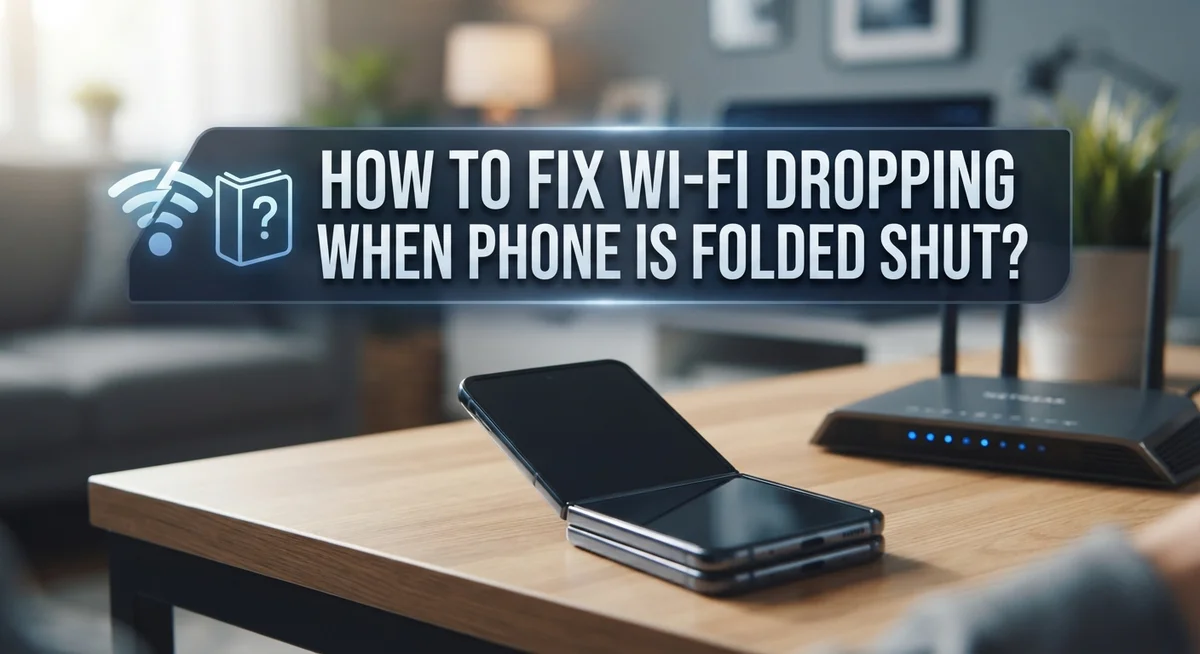
How To Fix Wi-Fi Dropping When Phone Is Folded Shut?
You fold your phone shut, and suddenly your Wi-Fi disappears. It’s frustrating, especially when every other device in your home stays connected just fine.
This is a known issue with foldable phones. The problem usually lies with the device itself, not your router. The folded position can interfere with how the phone’s antenna detects and holds a Wi-Fi signal.
The good news? Most of these fixes are simple and take just a few minutes.
In this guide, you will learn exactly how to troubleshoot and fix Wi-Fi dropping when your phone is folded shut. We cover everything from quick resets to checking battery-saving settings that could be quietly cutting your connection.
No technical experience is needed. Each step is clear and easy to follow. By the end, your foldable phone should stay connected whether it is open or closed.
In a Nutshell
- Wi-Fi dropping when folded is a phone issue, not a router problem. If only your foldable phone loses connection, the fault is with the device itself.
- The antenna position changes when folded. This can block or weaken the Wi-Fi signal inside the device.
- Battery-saving modes are a common culprit. These settings can cut Wi-Fi activity to save power, especially when the screen is off or the phone is closed.
- Simple resets fix most cases. Toggling Airplane Mode, restarting the phone, or forgetting and rejoining the network often solves the problem quickly.
- Your router may still need attention. A full power cycle (waiting at least 60 seconds) can rule out any network-side issues.
- Software updates matter. Outdated firmware or Wi-Fi drivers can cause unstable connections on foldable devices, so keeping your software current is important.
Why Does Wi-Fi Drop When a Foldable Phone Is Closed?
When you fold your foldable phone shut, the internal antenna position shifts. This physical change can block or weaken the Wi-Fi signal path inside your device. The antenna may face away from the router or get partially covered by internal components when the screen folds inward.
The folded position creates a signal obstruction. Your phone’s Wi-Fi chip still works, but it receives a much weaker signal. In some cases, the signal becomes so weak that your device cannot maintain the connection. This is why the problem happens consistently when folded but disappears when you open the phone again.
Battery saving modes make this issue worse. When your phone enters low power mode, it reduces Wi-Fi activity to conserve energy. A folded phone with low battery mode enabled loses connectivity even faster than normal.
Hardware design plays a role too. Different foldable models handle antenna placement differently. Some phones experience this problem every single time they fold. Others only drop Wi-Fi occasionally, depending on how close you are to your router.
The good news is this is a phone issue, not a router problem. Your Wi-Fi network works fine. Only your foldable device has trouble detecting it when closed. This means fixes focus on your phone’s settings and software, not your network equipment.
Understanding this root cause helps you choose the right fix. You will not waste time troubleshooting your router when the real problem sits in your phone’s antenna design and power settings. Most solutions involve simple adjustments you can make in seconds.
How To Tell If the Problem Is Your Phone or Your Router
The first step is figuring out whether your phone or router is causing the problem. This saves you time and points you toward the right fix.
Test with other devices first. Connect another phone, tablet, or laptop to your Wi-Fi network. If these devices stay connected without dropping, the issue is your phone, not your router. If multiple devices disconnect, your router needs attention instead.
Check if the problem happens only when folded. Open your foldable phone completely and use Wi-Fi normally for 10 to 15 minutes. If the connection stays stable, then fold it shut and wait another 10 minutes. If Wi-Fi drops only in the folded position, you have confirmed it is a phone issue.
Look at which networks drop. Does your Wi-Fi disappear on your home network but work fine on your phone’s mobile data? Does it disconnect from your office Wi-Fi too? If the problem happens on multiple networks, the issue is definitely your device.
Test your router separately. Restart your router by unplugging it for at least 60 seconds, then plug it back in. While it reboots, use your phone’s mobile data or another device on Wi-Fi. If everything works smoothly during the restart, your router is fine.
Note the timing and pattern. Does Wi-Fi drop immediately after folding, or after a few minutes? Does it reconnect automatically or stay disconnected? Write down these details. They help you identify whether the problem is hardware related, software related, or caused by power saving settings.
This quick diagnosis takes just 15 minutes and eliminates guesswork.
Quick Fixes: Toggle Airplane Mode and Restart Your Device
Toggling Airplane Mode is one of the fastest ways to reset your phone’s wireless connections. This simple action forces your device to drop all signals and then reconnect fresh.
Here’s how to do it. Swipe down from the top of your screen to open the control center. Find the Airplane Mode icon and tap it once to turn it on. Wait about 5 seconds, then tap it again to turn it off. Your phone will reconnect to Wi-Fi automatically.
Why this works: Airplane Mode clears temporary connection glitches that cause Wi-Fi to drop. It resets your phone’s wireless radio without affecting your data or apps.
Restarting your device is equally important. A full restart clears memory issues and refreshes all system processes that manage Wi-Fi connections.
To restart, hold down the power button until you see the shutdown screen. Tap “Power Off” and wait 10 seconds. Then press the power button again to turn your phone back on. Let it fully load before attempting to connect to Wi-Fi.
What happens during restart: Your phone clears temporary files, refreshes the Wi-Fi driver, and resets connection settings. This often fixes dropping issues that started suddenly.
If these two steps don’t work, try them again in combination. Sometimes you need to toggle Airplane Mode, then immediately restart the device. This double reset is more powerful than doing each step alone.
Important tip: Always wait for your phone to fully boot up before testing the Wi-Fi connection. Connecting too quickly after restart can cause the connection to fail again.
How To Forget and Reconnect to Your Wi-Fi Network
Forgetting and reconnecting to your Wi-Fi network is a proven way to fix connection drops on folded phones. This method clears old connection data that might be causing the problem.
Start by opening your Settings app. Look for the Wi-Fi section and find your network name in the list of connected networks. Tap and hold on your network name until a menu appears. Select the option that says “Forget” or “Remove.” Your phone will immediately disconnect from that network.
Wait about 10 seconds after forgetting the network. This pause lets your phone fully clear the old connection information from its memory.
Now reconnect to the same network. Open Wi-Fi settings again and look for your network name in the available networks list. Tap on it to select it. Your phone will ask you to enter your Wi-Fi password. Type it carefully and tap “Connect.”
Your phone should now connect with fresh settings. This removes any corrupted connection files that were causing drops when you folded the device.
Test the connection thoroughly. Fold your phone shut and wait a few minutes. Check if Wi-Fi stays connected or drops again. If it drops, unfold your phone and check if the connection returns automatically.
If the problem persists after reconnecting, try this process one more time. Sometimes your phone needs a second attempt to establish a stable connection. The key is being patient between each step and allowing your device time to process the changes.
This simple fix works because it gives your phone a clean slate with your network, removing any settings conflicts that trigger disconnections in the folded position.
How To Properly Power-Cycle Your Router
Power cycling your router is one of the most effective ways to fix Wi-Fi issues on your foldable phone. This process completely resets your router and clears any temporary glitches that might cause connection drops.
Here’s how to power cycle your router properly: First, locate the power cable connected to your router. Unplug it directly from the wall outlet or power strip. Do not use the power button on the router itself, as this does not fully reset the device.
Wait at least 60 seconds before plugging the router back in. This waiting period is critical because it allows the router’s internal systems to completely shut down and clear all temporary data. Many people make the mistake of plugging the router back in too quickly, which prevents a full reset.
Once you plug the router back in, wait another 2 to 3 minutes for it to fully restart. You will see lights on the router turn on, blink, and then stabilize. This indicates the router is back online and ready to use.
Why this matters for your folded phone: A power cycled router often fixes connection issues because it refreshes the network settings and clears any conflicts. Your foldable phone can now connect to a fresh network signal.
After the router restarts completely, test your Wi-Fi connection on your foldable phone. Fold your phone shut and see if the connection remains stable. If the problem persists, the issue likely stems from your phone itself rather than your router.
Power cycling should be your first step when troubleshooting Wi-Fi problems. It takes only a few minutes and solves many connection issues without requiring technical knowledge.
How Battery-Saving Modes Can Interfere With Wi-Fi and How To Disable Them
Battery saving modes actively reduce your phone’s power consumption. They do this by limiting background processes and network activity. Your Wi-Fi connection often suffers as a result.
When battery saver activates, your phone throttles the Wi-Fi adapter’s performance. This means the adapter uses less power but struggles to maintain stable connections. On foldable phones, this creates a double problem. The folded position already stresses your antenna. Add battery saver on top, and Wi-Fi drops become more frequent.
Your phone may also delay network scanning when battery saver runs. This causes your device to miss Wi-Fi signals entirely. You won’t reconnect automatically when you unfold your phone. Instead, you’ll see a disconnected status until you manually reconnect.
To disable battery saving modes, open your Settings app. Look for “Battery” or “Device Care” options. Find the battery saver or power saving mode setting. Tap it and select “Off” or “Disabled.” Some phones call this “Adaptive Battery” or “Optimized Battery Charging.”
Check your Wi-Fi settings separately. Go to Wi-Fi settings and look for “Wi-Fi Power Saving Mode.” This setting exists independently from general battery saver. Turn it off as well. This ensures your Wi-Fi adapter runs at full power constantly.
After disabling both modes, test your connection with your phone folded shut. Wait several minutes to confirm stability. Your Wi-Fi should remain connected now.
Keep battery saver disabled while troubleshooting. You can re-enable it later once you confirm the Wi-Fi works properly. This step eliminates a major interference source and often resolves dropping issues on foldable devices.
How To Update Your Device Software and Wi-Fi Drivers
Software and driver updates fix many Wi-Fi problems on foldable phones. Your device needs the latest files to work properly with Wi-Fi hardware.
Start by checking your device software version. Open Settings and scroll down to find “About Phone.” Look for a “Software Update” or “System Update” option. Tap it to see if your phone has newer versions available. If updates exist, download and install them right away. Your phone will restart during this process.
Wi-Fi drivers are small programs that control how your phone connects to networks. These drivers need updates just like your main software does. Go back to Settings and find “Developer Options.” You may need to tap “Build Number” seven times to unlock this menu. Once enabled, look for Wi-Fi related settings or system updates that include driver files.
After updating, restart your phone completely. Turn it off, wait 30 seconds, then turn it back on. This helps your phone load the new software correctly.
Test your connection by folding your phone shut and waiting a few minutes. Check if Wi-Fi stays connected. If problems continue, repeat the software update check. Sometimes multiple updates arrive in sequence.
Keep in mind that updates download faster on strong Wi-Fi connections. If your phone keeps dropping the signal, use a wired connection or visit a location with stable Wi-Fi to download updates. This prevents interruptions during installation.
Updates often solve folding related disconnects because manufacturers fix antenna and adapter issues through software patches. New drivers improve how your phone detects networks in different positions. Regular updates keep your device running smoothly.
Common Mistakes To Avoid When Troubleshooting Wi-Fi on Foldable Phones
Many people make simple mistakes when troubleshooting Wi-Fi problems on foldable phones. These errors delay fixes and waste your time.
The biggest mistake is blaming your router. Most people assume the Wi-Fi router is broken when their foldable phone drops connection while folded. Test this quickly by checking if other devices lose connection too. If your laptop, tablet, or computer stays connected, your router works fine. The problem lives in your phone, not your network.
Don’t skip the full restart. Some users toggle Wi-Fi off and on, then stop. This doesn’t work well. Your phone needs a complete power down and restart to clear temporary glitches that affect the Wi-Fi adapter. A simple toggle misses the deeper reset your device requires.
Avoid testing in the wrong position. Test your connection while your phone stays folded shut for at least five minutes. Many people check connection immediately after folding, before the antenna issue fully appears. Give your phone time to show the real problem.
Don’t forget to check software. Outdated software causes antenna and adapter problems on foldable phones. Skip this step and you miss critical fixes manufacturers released. Always update your device before trying other solutions.
Stop assuming it’s a hardware defect too quickly. Most folding Wi-Fi drops come from software issues, not broken parts. Exhaust all software troubleshooting steps first. Hardware problems are rare if your phone works fine in the unfolded position.
These mistakes keep people stuck in troubleshooting loops. Follow proper steps instead and you’ll fix the issue faster.
Final Thoughts
Wi-Fi dropping when your foldable phone closes shut is a frustrating but fixable problem in most cases.
Start with the simple steps first. Toggle Airplane Mode, restart your device, and forget then reconnect your Wi-Fi network. These basic actions clear most temporary glitches quickly.
If those steps don’t work, move to your router. Power it off for at least 60 seconds before turning it back on. A full power cycle resets the router’s connection table properly.
Battery saving modes are a hidden cause that many users overlook. Disabling them keeps your Wi-Fi adapter active even when your phone is folded shut.
Software updates matter more than most people think. Manufacturers push patches that fix antenna behavior and adapter issues specific to foldable designs. Always keep your device software current.
The key takeaway is this: isolate the problem first. Check whether other devices drop from the same network. If only your foldable phone disconnects, the issue lives on the device side, not the router side.
Most Wi-Fi dropping problems on foldable phones come from software conflicts, power management settings, or temporary adapter errors. These are all solvable without replacing any hardware.
Patience matters during troubleshooting. Some fixes need a few minutes to take effect after you apply them. Always test your connection while the phone stays folded shut for several minutes.
If every step in this guide fails, contact your device manufacturer’s support team. Describe exactly when the drop happens and which steps you already tried. That information helps them diagnose deeper issues faster.
Stay consistent with the fixes, and your connection should stay stable.
Frequently Asked Questions
Why does my foldable phone lose Wi-Fi when I close it?
When you fold your phone shut, the antenna position changes. The internal antenna may become partially blocked or repositioned. This physical change can interrupt the Wi-Fi signal strength. The issue is usually temporary and fixable through software adjustments rather than hardware damage.
Is my router the problem or my phone?
Test this quickly. Connect another device (tablet, laptop) to the same Wi-Fi network. If that device stays connected while folded or stationary, your router is fine. The problem is your phone, not your network. This test saves you time and points you toward the right solution.
What’s the fastest way to restore my connection?
Toggle Airplane Mode on for 10 seconds, then turn it off. This resets your phone’s connection without a full restart. If that fails, forget the network in your settings and reconnect by entering your password again. These two steps fix most temporary disconnects within minutes.
Should I restart my router too?
Yes, but do it correctly. Power off your router completely and wait at least 60 seconds before turning it back on. Many people restart too quickly. A full power cycle clears temporary glitches that might affect how your phone connects when folded. Wait for all lights to stabilize before testing.
Could a battery saving mode cause this?
Absolutely. Battery saving modes limit Wi-Fi power to extend battery life. Check your settings and disable these modes during troubleshooting. Your phone may reconnect immediately. Once you confirm this is the cause, you can decide whether to keep the mode enabled or adjust its settings.

Hi, I’m Hana! I’m a tech lover who geeks out over software, gadgets, and all things digital. I started UniConverterBox to help everyday people navigate the overwhelming world of tech with honest reviews, clear comparisons, and simple guides. Got questions? I’m always happy to help!