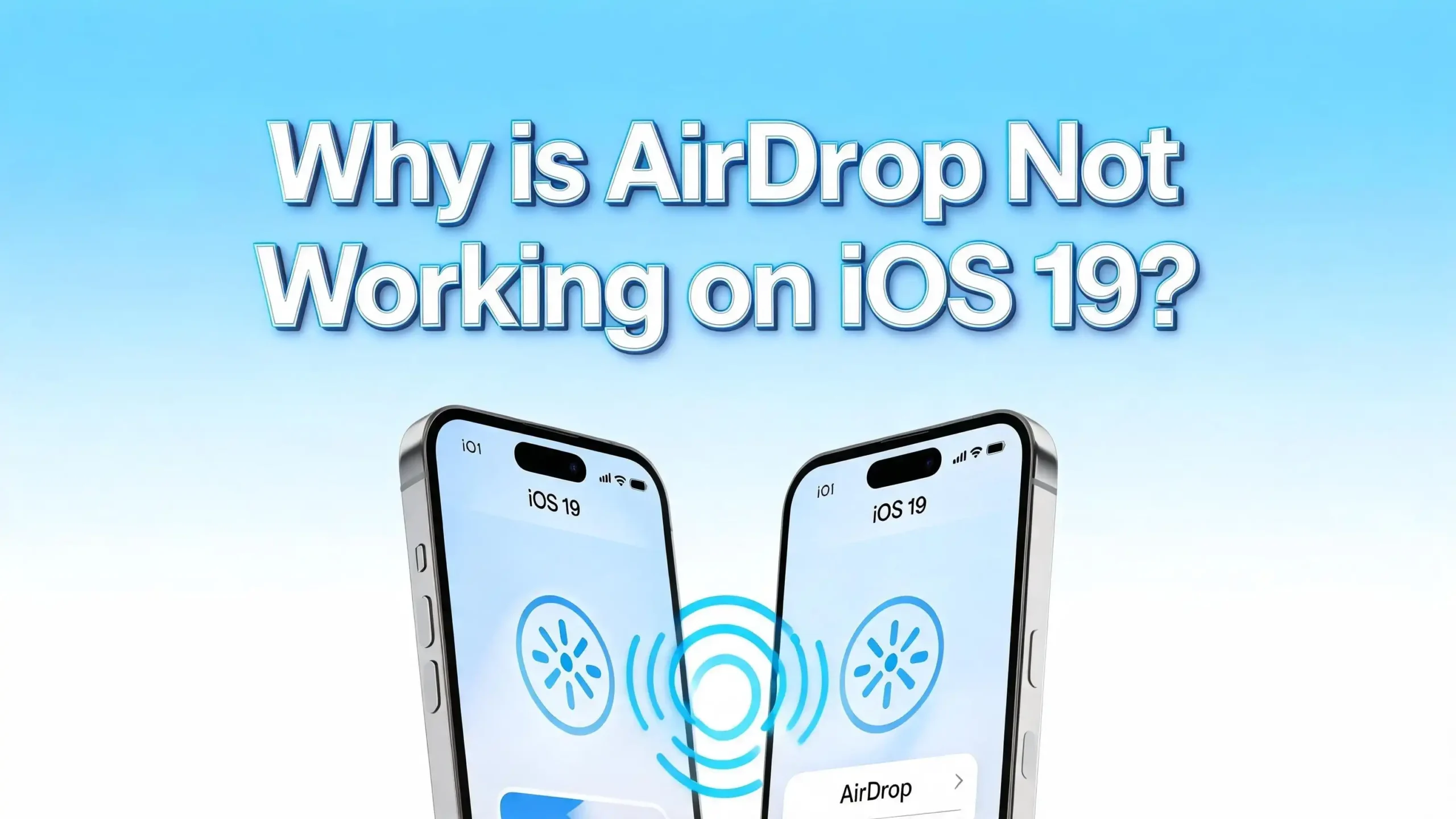
Why Is AirDrop Not Working on iOS 19?
Has AirDrop suddenly stopped working on your iPhone after updating to iOS 19? You are not alone. Thousands of iPhone users report AirDrop failures after every major iOS update, and iOS 19 is no exception. F
The good news? Most AirDrop problems on iOS 19 have simple, proven fixes. You do not need to be a tech expert to get AirDrop running again.
This guide walks you through every possible cause and gives you clear, step-by-step solutions to solve your AirDrop issues fast.
In a Nutshell
- AirDrop relies on both Wi-Fi and Bluetooth. If either radio is off, disabled, or glitching, AirDrop will not work. Always start troubleshooting by toggling both connections off and back on before trying anything else.
- Your AirDrop visibility settings matter more than you think. iOS 19 keeps the “Everyone for 10 Minutes” limit introduced in earlier versions. If your device is set to “Receiving Off” or “Contacts Only,” transfers from unknown senders will silently fail every single time.
- Personal Hotspot is a hidden AirDrop killer. When your iPhone is sharing its data connection as a hotspot, AirDrop gets blocked entirely. Turn off Personal Hotspot before attempting any AirDrop transfer.
- iOS 19 introduced a “Bring Devices Together” toggle in AirDrop settings. Multiple users in Apple community forums confirmed that disabling this feature immediately fixed broken AirDrop connections, especially between iPhones and Macs.
- A locked or sleeping screen makes your device invisible. Your iPhone must be awake and unlocked for other devices to see it in AirDrop. This is one of the most commonly overlooked reasons AirDrop appears broken.
- Resetting your network settings is a powerful last resort. It clears all saved Wi-Fi passwords and Bluetooth pairings, but it also wipes corrupted network configurations that silently block AirDrop from working.
What Is AirDrop and Why Does It Break on iOS 19?
AirDrop is Apple’s built-in file-sharing system. It uses a combination of Bluetooth and Wi-Fi to create a direct peer-to-peer connection between two Apple devices. When it works, it is fast, private, and effortless. You tap the share button, tap a nearby device name, and the file arrives in seconds.
iOS 19 brought meaningful refinements to the operating system, but as with most major updates, some users experienced AirDrop issues immediately after installation. These problems often happen because the update resets privacy or sharing settings, introduces a small software conflict, or changes how AirDrop communicates with other devices. The core fixes, however, remain the same across iOS versions, and they are all covered in this guide.
Check Your AirDrop Visibility Settings First
The most common reason AirDrop does not work on iOS 19 is a visibility setting that blocks incoming requests. Apple gives you three options for AirDrop receiving: Receiving Off, Contacts Only, and Everyone for 10 Minutes.
If your setting is on “Receiving Off,” no device in the world can find you via AirDrop. It does not matter how close the sender stands to you. If your setting is on “Contacts Only,” the sender must be saved in your contacts and must be signed in to their Apple ID. This setting trips up most users who try to share files with friends, colleagues, or family members not yet in their contact list.
To check and update your AirDrop visibility settings on iOS 19, open the Settings app, tap General, then tap AirDrop. Select Everyone for 10 Minutes to allow all nearby devices to see you. If the transfer succeeds, you can switch back to your preferred setting afterward. This single step resolves AirDrop issues for a large percentage of users without any further troubleshooting.
Toggle Wi-Fi and Bluetooth Off and Back On
AirDrop requires both Wi-Fi and Bluetooth to be active at the same time. Bluetooth handles device discovery, while Wi-Fi handles the actual data transfer. If either connection has a minor glitch or a software hiccup, AirDrop will fail silently.
The quickest fix is to toggle both off and then on again. This simple action clears temporary communication errors and re-establishes the wireless connections AirDrop needs to function.
To do this on iOS 19, open the Settings app and tap Wi-Fi. Toggle the switch off, wait five seconds, then toggle it back on. Next, go back to Settings and tap Bluetooth. Toggle that switch off, wait five seconds, then toggle it on again. Avoid using the Control Center toggles for this step, because those shortcuts only disconnect from networks without fully disabling the radios.
After both are back on, try your AirDrop transfer again. Most connectivity glitches resolve immediately with this method.
Unlock Your iPhone Screen Before Transferring
This fix sounds almost too obvious, but it is one of the most common reasons AirDrop appears invisible. A locked or sleeping iPhone does not appear as a discoverable device in AirDrop. The screen must be on and the phone must be unlocked for another device to find it.
Before someone sends a file to you, press the side button to wake the screen, then unlock your iPhone using Face ID, Touch ID, or your passcode. Keep the screen active during the transfer. If the iPhone locks itself mid-transfer due to auto-lock settings, the transfer may fail.
You can also check your Auto-Lock setting by going to Settings, tapping Display and Brightness, then Auto-Lock. Set it to a longer duration while you complete important AirDrop transfers. After you are done, you can reset it to your preferred setting.
Turn Off Personal Hotspot Before Using AirDrop
Personal Hotspot is one of the least obvious AirDrop blockers. When your iPhone is acting as a hotspot for another device, iOS redirects the Wi-Fi radio to manage that connection. This means AirDrop no longer has exclusive access to Wi-Fi, which breaks its peer-to-peer file transfer capability.
Turning off Personal Hotspot is simple. Open Settings, tap Personal Hotspot, then toggle off Allow Others to Join. After that, attempt your AirDrop transfer. Once the transfer is complete, you can turn the hotspot back on.
Some users also report success by going to the Control Center, long pressing the Bluetooth button, and checking whether the Personal Hotspot indicator is green. If it is green, tap it to make the hotspot undiscoverable. This is a faster workaround if you need to keep the hotspot available in the background while using AirDrop.
Disable Airplane Mode if It Is On
Airplane Mode turns off all wireless radios on your iPhone, including Wi-Fi and Bluetooth. If Airplane Mode is active, AirDrop cannot work under any circumstances. Some users accidentally enable Airplane Mode through the Control Center without realizing it.
Check for Airplane Mode by looking at your status bar. An airplane icon in the top-right corner of the screen means it is on. Swipe down from the top-right corner to open the Control Center and tap the airplane icon to disable it. Your Wi-Fi and Bluetooth should automatically reconnect within a few seconds.
If you need Airplane Mode for other reasons but still want AirDrop, you can manually re-enable Wi-Fi and Bluetooth after turning on Airplane Mode. AirDrop can work in this state as long as both radios are active, even while Airplane Mode is on.
Turn Off the “Bring Devices Together” Feature
iOS 19 and recent iOS updates include a feature called Bring Devices Together inside the AirDrop settings. This feature enables NameDrop, which is a proximity-based contact-sharing method. While the concept is useful, several users in Apple’s official support forums and Reddit threads have confirmed that this feature directly interferes with standard AirDrop functionality on some devices.
The fix is straightforward. Open Settings, tap General, tap AirDrop, and then toggle off Bring Devices Together. After disabling this setting, try your AirDrop transfer again. Many users report that their Mac, iPhone, and iPad connections become instantly stable after turning this off.
If you need NameDrop functionality in the future, you can re-enable this feature at any time from the same settings menu.
Restart Both Devices Involved in the Transfer
A simple restart clears temporary software errors, refreshes network stacks, and resets Bluetooth and Wi-Fi drivers. When AirDrop refuses to work despite correct settings, a restart is often the quickest solution because it clears memory-level conflicts that settings changes alone cannot fix.
To restart an iPhone without a Home button, press and hold the side button and either volume button until the power slider appears. Drag the slider to turn the device off, then press and hold the side button again to turn it back on. For iPhones with a Home button, press and hold the side button until the power slider appears and slide to power off.
Restart both the sending and receiving devices. After both devices are back on and connected to Wi-Fi, try AirDrop again. This step resolves a wide range of AirDrop issues that include frozen transfers, devices not appearing, and the “Waiting” status that never resolves.
Bring the Devices Closer Together
AirDrop uses Bluetooth to initially detect and communicate with nearby devices. Bluetooth has a practical range of about 30 feet or 10 meters. If the two devices are further apart than that, AirDrop will not detect the second device at all.
Even within Bluetooth range, physical obstructions like thick walls, large metal objects, or heavy interference from other wireless devices can reduce effective range. Always place the two devices within 3 to 5 feet of each other when troubleshooting AirDrop problems. This eliminates distance as a variable while you diagnose the issue.
Also make sure no thick cases or metallic accessories are blocking the Bluetooth antenna area, which is typically near the bottom of iPhone models. Signal interference from other Wi-Fi networks in congested environments like offices or apartment buildings can also reduce AirDrop reliability.
Check and Update to the Latest iOS 19 Version
Apple regularly releases incremental updates like iOS 19.0.1, 19.1, or 19.2 to patch bugs found after the initial release. If a software bug in the base iOS 19 release is causing your AirDrop failure, installing the latest update is likely the fastest and most permanent fix available.
To check for an update, open Settings, tap General, then tap Software Update. If an update is available, tap Download and Install. Connect your iPhone to power and Wi-Fi to ensure the download completes without interruption.
After updating, test AirDrop again. Apple’s iOS changelogs sometimes specifically mention Bluetooth or AirDrop bug fixes. Checking release notes in the Software Update screen can confirm whether your exact issue was addressed in the latest patch.
Sign Out and Back In to Your Apple ID
Some AirDrop issues on iOS 19 connect directly to Apple ID authentication problems. When AirDrop is set to “Contacts Only,” it uses your Apple ID to match contact information between devices. If your Apple ID session has a problem, AirDrop transfers can silently fail even when settings look correct.
To refresh your Apple ID session, open Settings and tap your name at the top of the screen. Scroll down and tap Sign Out. Follow the prompts to sign out, then sign back in using your Apple ID and password. After signing back in, check your AirDrop settings again and test a transfer.
This fix is especially effective when AirDrop works between strangers (with Everyone mode) but consistently fails between you and people in your contacts list. The issue almost always traces back to an Apple ID sync problem that a fresh sign-in resolves.
Reset Network Settings on Your iPhone
If nothing above has worked yet, resetting your network settings is the next step. This action removes all saved Wi-Fi passwords, Bluetooth pairings, VPN configurations, and network preferences. It gives your iPhone a clean slate for all wireless connections, which resolves deep-seated configuration errors that cause persistent AirDrop failures.
To reset network settings on iOS 19, open Settings, tap General, scroll down and tap Transfer or Reset iPhone, then tap Reset, and select Reset Network Settings. Enter your passcode when prompted and confirm the reset.
After your iPhone restarts, reconnect to your Wi-Fi network, re-pair any Bluetooth devices you use regularly, and then test AirDrop. This step fixes AirDrop in cases where a corrupted network profile was silently blocking wireless communication between devices.
Check Screen Time and Restrictions Settings
Screen Time and content restrictions can block AirDrop without showing any obvious error. If AirDrop was working fine and then suddenly stopped, especially on a device managed by Screen Time, this setting is worth checking right away.
Open Settings, tap Screen Time, then tap Content and Privacy Restrictions. If restrictions are on, look for settings related to AirDrop or sharing under Allowed Apps or Privacy. Make sure AirDrop is not blocked or restricted. You may need your Screen Time passcode to make changes in this section.
On devices managed through MDM profiles, such as school or work iPhones, your administrator may have disabled AirDrop at the system level. In those cases, you need to contact your IT administrator to enable the feature for your device. No user-level fix will override an MDM restriction.
Force Restart Your iPhone
A force restart is different from a standard restart. It forces all processes to stop immediately and reboots the operating system from scratch. This is the most effective way to clear a frozen or unresponsive AirDrop session, especially when transfers are stuck on “Waiting” and a regular restart did not help.
To force restart an iPhone 8 or later model, quickly press and release the volume up button, quickly press and release the volume down button, then press and hold the side button until the Apple logo appears. Release the side button when you see the logo.
For iPhone 7 models, hold the volume down button and the sleep/wake button simultaneously until the Apple logo appears. For iPhone 6s and earlier, hold the Home button and the sleep/wake button together until the Apple logo appears. After the force restart, check if AirDrop now works normally.
Rename Your Device if AirDrop Fails with One Specific Device
This fix comes directly from Apple community discussions and is specifically relevant for iOS 19. If AirDrop works between most devices but consistently fails with one specific iPhone or Mac, the problem may be related to a device name conflict or a cached contact entry.
To rename your iPhone, open Settings, tap General, tap About, then tap the name at the top of the screen. Change the device name to something unique and simple, then try the AirDrop transfer again. Users who applied this fix in Apple support threads reported immediate success after changing their device name.
Additionally, try removing the other device from your known contacts list. In some iOS versions, going into your contacts, finding the entry for the other device owner, and removing or refreshing their contact information clears a recognition error that prevents AirDrop from completing the handshake.
Contact Apple Support as a Final Option
If every step in this guide has not resolved your AirDrop problem on iOS 19, the issue may be hardware-related. A failing Bluetooth or Wi-Fi antenna physically blocks AirDrop regardless of any software fix. This kind of issue is uncommon but does happen, especially on older devices.
Open the Apple Support app on your iPhone or visit support.apple.com to start a chat or schedule a call with Apple’s technical team. You can also book a Genius Bar appointment at your nearest Apple Store for an in-person diagnostic test. Apple technicians can run hardware diagnostics to determine whether your Bluetooth or Wi-Fi chip is functioning correctly.
Before visiting, take note of exactly what happens when AirDrop fails. Write down the iOS version, the device model, the specific error message if any, and whether the issue is with all devices or just one. This information helps the support team diagnose your issue faster.
FAQs
Why does AirDrop show “Waiting” and never complete the transfer?
The “Waiting” status usually means AirDrop found the other device but cannot complete the handshake. This often happens when the receiving device locks its screen mid-transfer, when Bluetooth has a temporary glitch, or when both devices are not close enough. Keep both screens unlocked and active, place the devices within 5 feet of each other, and restart both devices if the issue persists.
Can AirDrop work without Wi-Fi on iOS 19?
Yes, AirDrop can work without a Wi-Fi network connection. It creates its own direct Wi-Fi connection between the two devices. However, Wi-Fi must be enabled on both devices even if neither is connected to a router. If Wi-Fi is turned off completely, AirDrop cannot establish the transfer connection.
Why can’t my iPhone find other devices in AirDrop?
The most likely reasons include AirDrop visibility being set to “Receiving Off,” the other device being locked or in sleep mode, Bluetooth or Wi-Fi being disabled on either device, Personal Hotspot being active, or the devices being too far apart. Work through each of these checks in order and the device discovery problem will almost always resolve.
Does iOS 19 limit AirDrop to “Everyone for 10 Minutes”?
Yes, Apple introduced a time limit on the “Everyone” AirDrop setting in iOS 16.2 and has kept it in place through iOS 19. After 10 minutes, your setting automatically reverts to “Contacts Only.” You can re-enable “Everyone for 10 Minutes” each time you need it by going to Settings > General > AirDrop.
Can AirDrop transfer files between an iPhone and an Android device?
No. AirDrop is an Apple-exclusive feature and works only between Apple devices, including iPhones, iPads, and Macs. As of 2026, Apple has expanded AirDrop compatibility with select Android devices through Google’s Quick Share protocol on specific device models, but standard AirDrop on iOS 19 still requires an Apple device on both ends for full functionality.
Why does AirDrop work sometimes but not other times?
Intermittent AirDrop failures are usually caused by Bluetooth interference, background app activity consuming wireless resources, or the “Everyone for 10 Minutes” timeout reverting your settings. Make sure your AirDrop setting is checked before each transfer session, keep devices close together, and consider toggling Wi-Fi and Bluetooth before each session to clear any wireless interference.
Does resetting network settings delete my data on iOS 19?
No, resetting network settings does not delete photos, apps, messages, or any personal data. It only removes saved Wi-Fi passwords, Bluetooth device pairings, VPN settings, and cellular network configurations. You will need to re-enter your Wi-Fi password and re-pair Bluetooth accessories after the reset.

Hi, I’m Hana! I’m a tech lover who geeks out over software, gadgets, and all things digital. I started UniConverterBox to help everyday people navigate the overwhelming world of tech with honest reviews, clear comparisons, and simple guides. Got questions? I’m always happy to help!