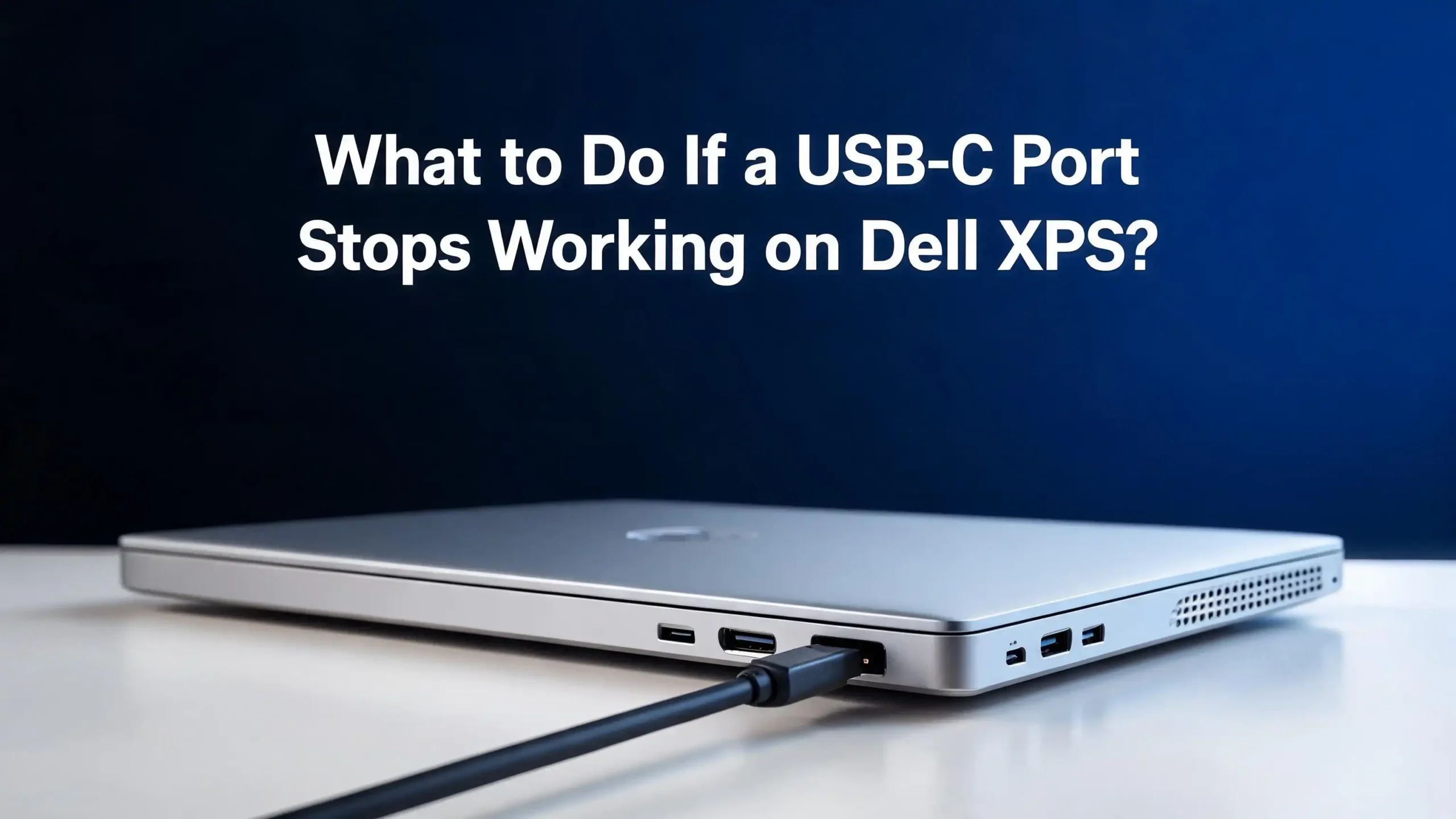
What to Do If a USB C Port Stops Working on Dell XPS?
Your Dell XPS is a premium laptop, and every port on it matters. So when a USB C port suddenly stops responding, it can throw your entire workflow into chaos. Maybe your external monitor went dark. Maybe your charger stopped juicing up the battery. Or maybe a flash drive plugged into the port is completely invisible to Windows.
The good news? Most of the time, this is a software or settings problem, not a hardware failure. That means you can fix it yourself at home without spending a dime on repairs.
This guide walks you through every practical, tested solution. Each step builds on the last, starting with quick fixes and moving to deeper troubleshooting. By the end, you will either have your USB C port working again or know exactly what to tell Dell support. Let’s get into it.
Key Takeaways
- A flea power drain (hard reset) fixes the problem in a surprising number of cases. Static electricity buildup can disable USB C ports even though the rest of your laptop works fine. Shutting down completely, unplugging everything, and holding the power button for 20 to 30 seconds often restores the port immediately.
- Outdated Thunderbolt drivers and BIOS firmware are leading causes of USB C failure on Dell XPS laptops. Dell frequently releases updates that patch connection bugs. Running Dell SupportAssist or Dell Command Update can install these critical updates in minutes.
- BIOS settings may be silently blocking your USB C port. Thunderbolt security levels, disabled USB configurations, and incorrect boot settings can all prevent the port from functioning. A quick check of your BIOS is a must during troubleshooting.
- Windows power management features sometimes cut power to USB C ports. Selective suspend and the “allow the computer to turn off this device” setting can cause intermittent or total USB C failure. Disabling these settings is a fast fix.
- If software fixes do not work, Dell SupportAssist diagnostics can confirm a hardware fault. Running the built in USB diagnostics test tells you whether the port has a physical defect, which helps if you need to file a warranty claim.
- A factory reset or system restore is the last resort before contacting Dell support. If drivers, BIOS updates, and all other steps fail, resetting Windows can clear deep software conflicts that affect USB C connectivity.
Understand Why USB C Ports Fail on the Dell XPS
USB C ports on the Dell XPS handle multiple functions at once. They carry power delivery, data transfer, video output, and Thunderbolt connectivity through a single connector. This makes them powerful but also more sensitive to driver conflicts, firmware bugs, and power irregularities than older USB A ports.
Several things can cause a USB C port to stop working. Static electricity buildup inside the laptop is a surprisingly common trigger. A failed BIOS update or a Windows update that installs an incompatible Thunderbolt driver can also disable the port. Sometimes the problem is as simple as a speck of dust inside the connector blocking the contact pins.
Dell XPS models that use Thunderbolt 3 or Thunderbolt 4 ports (which share the USB C form factor) add another layer of complexity. These ports rely on a separate Thunderbolt controller chip with its own firmware. If that firmware falls out of sync with your BIOS or your operating system drivers, the port can appear completely dead.
The important thing to understand is that a “dead” USB C port on a Dell XPS usually still has hope. Most failures are caused by recoverable software or firmware issues. Hardware damage, such as a bent pin or a fried controller, is less common. That is why starting with software fixes makes sense before assuming the worst.
Perform a Flea Power Drain (Hard Reset)
This is the single most effective quick fix for a USB C port that suddenly stops working. Flea power is residual electrical charge stored in your laptop’s capacitors after you shut it down. This leftover charge can confuse hardware controllers, including the USB C and Thunderbolt controllers.
Dell officially recommends this procedure for XPS laptops. Here is how to do it correctly:
Step 1: Save all your work and shut down your Dell XPS completely. Do not use sleep or hibernate. Choose “Shut down” from the Start menu.
Step 2: Unplug the power adapter from the laptop and from the wall outlet.
Step 3: Disconnect every external device, including monitors, USB drives, docks, and dongles.
Step 4: If your XPS model has a removable battery, take it out. Most recent XPS models have an internal battery, so you can skip this step.
Step 5: Press and hold the power button for 20 to 30 seconds. This drains all remaining electrical charge from the system.
Step 6: Reconnect the power adapter and turn on the laptop.
Step 7: Once Windows loads, test the USB C port with a known working device.
Many Dell XPS users on Dell community forums and Reddit have reported that this single step brought their dead USB C ports back to life. It costs nothing and takes two minutes. Always try this first.
Check the USB C Port for Physical Damage
Before diving deeper into software fixes, take a moment to inspect the physical condition of your USB C port. Grab a flashlight and look directly into the port on your Dell XPS.
Check for visible dust, lint, or debris stuck inside the connector. USB C ports are small and can easily collect pocket lint if you carry your laptop in a bag. Even a tiny piece of debris can block the connection pins and prevent a cable from making proper contact.
If you see buildup, use a can of compressed air to blow it out. Hold the can upright and use short, controlled bursts. Do not insert metal objects like pins or paper clips into the port. These can scratch or bend the delicate contact pins inside.
Also check the USB C cable itself. Try a different cable if you have one available. Cables wear out over time, especially at the connector ends. A cable that works fine on one device might have an internal break that causes intermittent or no connectivity on your XPS.
Look for bent pins, discoloration, or a loose port housing on the laptop. If the port wiggles or feels different from the other USB C port on your XPS, that points to physical damage. Physical damage usually requires professional repair through Dell support, especially if your laptop is still under warranty.
Update Your Thunderbolt and USB C Drivers
Outdated or corrupted drivers are one of the top causes of USB C failures on Dell XPS laptops. The Thunderbolt controller that powers your USB C ports needs its own specific drivers, and these must match your current BIOS and Windows version to work properly.
The easiest way to update is through Dell SupportAssist, which comes preinstalled on most Dell XPS laptops.
Open the Start menu and type “SupportAssist.” Launch the app. Go to the Home tab and select “Update software.” Click “Start” to scan for available driver and firmware updates. Install everything that SupportAssist finds, then restart your laptop.
If SupportAssist is not installed, you can download it from the Dell support website. Alternatively, you can use Dell Command Update, which serves a similar purpose and is sometimes more reliable for finding Thunderbolt firmware updates.
You can also update drivers manually through Device Manager. Press Windows + R, type “devmgmt.msc,” and press Enter. Expand the “Universal Serial Bus controllers” section. Right click on each USB controller and select “Update driver.” Choose “Search automatically for drivers.”
Also expand the “Thunderbolt Controller” section if it appears. Update any Thunderbolt related entries. Some Dell XPS users have found that uninstalling the Thunderbolt drivers completely and letting Windows reinstall them fixes stubborn USB C issues.
Update Your BIOS Firmware
The BIOS controls how your Dell XPS hardware communicates with Windows. An outdated BIOS can contain bugs that directly affect USB C and Thunderbolt port behavior. Dell regularly releases BIOS updates that fix connectivity issues.
To check your current BIOS version, restart your laptop and press F2 repeatedly as the Dell logo appears. The BIOS version number displays on the main screen.
To update, go to the Dell support website and enter your XPS service tag number. You will find this on a sticker on the bottom of your laptop. The support page shows all available BIOS updates for your specific model. Download the latest version and run the installer. Your laptop will restart during the update. Do not unplug the power adapter or close the lid during this process.
You can also update the BIOS through SupportAssist. It will flag BIOS updates along with driver updates when you run a scan.
After the BIOS update completes and your laptop restarts, test the USB C port again. Many Dell XPS owners have reported that a BIOS update alone resolved their USB C issues, especially on models like the XPS 15 9510 and XPS 13 9310 where early BIOS versions had known Thunderbolt bugs.
Check BIOS Settings for USB and Thunderbolt Configuration
Even if your BIOS is up to date, the settings inside it might be blocking your USB C port. This is a common issue that many users overlook.
Restart your Dell XPS and press F2 to enter the BIOS setup. Navigate to “System Configuration” and then look for “USB Configuration.” Make sure that “Enable USB Boot Support” and “Enable External USB Port” are both checked. If either option is unchecked, your USB C port may not function in Windows.
Next, look for Thunderbolt security settings. On many Dell XPS models, these appear under “Thunderbolt Auto Switch” or “Security Level.” The security level controls whether your laptop automatically trusts devices plugged into Thunderbolt/USB C ports.
If the security level is set to a restrictive option, it can block USB C devices from connecting. Try setting Thunderbolt security to “No Security” for testing purposes. If the port starts working, you know the security setting was the issue. You can then adjust it to a less restrictive level that still allows your devices to connect.
Some Dell XPS users on the Dell Community forums have reported that disabling Thunderbolt security in BIOS immediately fixed their USB C hub and dock connectivity problems. After making changes, press F10 to save and exit, then test the port.
Adjust Windows Power Management Settings
Windows has built in power saving features that can silently cut power to your USB C ports. These features are meant to extend battery life, but they sometimes prevent USB C devices from being recognized or cause them to disconnect randomly.
There are two settings you need to check.
First, disable “Allow the computer to turn off this device to save power” for all USB root hubs. Right click the Start button and select Device Manager. Expand “Universal Serial Bus controllers.” Right click on “USB Root Hub” and select Properties. Go to the Power Management tab. Uncheck the box next to “Allow the computer to turn off this device to save power.” Click OK. Repeat this for every USB Root Hub listed.
Second, disable USB Selective Suspend. Open the Start menu and search for “Edit Power Plan.” Click “Change advanced power settings.” Expand “USB settings” and then “USB selective suspend setting.” Set both “On battery” and “Plugged in” to “Disabled.” Click Apply and OK.
After changing both settings, restart your laptop and test the USB C port. These power management adjustments have fixed intermittent USB C disconnections for many Dell XPS users, especially those who noticed the port worked when plugged in but failed on battery power.
Uninstall and Reinstall USB Controllers in Device Manager
Corrupted USB controller drivers can make a port appear dead even though the hardware is fine. Reinstalling the controllers forces Windows to load fresh driver files, which often clears the corruption.
Open Device Manager by pressing Windows + R, typing “devmgmt.msc,” and pressing Enter. Expand the “Universal Serial Bus controllers” section. You will see several entries, including USB Root Hubs, USB Host Controllers, and possibly Thunderbolt controllers.
Right click on each entry one at a time and select “Uninstall device.” If you see a checkbox that says “Delete the driver software for this device,” check it. This ensures the old driver files are fully removed.
Do not restart your laptop until you have uninstalled all USB controller entries. Once you have removed them all, restart the computer. Windows will detect the hardware changes on boot and automatically reinstall the correct USB controller drivers.
After the restart, test your USB C port. If the port works, the problem was a corrupted driver. If the problem returns later, it may indicate a recurring driver conflict with another piece of software. In that case, performing this procedure in Safe Mode (covered in the next section) can help isolate the issue.
Try Safe Mode to Rule Out Software Conflicts
Safe Mode starts Windows with only essential drivers and services. If your USB C port works in Safe Mode but not in normal mode, a third party application or driver is causing the conflict.
To enter Safe Mode on your Dell XPS, go to Start, then Settings, then System, then Recovery. Under “Advanced startup,” click “Restart now.” After the restart, select Troubleshoot, then Advanced Options, then Startup Settings, then Restart. Press F5 to select “Enable Safe Mode with Networking.”
Once in Safe Mode, plug a USB C device into the port. If it works, you know the hardware is fine and the problem lives in your normal Windows environment.
To find the conflicting software, think about what you installed recently before the USB C port stopped working. Uninstall recent applications one at a time and test the port after each removal. Common culprits include third party antivirus software, display management utilities, and USB device management tools.
If the USB C port does not work even in Safe Mode, the problem is likely at the hardware, BIOS, or firmware level. Continue with the remaining steps in this guide to narrow it down further.
Run Dell Hardware Diagnostics
Dell SupportAssist includes a built in USB diagnostics tool that tests whether the physical hardware of your USB C port is functioning correctly. This is an important step because it gives you a definitive answer about whether the problem is software or hardware.
Open SupportAssist from the Start menu. Go to the Support tab and expand “I want to troubleshoot my PC.” Select “I want to check a specific piece of hardware.” Wait for SupportAssist to scan your system. Scroll down and click on “USB Ports” to start the diagnostic test. Follow the on screen prompts.
You can also run diagnostics online through the Dell support website. Go to the Dell USB diagnostics page and enter your service tag. The browser based tool walks you through testing your ports.
If the diagnostic test passes, the hardware is working and the issue is in your software, drivers, or settings. Go back and try the driver and BIOS steps again more carefully.
If the diagnostic test fails, you likely have a hardware defect. Note the error code and description. You will need this information when contacting Dell support to request a repair. If your laptop is under warranty, Dell will typically arrange a repair or replacement at no cost.
Use System Restore to Roll Back Changes
If your USB C port was working before a recent Windows update, driver installation, or software change, System Restore can revert your system to a point before the problem started.
Press Windows + R, type “rstrui.exe,” and press Enter. The System Restore wizard opens. Click Next. You will see a list of available restore points with dates. Select one from before the USB C issue began. Click “Scan for affected programs” to see what will be removed (this step is optional but helpful). Click Next and then Finish to start the restore.
Your laptop will restart during the process. After it completes, test the USB C port.
Important note: System Restore is turned off by default in Windows 11. If you never enabled it, there will be no restore points available. To enable it for the future, search for “Create a restore point” in the Start menu. Select your system drive, click Configure, and select “Turn on system protection.” Click Apply.
If System Restore is not available or does not fix the issue, you still have the option of a full Windows reset as a last resort.
Reset Windows as a Last Resort
If every other fix has failed and your hardware diagnostics test passed, a full Windows reset can clear deep software conflicts that standard troubleshooting cannot reach.
Go to Start, then Settings, then System, then Recovery. Under “Recovery options,” find “Reset this PC” and click “Reset PC.” You have two choices. “Keep my files” removes apps and settings but preserves your personal documents. “Remove everything” gives you a completely clean installation.
Back up all important files before proceeding. Save them to an external drive or cloud storage. A reset removes installed applications, saved passwords in browsers, and custom settings.
After the reset completes, install the latest drivers from the Dell support website using your service tag. Run SupportAssist to grab any remaining updates. Then test the USB C port.
If the port still does not work after a clean Windows reset with fresh drivers, the problem is almost certainly a hardware failure. Contact Dell technical support with your diagnostic results and describe the steps you have already taken. This information helps the support team process your case faster.
Contact Dell Support for Hardware Repair
When all software and firmware solutions have been exhausted, it is time to reach out to Dell for professional help. A USB C port that fails every diagnostic and software fix likely has a physical defect in the port connector, the Thunderbolt controller chip, or the motherboard traces that connect them.
Visit the Dell support website and enter your service tag to check your warranty status. If your laptop is still covered, Dell will arrange a repair at no cost. For out of warranty laptops, Dell can still perform repairs for a fee.
When contacting support, mention the specific error codes from your SupportAssist diagnostics. List every troubleshooting step you have completed. This saves time and prevents the support agent from walking you through steps you have already tried.
Dell offers multiple support channels, including phone, chat, and community forums. For hardware issues, phone or chat support can often schedule a repair appointment or send a technician to your location, depending on your warranty level. Dell Premium Support and ProSupport plans include on site service for faster resolution.
Frequently Asked Questions
Can a USB C port on a Dell XPS be repaired or does the whole motherboard need replacement?
It depends on the type of damage. If the port connector itself is physically broken, a skilled technician can sometimes replace just the port assembly. However, if the Thunderbolt controller chip or motherboard traces are damaged, the entire motherboard usually needs replacement. Dell support can determine the exact issue after running diagnostics.
Why does my Dell XPS USB C port charge the laptop but not transfer data?
This often indicates a Thunderbolt driver or firmware issue rather than a hardware failure. The power delivery function uses different pins and protocols than data transfer. Update your Thunderbolt drivers and BIOS through Dell SupportAssist. Also check BIOS Thunderbolt security settings, as restrictive security levels can block data connections while still allowing charging.
Will using a USB C hub damage my Dell XPS port?
A quality USB C hub will not damage your port under normal conditions. However, cheap or poorly made hubs can draw excessive power and trigger “Power Surge on the USB Port” warnings. Stick with hubs from reputable manufacturers and avoid daisy chaining multiple hubs together.
How do I know if my Dell XPS has Thunderbolt or just USB C?
Look for a small lightning bolt icon next to the USB C port on your laptop. Thunderbolt ports display this icon, while standard USB C ports do not. You can also check your specific model’s specifications on the Dell support website by entering your service tag.
Does a BIOS reset delete my files or programs?
No. Resetting your BIOS to default settings only changes hardware configuration options. It does not affect your Windows installation, personal files, or installed applications. It simply restores factory default values for settings like USB configuration, Thunderbolt security, boot order, and power management.
How often should I update Thunderbolt firmware on my Dell XPS?
Check for updates at least once a month using Dell SupportAssist or Dell Command Update. Thunderbolt firmware updates are released less frequently than regular driver updates, but they can contain critical fixes for USB C connectivity issues. Enable automatic updates in SupportAssist to stay current without manual checks.

Hi, I’m Hana! I’m a tech lover who geeks out over software, gadgets, and all things digital. I started UniConverterBox to help everyday people navigate the overwhelming world of tech with honest reviews, clear comparisons, and simple guides. Got questions? I’m always happy to help!