How to Fix 5G Network Dropping on Samsung Galaxy S25?
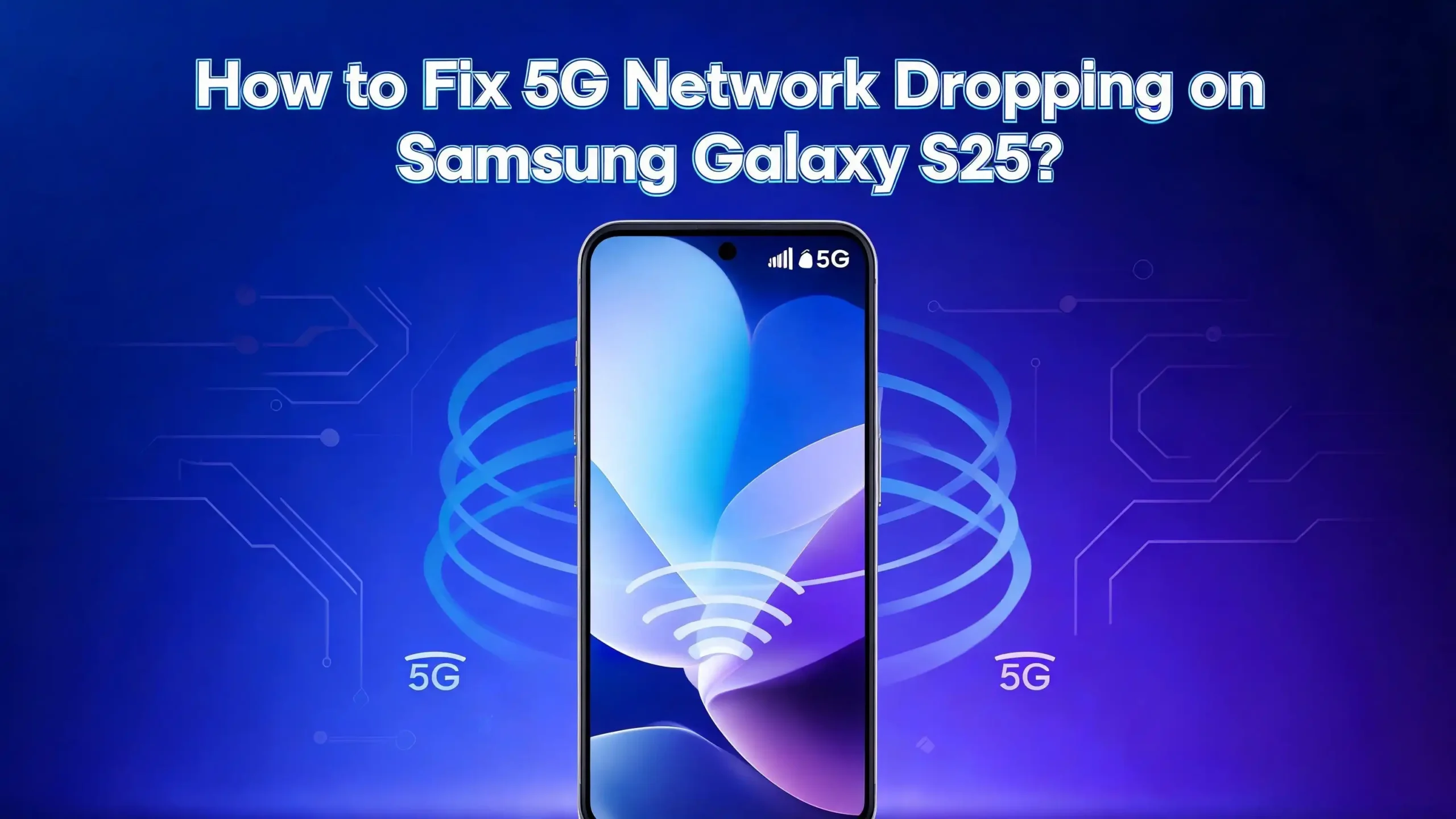
Is your Samsung Galaxy S25 constantly dropping its 5G connection? You are not alone. Many Galaxy S25, S25+, and S25 Ultra users have reported frustrating issues where 5G signals disappear, switch back to 4G unexpectedly, or drop altogether even in areas with strong 5G coverage.
This problem disrupts streaming, video calls, gaming, and everyday browsing in a big way.
The good news is that most 5G network dropping issues on the Galaxy S25 are fixable without visiting a repair shop or contacting your carrier. In this guide, you will find clear, step-by-step solutions that go from the simplest quick fixes to more advanced troubleshooting methods.
Read every section carefully so you do not miss the fix that works for your specific situation.
Key Takeaways
- Toggling Airplane Mode on and off is the fastest first step to refresh your Galaxy S25 network connection and often fixes random 5G drops instantly.
- Resetting network settings clears corrupted connection data and restores default mobile, Wi-Fi, and Bluetooth configurations, which fixes many persistent 5G issues on the S25.
- Checking your carrier plan and SIM card is critical because your phone cannot connect to 5G if your carrier plan does not include a 5G subscription or if the SIM card is damaged or improperly seated.
- Updating the phone’s software and One UI firmware is essential because Samsung regularly releases patches that fix known network bugs, signal instability, and 5G connectivity errors on the Galaxy S25 series.
- Adjusting the preferred network type settings to “5G/LTE/3G/2G (Auto connect)” ensures the phone automatically picks the best available signal and does not get stuck on a weaker network band.
- Checking the APN settings and making sure they match your carrier’s official configuration prevents mobile data failures that often get mistaken for 5G signal dropping.
Why Does 5G Keep Dropping on Samsung Galaxy S25?
Before jumping into fixes, it helps to understand why this problem happens in the first place. The Samsung Galaxy S25 series uses Qualcomm Snapdragon 8 Elite modems, which are powerful but still dependent on software, carrier support, and physical signal conditions.
5G networks are not available everywhere. Even in cities with 5G coverage, signal strength can vary block by block. If your phone constantly switches between 5G and 4G LTE, it could simply be searching for a stable tower. However, if you are standing in a strong 5G zone and still losing the connection, the issue is almost always software or settings related.
Common causes include corrupted network settings, outdated firmware, incorrect APN configurations, SIM card issues, battery optimization interfering with the modem, and in rare cases, a hardware defect. Users in Samsung’s community forums have also reported that certain software updates temporarily introduced network instability on the S25 Ultra, which Samsung later patched. Knowing the root cause helps you target the right fix faster.
Quick Fix: Toggle Airplane Mode to Restart the Network
This is the simplest fix and works surprisingly often. When your Galaxy S25 drops 5G, the modem sometimes gets stuck in a bad state. Toggling Airplane Mode forces the phone to disconnect from all networks and reconnect fresh.
Here is how to do it. Swipe down from the top of your screen to open the Quick Settings panel. Tap the Airplane Mode icon to turn it on. Wait at least 10 to 15 seconds. Then tap the icon again to turn it off. Your phone will search for the nearest available signal and reconnect.
Many Galaxy S25 users in Reddit threads confirmed that this single step fixed their 5G dropping problem, especially after moving between locations or switching from Wi-Fi to mobile data. This method is particularly effective when the phone shows a signal bar but no actual data connection is working.
You can also restart your phone completely instead of using Airplane Mode. Press and hold the power button, tap Restart, and let the device fully reboot. A full restart clears temporary system glitches and resets the modem’s software state. Always try this step first before attempting anything more complex.
If your 5G drops at specific times of day or in specific locations, toggle Airplane Mode each time it happens and observe whether the issue is consistent. That pattern will tell you whether it is a software glitch, a carrier coverage gap, or a settings problem.
Check Your Carrier Plan and 5G Subscription
One of the most overlooked reasons for 5G dropping on the Galaxy S25 is a carrier plan that does not include 5G access. Not all mobile plans automatically include 5G even if your phone supports it and you live in a 5G coverage area.
Log into your carrier’s app or website and verify that your current plan includes 5G data. Major carriers like Verizon, AT&T, and T-Mobile offer 5G on most modern plans, but some budget or legacy plans still default to 4G LTE only. If your plan does not include 5G, upgrading it is the only solution.
Also check whether your carrier has active 5G coverage in your location. You can use your carrier’s official coverage map to verify this. If you live in a rural area, 5G towers may still be limited and your phone will naturally fall back to LTE.
Additionally, contact your carrier and ask them to push a carrier settings update to your account. Sometimes carrier configuration files on your phone become outdated and cause the phone to misidentify available bands. Your carrier can also check whether your SIM card is properly provisioned for 5G service, which is a common issue when switching from an older phone to the S25.
Reseat or Replace Your SIM Card
A loose, dirty, or damaged SIM card is a frequent cause of unstable 5G connections on the Galaxy S25. If the SIM is not making proper contact with the tray, the phone will struggle to maintain a stable signal.
First, power off your Galaxy S25 completely. Use the SIM ejector tool that came in the box to open the SIM tray. Gently remove the SIM card and inspect it for dust, scratches, or visible damage. Use a clean, dry cloth to wipe the gold contacts on the SIM card. Reinsert the SIM carefully, making sure it sits flat and secure in the tray. Push the tray fully back into the phone.
Power the phone back on and check whether the 5G signal stabilizes. If you have access to another SIM card from the same carrier, insert it temporarily to test whether the problem follows the card or stays with the phone. If the second SIM works fine, your original SIM card is likely damaged and needs replacement.
Contact your carrier’s store and ask for a free SIM card replacement. This process takes only a few minutes and is often free of charge. Galaxy S25 Ultra users on Samsung’s community forums confirmed that a faulty SIM card caused their phone to jump between signal bars repeatedly, and a replacement SIM solved the problem completely.
Select the Correct Preferred Network Type
The Galaxy S25 lets you manually choose which network type the phone prefers. If this setting is not configured correctly, your phone may stay locked to LTE even when 5G is available, or it may aggressively hunt for 5G and drop data during the transition.
Here is how to change it. Open the Settings app. Tap Connections. Tap Mobile networks. Tap Network mode. Select 5G/LTE/3G/2G (Auto connect) from the list.
This setting tells your phone to prioritize 5G but automatically fall back to the best available signal rather than dropping the connection entirely. Some users accidentally set their phone to LTE only, which completely blocks 5G access.
If you live in an area where 5G coverage is inconsistent, setting the network mode to “LTE/3G/2G” can actually improve your connection stability because the phone stops constantly searching for a 5G tower it cannot always reach. You can always switch it back to Auto when you are in a strong 5G zone.
Additionally, you can access the phone’s hidden diagnostic menu by dialing ##4636## in the phone dialer. Tap Phone Information and then check Set preferred network type. This hidden menu gives you more granular control over band selection than the standard settings menu.
Reset Network Settings on Your Galaxy S25
If basic fixes do not work, resetting the network settings is the next most effective step. This clears all saved network configurations including mobile data settings, Wi-Fi passwords, Bluetooth pairings, and VPN configurations. It does not delete your photos, apps, or personal data.
Go to Settings. Scroll down and tap General management. Tap Reset. Tap Reset mobile network settings. Confirm by tapping Reset settings. Your phone will restart automatically.
After the reset, reconnect to your Wi-Fi network and check whether the 5G signal is now stable. This fix works because network configurations sometimes become corrupted over time, especially after software updates or carrier changes. The reset wipes those corrupted files and forces the phone to rebuild its network configuration from scratch.
Multiple users in Samsung’s official community forums reported that resetting network settings fixed their S25 Ultra’s problem of jumping from signal to no signal up to six times per minute. This is one of the most recommended fixes by Samsung support agents and is worth trying before any more advanced steps.
Update Your Galaxy S25 Software and Firmware
Samsung regularly releases software updates for the Galaxy S25 that include bug fixes for network stability, modem performance, and signal handling. Running an outdated version of One UI can keep known bugs alive that affect your 5G connection.
Open Settings. Scroll to the bottom and tap Software update. Tap Download and install. If an update is available, download and install it immediately. Make sure your phone has at least 50% battery before starting the update.
After the update installs and the phone restarts, go back to your mobile network area and check whether 5G is more stable. If no update is currently available, your phone is already on the latest version and the issue lies elsewhere.
It is also good practice to check for carrier software updates separately. Some carriers push their own software packages to Samsung phones that include network optimization files. You can check for these by going to Settings > About phone > Software information and looking for carrier software version details.
Clear Cache Partition to Remove Corrupted System Files
The system cache stores temporary files that help apps and the operating system load faster. Over time, these cached files can become corrupted and cause system-wide problems including network instability and 5G dropping.
To clear the system cache partition, power off your Galaxy S25. Then press and hold the Volume Up button and the Power button at the same time. When the Samsung logo appears, release the Power button but continue holding Volume Up. The Android Recovery menu will appear. Use the Volume buttons to navigate to Wipe cache partition. Press the Power button to confirm. Select Reboot system now.
This process does not erase any of your personal data. It only removes temporary system files. After the reboot, the phone rebuilds a fresh cache and many users report noticeably better network performance and 5G stability after this step.
This fix is particularly useful when 5G started dropping after a major One UI software update because updates sometimes leave behind conflicting cache data from the previous software version.
Fix APN Settings for Stable Mobile Data
APN stands for Access Point Name. It is the gateway configuration your phone uses to connect to your carrier’s mobile data network. If the APN settings are incorrect or missing, your phone may connect to the 5G signal but fail to send and receive data, which looks and feels exactly like a 5G network drop.
Go to Settings. Tap Connections. Tap Mobile networks. Tap Access Point Names. You will see a list of saved APNs.
Compare your current APN settings with the official settings listed on your carrier’s support website. If the settings do not match, tap your APN entry and update the values to match your carrier’s recommended configuration. Common fields to check include the APN name, APN address, proxy, port, MCC, MNC, and APN type.
If all APN settings look correct but data still drops, try deleting the current APN entry and adding a fresh one using your carrier’s official configuration. Some Galaxy S25 users found that their APN settings were corrupted after a firmware update, and manually re-entering the correct values restored stable 5G data access.
Disable Battery Optimization for Network Services
Samsung’s battery optimization features are designed to save power, but they can sometimes put network services to sleep and cause your 5G connection to drop, especially in the background.
Go to Settings. Tap Battery and device care. Tap Battery. Tap Background usage limits. Make sure that critical network-related apps and system services are not listed under “Deep sleeping apps” or “Sleeping apps.”
Also check the following: go to Settings > Apps > three-dot menu > Special access > Optimize battery usage. Look for any system network apps that have optimization turned on and disable it for those specific services.
Additionally, turn off Adaptive Battery if your 5G keeps dropping in the background. Go to Settings > Battery and device care > Battery > More battery settings and toggle off Adaptive battery. This prevents the system from aggressively throttling network performance to save power.
Some Galaxy S25 users in community threads found that their phone was cutting off 5G access during periods of inactivity because of Adaptive Battery learning patterns, which caused the phone to lose its data connection when waking from sleep.
Disable Wi-Fi Calling and Check VoLTE Settings
Wi-Fi Calling and VoLTE (Voice over LTE) are features that affect how your Galaxy S25 handles calls and data simultaneously. Misconfigured settings in these areas can sometimes interfere with 5G signal handling.
Go to Settings. Tap Connections. Tap Mobile networks. Check the settings for VoLTE calls and Wi-Fi calling. If Wi-Fi Calling is enabled but your Wi-Fi signal is weak, the phone may keep switching between Wi-Fi and mobile data, which creates unstable 5G behavior.
Try disabling Wi-Fi Calling temporarily and observe whether your 5G connection becomes more stable. If it does, the issue is related to how your phone prioritizes Wi-Fi over mobile data. You can re-enable Wi-Fi Calling once you identify when and where the conflict occurs.
Also check that VoLTE is enabled because without it, the phone may fall back to 3G for voice calls, which can disrupt your active 5G data session at the same time. VoLTE lets your phone handle voice and data simultaneously on 4G/5G, so keeping it enabled is important for overall network stability on the Galaxy S25.
Check for Third-Party App Interference
Some third-party apps, particularly VPNs, network speed boosters, and firewall apps, can directly interfere with your Galaxy S25’s 5G connection. These apps manage network traffic at a system level and can block or reroute your mobile data in ways that cause the connection to appear dropped.
Start by checking whether a VPN app is currently active. If yes, disable it and test whether 5G remains stable. Many users run VPNs without realizing that the VPN server is located far away and introduces serious latency and connection instability, especially on mobile networks.
Boot your phone into Safe Mode to test for app interference. Press and hold the Power button, then press and hold the Power off option on screen until “Safe mode” appears. Tap Safe mode to restart. In Safe mode, all third-party apps are disabled. Check whether your 5G signal remains stable in this mode.
If 5G is stable in Safe mode, a third-party app is causing the problem. Restart normally and uninstall recently installed apps one by one until the issue is gone. Apps that request “modify network settings” or “change network connectivity” permissions are the most likely culprits.
Perform a Network Settings Refresh Using Samsung Members App
Samsung provides a built-in diagnostic tool inside the Samsung Members app that can identify and repair network issues on the Galaxy S25. This tool is often overlooked but is one of the most effective ways to diagnose 5G connection problems.
Open the Samsung Members app on your phone. Tap Get help or Support. Look for Diagnostics or Phone Diagnostics. Run the network diagnostic test. The app will test your cellular signal, data connection, and Wi-Fi and report any detected issues with suggested fixes.
If the diagnostic finds a problem, follow the on-screen instructions to resolve it. The app may suggest toggling settings, updating software, or contacting your carrier with a specific error code that helps them quickly identify the issue on their end.
This tool is particularly useful because it generates a diagnostic log that Samsung or your carrier’s support team can review if you need further help. Using Samsung Members before calling support will save you time and help you get a faster resolution.
Factory Reset Your Galaxy S25 as a Last Resort
If you have tried everything above and your 5G is still dropping, a factory reset is the final software-level fix before considering a hardware issue or warranty claim. A factory reset erases all data on your phone and reinstalls the operating system fresh.
Back up all your data first. Go to Settings > Accounts and backup > Back up data and create a full backup to Samsung Cloud or Google Drive. Then go to Settings > General management > Reset > Factory data reset. Read the warning carefully and tap Reset.
After the reset, set up your phone as new rather than restoring from a backup. This prevents potentially corrupted backup data from reintroducing the same problem. Test your 5G connection thoroughly before restoring your apps and data.
If 5G is still unstable after a full factory reset, the problem is likely hardware related, such as a defective antenna or modem. Contact Samsung support or visit a Samsung authorized service center. If your phone is still under warranty, Samsung will replace or repair it at no cost.
Contact Your Carrier or Samsung Support
If none of the above solutions resolve your Galaxy S25 5G dropping issue, it is time to reach out to professionals. Both your carrier and Samsung offer free technical support and may have access to fixes that are not publicly available yet.
Contact your carrier first because many 5G problems are network side issues that require your carrier to re-provision your SIM, update your account’s network profile, or push a carrier configuration update to your device. This is especially common when switching phones or after a major firmware update.
When contacting support, be ready to share the following information: your phone model and IMEI number, your current software version, when the problem started, which network type you are on, and what troubleshooting steps you have already tried. This information helps support agents identify the issue faster.
Samsung’s support team can run a remote diagnostic on your phone through the Samsung Members app if you grant them permission. They can also escalate your case to an engineering team if the issue appears to be a known software bug affecting multiple S25 units. Do not hesitate to request an escalation if front-line support cannot resolve the problem, because engineer teams often have access to beta patches and configuration fixes that are not yet in public releases.
Frequently Asked Questions
Why does my Samsung Galaxy S25 keep switching from 5G to 4G?
Your Galaxy S25 switches from 5G to 4G automatically when the 5G signal in your area is too weak to maintain a stable connection. The phone is designed to fall back to LTE to keep you connected rather than dropping the signal entirely. To reduce unnecessary switching, go to Settings > Connections > Mobile networks > Network mode and select 5G/LTE/3G/2G (Auto connect). This lets the phone make smarter decisions about when to stay on 5G versus switching to LTE.
Does resetting network settings delete my photos or apps?
No. Resetting network settings on the Samsung Galaxy S25 only removes saved Wi-Fi passwords, Bluetooth pairings, mobile network configurations, and VPN settings. Your photos, videos, contacts, apps, and all other personal data remain completely untouched. After the reset, you will need to reconnect to your Wi-Fi networks by entering the passwords again.
Can a software update cause 5G to stop working on the S25?
Yes. Some Samsung software updates have temporarily introduced network bugs on the Galaxy S25 series. If your 5G issues started right after an update, check Samsung’s community forums or tech news sites to see whether other users report the same issue. Samsung typically releases a follow-up patch within days to fix update-related network bugs. In the meantime, clearing the cache partition or resetting network settings often reduces the impact of the bug.
Why does my Galaxy S25 show 5G but no internet works?
This usually means your phone has connected to the 5G tower signal but cannot pass data through it. The most likely causes are incorrect APN settings, an expired data plan, or a temporary carrier outage. Check your APN settings, confirm your data plan is active, and try toggling Airplane Mode on and off. If the problem continues, contact your carrier because the issue is likely on their network side.
Is 5G network dropping covered under Samsung warranty?
If your Galaxy S25 is within its warranty period and the 5G dropping issue is caused by a hardware defect (such as a faulty antenna), Samsung will repair or replace the phone at no charge. Software-related issues are typically resolved through software updates and support rather than hardware replacement. Visit a Samsung authorized service center with proof of purchase to start a warranty claim.
How do I know if my area has 5G coverage for my carrier?
Visit your carrier’s official website and use their interactive coverage map. Enter your address or zip code and look for the 5G coverage indicator. Keep in mind that indoor 5G coverage can be significantly weaker than outdoor coverage because 5G signals, especially high-band mmWave 5G, have limited ability to penetrate walls and buildings. If your coverage map shows 5G but you struggle to connect indoors, moving closer to a window or going outside may improve the signal noticeably.
Should I use 5G only mode or Auto mode on the Galaxy S25?
Auto mode is recommended for most users. Setting your phone to 5G only means it will show no signal in any area that lacks 5G coverage, which can be a problem in rural areas, tunnels, or buildings with weak signal. Auto mode lets the phone use 5G when available and fall back to LTE or 3G when needed, giving you the most consistent connection experience throughout the day.

Hi, I’m Hana! I’m a tech lover who geeks out over software, gadgets, and all things digital. I started UniConverterBox to help everyday people navigate the overwhelming world of tech with honest reviews, clear comparisons, and simple guides. Got questions? I’m always happy to help!