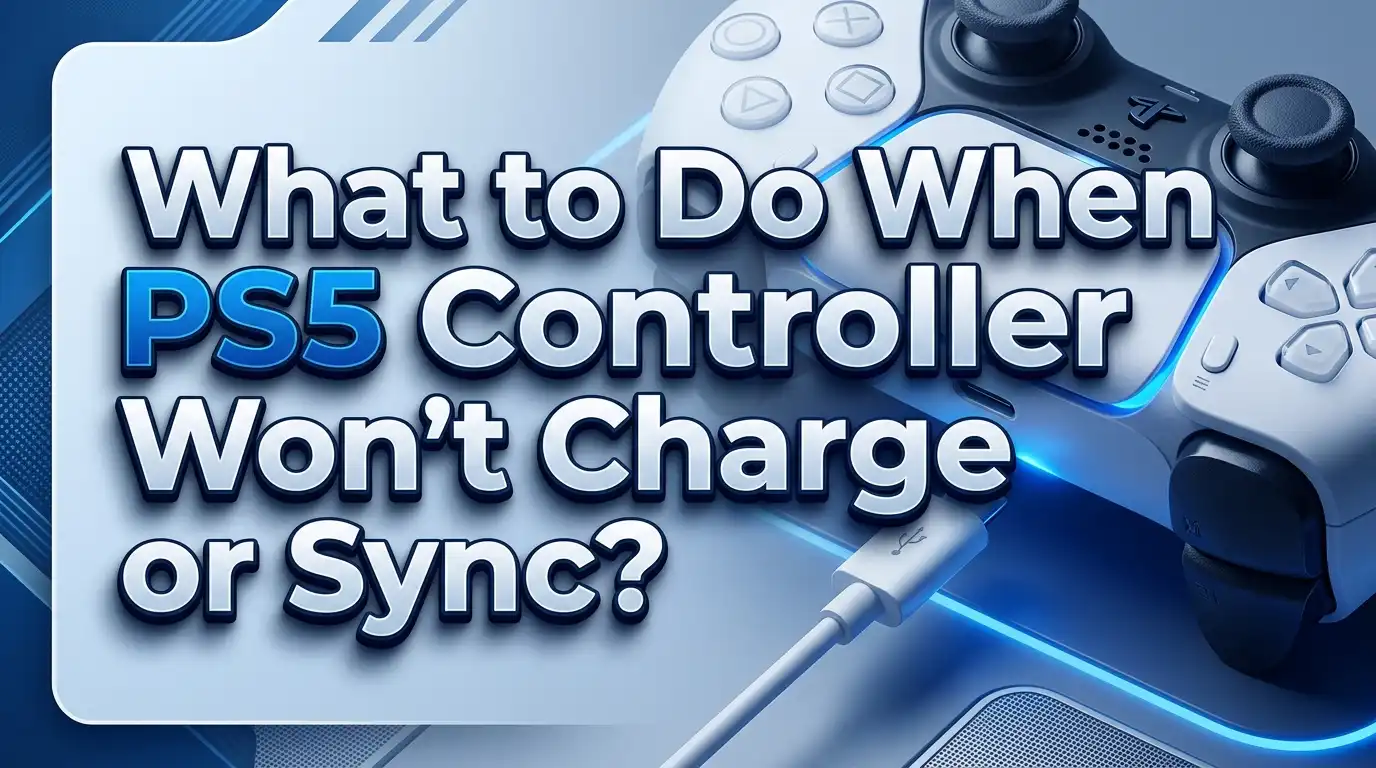
What to Do When PS5 Controller Won’t Charge or Sync?
Your PS5 controller stops charging. Or it refuses to connect to your console. Both problems feel frustrating, especially right before a gaming session. The good news is simple. Most charging and syncing issues have easy fixes you can do at home.
This guide walks you through every working solution. You will learn why your DualSense controller acts up. You will also find clear steps to bring it back to life. No technical skills are needed for most fixes. Just follow along, and your controller should charge and sync again soon.
Let us solve the problem together, one step at a time.
Key Takeaways
- Reset the controller first. The tiny reset button on the back solves most charging and syncing problems. Use a pin and hold it for five seconds.
- Check your USB cable and port. A bad cable causes more charging failures than any other reason. Always test with a known good USB-C cable.
- Clean the charging port. Dust and lint block the connection. A gentle blow of air often restores charging instantly.
- Update the firmware. Outdated controller software causes random charging and pairing bugs. Connect by cable and update through settings.
- Use a wired connection to pair. When wireless syncing fails, a USB cable forces the controller to connect to your PS5.
- Know when hardware is the issue. A swollen battery or damaged port means repair or replacement is the next step.
Why Your PS5 Controller Stops Charging or Syncing
Understanding the cause helps you pick the right fix. Your DualSense controller relies on three things to work well. These are the battery, the charging port, and the wireless connection. A problem in any one of these stops your controller from charging or syncing.
Software bugs are the most common cause. The controller runs its own firmware. When this firmware glitches, the controller may refuse to charge or pair. A simple reset clears these temporary errors most of the time.
Cable and port issues rank second. USB-C cables wear out faster than people expect. A frayed wire or a loose connector breaks the charging flow. Dust inside the port also blocks the cable from seating fully.
Then there are connection conflicts. Your PS5 stores pairing data for each controller. If this data corrupts, the console and controller stop recognizing each other. The blue light flashes but never turns solid.
Finally, hardware failure can be the culprit. Batteries lose capacity over years of use. Ports get physically damaged from rough handling. These cases need repair rather than a quick software fix.
Knowing these causes saves you time. You can match your symptom to the right solution below. Start with the simplest fixes first.
Reset Your DualSense Controller the Right Way
A reset is the single most powerful fix for charging and syncing problems. It clears the controller memory and forces a fresh connection. Sony itself recommends this step before anything else. The process takes less than a minute.
First, turn off your PS5 console completely. Do not leave it in rest mode. Next, unplug the USB cable from your controller. Now flip the controller over so the back faces you.
Look for a tiny hole next to the Sony logo, near the top right screw. Inside this hole sits the reset button. You cannot press it with your finger. You need a thin object like an unfolded paper clip or a SIM ejector pin.
Insert the pin gently into the hole. Press and hold the button for at least five seconds. You will feel a small click. Release the pin after holding it.
Your controller is now reset. Connect it to the PS5 using the official USB cable. Press the PS button in the center of the controller. The light bar should glow, and the controller should pair.
This reset fixes flashing lights, charging refusals, and pairing failures. Try this before any other solution. It works for the majority of users and costs nothing.
Test and Replace Your USB Charging Cable
A faulty cable causes more charging problems than people realize. The cable bends, twists, and gets pulled during use. Over time the internal wires snap. The controller then fails to charge even when plugged in.
Start by inspecting your cable closely. Look for bends, cuts, or exposed wires. Check both ends for bent or loose connectors. A damaged cable needs replacement right away.
Next, test with a different USB-C cable. Any quality USB-C cable should work for charging. Borrow one from a phone or another device if needed. If the controller charges with the new cable, your old one was the problem.
Pay attention to the data transfer ability of the cable. Some cheap cables only deliver power and cannot carry data. These cables charge the controller but block firmware updates and wired play. Use the official cable that came with your PS5 when possible.
Also check the connection feel. A good cable clicks firmly into the port. If it feels loose or wobbly, the cable or port has an issue.
Cable problems are easy to miss because the cable looks fine outside. Always rule out the cable before assuming the controller is broken. This single check solves a large share of charging complaints.
Clean the Charging Port Carefully
Dust and lint collect inside the charging port over time. This buildup blocks the cable from connecting fully. The controller then charges slowly or not at all. A clean port often restores charging in seconds.
First, hold the controller under good light. Look straight into the USB-C port. Search for any dust, lint, or debris packed inside. A dirty port usually has visible fuzz near the back.
The safest cleaning method uses compressed air. Aim a short burst into the port. This blows out loose debris without touching anything inside. Many users fix charging this way alone.
For stuck debris, use a non-metal tool. A wooden toothpick works well. Gently scrape the dirt loose and blow it out again. Never insert metal objects into the port. Metal can short the contacts and damage the controller.
You can also blow into the port with your breath, much like old game cartridges. This trick sounds odd but works for many people. It dislodges light dust quickly.
Check the cable connector too. Wipe it with a dry cloth to remove grime. A clean cable plus a clean port creates a solid connection.
After cleaning, plug the cable back in. The connector should sit flush and tight. If it does, your charging should resume normally.
Update Your Controller Firmware
Your DualSense controller runs its own software called firmware. Sony releases updates to fix bugs and improve performance. Outdated firmware causes random charging and pairing problems. Updating it often clears these issues for good.
You need a working wired connection to update. First, connect the controller to your PS5 with a USB data cable. Remember that the cable must carry data, not just power. The official cable always works.
Turn on your PS5 and sign in. Go to Settings from the home screen. Then open Accessories, followed by Controllers. Look for the option labeled DualSense Wireless Controller Device Software.
Select it to check for updates. If an update is available, follow the prompts to install it. The process takes a few minutes. Do not unplug the controller while it updates.
Sometimes the controller battery is too low to start an update. In that case, charge it first with a phone or laptop charger. A small charge is enough to begin the firmware update.
Also update your PS5 system software. Go to Settings, then System, then System Software. Install any pending updates. A current console works better with your controllers.
Firmware updates fix many hidden bugs. Keep both your controller and console updated to avoid future problems.
Force a Wired Connection to Sync
When your controller refuses to sync wirelessly, a cable forces the connection. This trick works even when the blue light flashes endlessly. The wired link bypasses the broken wireless pairing. It is one of the fastest syncing fixes.
Start with your PS5 turned on. Take the official USB cable and plug one end into the console. Plug the other end into your controller. Make sure both ends sit firmly.
Now press the PS button in the center of the controller. The console should detect the wired connection and pair the controller. The light bar turns a solid color when it works.
If nothing happens, try a full console restart. Shut down the PS5 completely rather than using rest mode. Some users report that rest mode blocks wired pairing. A clean boot fixes this.
Once the controller pairs through the cable, you can unplug it. The wireless connection usually returns at this point. The controller remembers the new pairing.
This method also helps after a reset. Pair by cable first, then switch to wireless. It tells the console to trust the controller again.
Keep the cable handy for these moments. A wired sync is the reliable backup when wireless fails. It works almost every time the controller and console lose their link.
Fix the Flashing Blue Light Problem
A flashing blue light means your controller is trying to connect but cannot. The light blinks fast, then often turns off. This signals a pairing failure between the controller and the PS5. Several steps clear this problem.
First, perform the reset described earlier. Hold the reset button for at least five seconds. This clears the pairing data that causes the blue light to stick. Many users fix the blinking with a reset alone.
Next, connect the controller with a USB cable. Press the PS button to force a wired pairing. The blue light should turn into a steady glow once connected.
If the light still flashes, check for wireless interference. Other Bluetooth devices nearby can confuse the connection. Move phones, headphones, and routers away from the console. A clear wireless space helps the controller pair.
Try pairing the controller to a different device too. Connect it to a PC or phone by Bluetooth. If it pairs there, the controller works and the issue is with the PS5. If it fails everywhere, the controller needs deeper attention.
A long hold on the reset button helps stubborn cases. Hold for ten seconds instead of five with the console on. Then connect by cable.
The flashing blue light is almost always a pairing glitch. A reset plus a wired connection clears it in most cases.
Check the Battery Health of Your Controller
The battery inside your controller wears down over time. After years of charging, it holds less power. A failing battery charges slowly, drains fast, or stops charging at all. Spotting battery trouble early saves you frustration.
Watch the light during charging. A controller that blinks orange repeatedly often signals a battery problem. A healthy controller pulses orange while charging, then turns off when full. A stuck or flashing orange light points to a fault.
Notice how long the charge lasts. A new DualSense battery runs for several hours. If yours dies within an hour, the battery is likely worn out. This is normal after a few years of heavy use.
Test the charge speed too. A weak battery may charge to a low level and stop. It might show full but die quickly. These are clear signs of battery decline.
You can replace the battery yourself with care. The part is affordable and available online. A repair guide walks you through opening the controller and swapping the battery. This step needs basic tools and patience.
If you prefer not to open the controller, a repair shop can do it. Battery replacement costs far less than a new controller. For older controllers, a fresh battery brings back full performance.
Inspect for Physical Damage to the Port
Sometimes the charging port itself gets damaged. Rough handling, drops, or yanking the cable can break it. A damaged port stops charging no matter how good your cable is. A close look reveals the problem.
Hold the controller in bright light. Look deep into the USB-C port. Search for bent pins, burn marks, or chipped plastic inside. These signs point to physical damage.
Test the cable fit again. A healthy port holds the cable firm and level. If the cable sits at an angle or falls out easily, the port is likely damaged. A loose connection breaks the charging flow.
Watch for charging that works only at one angle. If you must hold the cable in a certain position to charge, the port has loose contacts. This worsens over time and needs repair.
Burns or melted spots inside the port are serious. They suggest an electrical fault. Stop using the controller and seek repair if you see burn marks. Charging a damaged port can cause more harm.
Port repair involves replacing the charging assembly. This is a deeper fix that needs disassembly. A skilled repair shop handles this easily. For confident users, online guides explain the full process.
A damaged port is a hardware issue, not a software one. No reset or cable swap fixes physical damage. Repair is the only path forward here.
Try Charging Through a Different Power Source
Where you charge your controller matters more than you think. Different power sources deliver different amounts of energy. A weak source charges slowly or not at all. Testing several sources helps you find the issue.
Start with the PS5 USB ports. Both the front and rear ports charge controllers. Some users find the front port stops charging while the rear works. Try both to compare.
Charge in rest mode for the console ports. Go to Settings, then System, then Power Saving. Set the USB ports to supply power during rest mode. Without this setting, the ports may not charge when the console sleeps.
Next, try a wall charger. Use a phone or tablet charger with a USB-C cable. A wall outlet often charges faster than a USB port. If the controller charges from the wall but not the console, the console port is the issue.
A laptop or PC port works too. Plug the controller into a computer USB port. This helps when you need a small charge to start a firmware update.
Avoid overly powerful chargers though. A standard phone charger is safe for the controller. Match the charger to a normal output to protect the battery.
Testing power sources isolates the problem fast. If one source works and another fails, you know where the fault lies. This simple check saves guesswork.
Rebuild the PS5 Database to Fix Sync Issues
Your PS5 stores data that controls how controllers connect. Over time this data can corrupt. A corrupted database causes syncing failures across all controllers. Rebuilding the database clears these errors safely.
This fix runs in Safe Mode. First, fully turn off your PS5. Press and hold the power button. Release it after you hear the second beep. The console boots into Safe Mode.
You need a controller connected by USB for this step. Plug the controller into the console with a cable. Press the PS button to activate it inside Safe Mode.
Now look for the option called Rebuild Database. It usually appears as the fifth choice in the menu. This option scans the drive and rebuilds the data without deleting your games. Your saves and apps stay safe.
Select it and confirm. The process takes a few minutes to an hour. Do not turn off the console while it rebuilds. Let it finish completely.
After the rebuild, the console restarts. Try syncing your controller again. The fresh database often restores normal pairing.
This step helps when multiple controllers fail to connect. It also fixes odd console behavior beyond controllers. Rebuilding is safe and does not erase your data. Use it when resets and cable swaps do not solve the sync problem.
Pair Your Controller With Another Device to Test
Testing your controller on another device tells you where the fault lies. If it works elsewhere, the controller is fine. If it fails everywhere, the controller is the problem. This quick test guides your next move.
Your DualSense controller pairs with phones, tablets, and PCs by Bluetooth. First, put the controller in pairing mode. Hold the PS button and the Create button together until the light bar blinks rapidly. The Create button sits to the left of the touchpad.
Open Bluetooth settings on your other device. Look for the controller in the list of available devices. Select it to pair. The light should turn solid when connected.
If the controller pairs and works on the other device, your PS5 is the issue. Focus your fixes on the console then. A database rebuild or console restart often helps.
If the controller fails to pair anywhere, the controller itself has a fault. This points to a hardware or firmware problem with the controller. A reset or firmware update is your next step.
This test also confirms whether the battery and buttons work. A controller that pairs and responds elsewhere is mostly healthy. You can then narrow your search to the connection or the console.
Testing on another device removes the guesswork. It splits the problem cleanly between controller and console. This saves you from chasing the wrong fix.
When to Repair or Replace Your Controller
Some problems go beyond simple fixes. After trying every software and cable solution, hardware may be the cause. Knowing when to repair or replace saves you time and money. Here is how to decide.
Consider repair when the issue is a single part. A worn battery or a damaged port can be replaced on its own. These parts cost little compared to a new controller. Repair makes sense for an otherwise good controller.
A repair shop handles these jobs quickly. They open the controller, swap the part, and test it. You get a working controller for a fraction of the replacement cost. This is the green and budget friendly choice.
Confident users can repair at home. Online guides show each step with photos. You need basic tools and patience to open the controller safely. Battery and port swaps are common DIY repairs.
Consider replacement when damage is severe. A controller with motherboard damage or liquid damage is hard to save. The repair cost can approach the price of a new controller. In these cases, a new controller is the wiser choice.
Also weigh the age of the controller. A very old controller with worn parts may need many repairs. A new controller offers a fresh battery and full warranty. Sometimes a clean start is best.
Match your choice to the damage and cost. Small faults call for repair, while major damage calls for replacement.
Tips to Prevent Charging and Syncing Problems
Good habits keep your controller healthy for years. Most charging and syncing issues come from avoidable wear. A few simple practices protect your DualSense and save you repairs. Build these habits into your routine.
Treat your cable gently. Do not yank it from the port. Pull the connector, not the wire, when unplugging. This prevents internal wire damage and loose connectors.
Keep the charging port clean. Store the controller in a dust free spot. A quick blow of air now and then stops debris from building up. A clean port charges reliably for years.
Avoid draining the battery to zero often. Charge the controller before it dies completely. Frequent full drains wear the battery faster. A partial charge habit extends battery life.
Do not leave the controller charging forever. Unplug it once full. Constant charging over long periods stresses the battery. A balanced charge cycle keeps it strong.
Keep your firmware and console software current. Updates fix bugs before they cause trouble. Check for updates every few weeks. This prevents many random syncing glitches.
Store the controller away from heat and moisture. Both harm the battery and the electronics. A cool, dry shelf is the best home for your controller.
These small steps add up. Caring for your controller now saves you from charging and syncing problems later. Prevention is always easier than repair.
Frequently Asked Questions
Why is my PS5 controller plugged in but not charging?
A bad cable or a dirty port is the usual cause. Test with a known good USB-C data cable first. Clean the port with compressed air if you see dust. A reset also clears software bugs that block charging. If none of these work, the battery or port may be faulty.
How do I reset my PS5 controller?
Turn off the console and unplug the controller. Find the small hole next to the Sony logo on the back. Insert a pin and hold the button inside for five seconds. Then connect the controller by cable and press the PS button to pair it again.
Why does my PS5 controller keep flashing blue?
The blue flash means the controller cannot connect to the console. Reset the controller, then pair it using a USB cable. Move other Bluetooth devices away to reduce interference. A console restart or database rebuild often clears stubborn flashing.
Can I charge my PS5 controller with a phone charger?
Yes, a standard phone charger with a USB-C cable works fine. A wall charger often charges faster than the console ports. Avoid very high output chargers to protect the battery. This is a good test when the console ports fail to charge.
How long does a PS5 controller take to charge fully?
A DualSense controller takes around three hours to charge fully from empty. Charging through the console in rest mode may take longer. A wall charger can speed this up. If charging takes far longer than usual, check your cable, port, and battery health.
Does rebuilding the PS5 database delete my games?
No, rebuilding the database does not delete your games or saves. It only scans the drive and reorganizes the data. The process runs in Safe Mode and is safe to use. It often fixes syncing and connection problems across all controllers.

Hi, I’m Hana! I’m a tech lover who geeks out over software, gadgets, and all things digital. I started UniConverterBox to help everyday people navigate the overwhelming world of tech with honest reviews, clear comparisons, and simple guides. Got questions? I’m always happy to help!