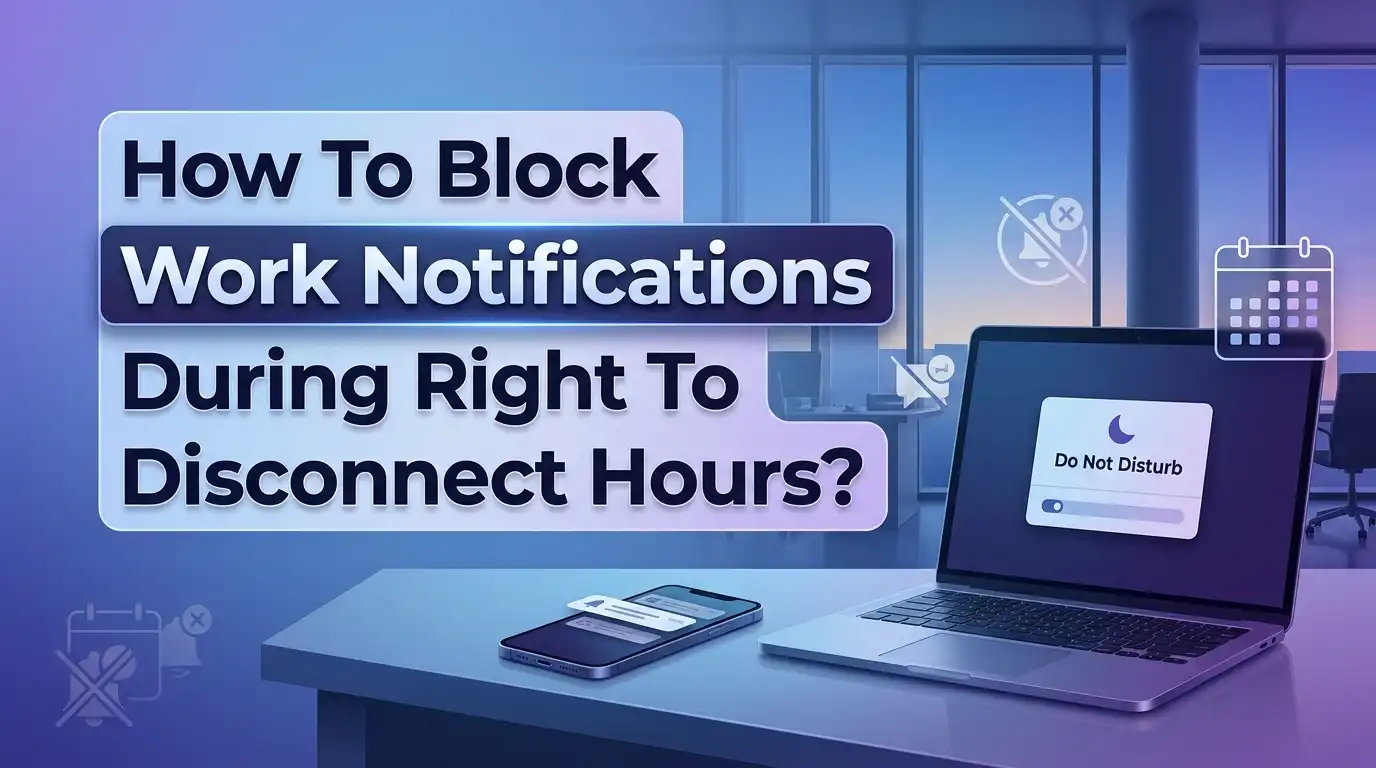
How To Block Work Notifications During Right To Disconnect Hours?
Your phone buzzes at 9 PM. It is a Slack message from your manager. Then an email follows at 10 PM. Your brain stays in work mode, and your evening disappears. Studies show that 76% of employees check work email outside business hours.
Microsoft research found that after hours chat messages have increased 15% year over year. The boundary between work and personal life has almost vanished for millions of workers.
This guide walks you through every practical method to block work notifications during your off hours. You will learn how to use built in phone features, configure specific apps, talk to your employer, and protect your mental health. Each step is clear, actionable, and easy to follow.
In a Nutshell
- Right to disconnect laws exist in 15+ countries including France, Australia, Portugal, Spain, and Belgium. These laws give employees the legal right to refuse work contact outside their contracted hours. If you live in one of these countries, your employer may be required to respect your off hours by law.
- Your phone has built in tools to block work notifications on a schedule. Both iPhone Focus modes and Android Do Not Disturb settings let you silence specific work apps during set hours. You do not need any extra software to get started.
- Communication apps like Microsoft Teams, Slack, and Gmail have their own quiet hours settings. You can configure each app individually to stop sending you notifications after a specific time each day. Teams even has a built in “Quiet Time” feature for this exact purpose.
- Talking to your manager about boundaries is essential. Technology alone cannot solve the problem. You need a clear agreement with your team about response expectations outside work hours. Research shows that even the expectation of being available after hours causes stress and exhaustion.
- Blocking notifications protects your health and your productivity. The WHO found that working 55+ hours per week increases stroke risk by 35%. Stanford research shows productivity drops sharply after 50 hours and collapses after 55. Disconnecting makes you a better worker, not a worse one.
- You can set up automated replies and scheduled messages to handle the transition smoothly. This way, urgent contacts still reach you while routine work messages wait until morning.
What Is the Right To Disconnect and Why Does It Matter
The right to disconnect is a legal concept that protects employees from being required to respond to work communications outside their contracted working hours. France became the first country to pass this into law in 2017. Since then, more than 15 countries have followed with their own versions.
In Australia, the Fair Work Act amendment of 2024 gives employees the right to refuse to monitor, read, or respond to employer contact outside working hours. Portugal goes even further with fines up to €9,690 per violation for employers who contact workers after hours. Spain ties the right to disconnect to data protection law, which means after hours monitoring of employees can also be a privacy violation.
The reason this matters goes beyond legal rights. Research from Virginia Tech found that the mere expectation of after hours email availability causes exhaustion, even when employees do not actually do any work. Your brain cannot rest when it anticipates a possible work interruption at any moment. This constant state of alertness damages your sleep, your relationships, and your overall health.
Even if your country does not have a right to disconnect law, you can still enforce your own boundaries. The steps in this guide work for anyone, anywhere. Understanding the legal landscape simply gives you more confidence and more leverage in conversations with your employer.
Why After Hours Work Notifications Hurt Your Health
The health data on after hours work is alarming. The World Health Organization found that working 55 or more hours per week increases stroke risk by 35% and heart disease mortality by 17%. In a single year, long working hours caused 745,000 deaths from heart disease and stroke worldwide.
After hours notifications contribute to this problem even when you do not respond to them. Every buzz and ping activates your stress response. Your body releases cortisol, your heart rate increases slightly, and your mind shifts from rest mode to alert mode. The American Psychological Association reports that employees who constantly check work email on days off report stress levels of 6.0 out of 10.
Sleep suffers too. Research shows that insufficient sleep costs $1,967 per worker per year in lost productivity. About 38% of employees report experiencing fatigue at work. Late night notifications disrupt the wind down process your brain needs before sleep, creating a cycle where poor rest leads to poor performance the next day.
Stanford economist John Pencavel found that productivity per hour drops sharply after 50 hours per week. Workers who put in 70 hours produced no more output than those who stopped at 55. Blocking notifications is not lazy. It is one of the most effective things you can do for both your wellbeing and your work quality.
How To Use iPhone Focus Mode To Block Work Apps
Apple’s Focus mode is the most powerful built in tool for blocking work notifications on an iPhone. It lets you create a custom schedule that silences specific apps and contacts during your off hours. Here is how to set it up.
Open the Settings app and tap Focus. You will see options like Do Not Disturb, Personal, and Work. Tap the plus icon to create a new Focus or customize the existing Personal focus. Give it a name like “Off Hours” or “Disconnect.”
Next, choose which apps and people can still reach you. Under “Allow Notifications,” add only the contacts and apps you want to hear from during personal time. For everything else, select “Silence Notifications From” and add all your work apps. This includes Slack, Microsoft Teams, Outlook, Gmail, and any project management tools you use.
Now set a schedule. Tap “Set a Schedule” and choose the days and times. For example, you can activate it from 6 PM to 8 AM on weekdays and all day on weekends. The Focus will turn on and off automatically without you having to remember.
You can also link a specific Lock Screen and Home Screen to your Focus mode. Remove work apps from these screens so you are not tempted to open them. This visual separation creates a psychological boundary that reinforces the idea that work time is over.
How To Set Up Do Not Disturb on Android for Work Notifications
Android offers similar control through Do Not Disturb and Digital Wellbeing features. The steps may vary slightly depending on your phone manufacturer, but the core process is the same.
Go to Settings, then tap “Do Not Disturb” or “Modes and Routines.” On Samsung phones, this is under Modes. On Pixel phones, it is under Sound and Vibration. Tap “Turn on automatically” and set a schedule. Choose the start time, end time, and which days of the week the mode should activate.
Under DND settings, you can customize exceptions. Allow calls from starred contacts or repeated callers so true emergencies get through. Block notifications from specific work apps by going to Settings, then Notifications, then selecting each work app and toggling notifications off during your scheduled hours.
If your company uses an Android Work Profile, you have an even better option. Go to Settings, then Digital Wellbeing, then “Work Profile Schedule.” You can set your work profile to pause automatically on evenings and weekends. When the work profile is paused, all work apps are grayed out and cannot send notifications at all.
This is the cleanest solution on Android because it completely separates your work and personal environments. You do not need to configure each app individually. The entire work ecosystem goes silent with one setting.
How To Configure Quiet Hours in Microsoft Teams
Microsoft Teams has a built in feature called Quiet Time that blocks notifications during your off hours. This is separate from your phone’s system settings and works specifically within the Teams app.
Open the Teams mobile app and tap your profile picture. Go to Settings, then Notifications. Under “Block Notifications,” you will find two options: “Block during quiet hours” and “Block during quiet days.” Tap each one and configure your preferred times.
For quiet hours, set a start time and end time that match your off hours. For example, set it to block from 6 PM to 8 AM. For quiet days, select the days when you do not want any Teams notifications. Most people choose Saturday and Sunday.
On the desktop version of Teams, quiet hours are managed through Viva Insights. Go to the Viva Insights app within Teams and find the “Protect Time” section. Here you can set specific quiet hours and days, and Teams will mute mobile notifications during those periods.
One important detail: quiet hours only apply to mobile notifications. If you leave the desktop app open on your computer, you will still see messages. Close the Teams desktop app or set your status to “Do Not Disturb” before you end your workday. This gives you full coverage across all devices.
How To Mute Slack Notifications on a Schedule
Slack also has a built in notification schedule that you can use to block messages during your off hours. The setup takes less than two minutes.
Open Slack and click your profile picture. Select “Notifications” from the menu. Under “Notification Schedule,” you will see an option to set your notification hours. Toggle this on and choose the days and times when you want to receive notifications. For example, set it to Monday through Friday, 9 AM to 6 PM.
Outside these hours, Slack will not send you push notifications, sounds, or badge alerts. Messages will still arrive in your channels and DMs, but your phone and computer will stay silent. You can check messages on your own terms the next morning.
You can also set your status to automatically change outside your notification hours. Use a message like “Off hours. I will respond tomorrow.” This sets clear expectations for your coworkers and reduces the pressure to reply immediately.
If you are in multiple Slack workspaces, repeat this process for each workspace. Each one has its own notification schedule. Do not forget to configure both your personal and work related workspaces to avoid gaps in your quiet time.
How To Stop Email Notifications After Hours
Email is often the biggest source of after hours work interruptions. Studies show employees spend an average of 8 hours per week on work email outside business hours. That is an entire extra workday each week. Here is how to stop it.
On Gmail, go to Settings, then Notifications. You can turn off all notifications or set them to “High priority only.” If you use the Gmail app on your phone, your phone’s Focus mode or DND settings will override Gmail notifications during scheduled quiet hours.
On Outlook, open the app and go to Settings, then Notifications. You can toggle off email notifications entirely or customize them by account. If you have both personal and work email in Outlook, turn off notifications only for your work account during off hours. Your personal email can keep sending alerts.
For a more complete solution, use your phone’s system level notification controls. On iPhone, go to Settings, then Notifications, select your email app, and turn off “Allow Notifications.” Combine this with Focus mode for scheduled control. On Android, go to Settings, Notifications, then App Notifications, and disable notifications for your work email app.
Consider setting up an auto reply that activates during your off hours. A simple message like “I am offline until 9 AM. I will respond to your email during business hours” lets senders know what to expect.
How To Use Scheduled Send To Protect Your Boundaries
One common problem with disconnecting is the fear that you will forget important thoughts or tasks. Scheduled send features solve this by letting you compose messages during off hours but deliver them during work hours.
In Gmail, compose your email and click the small arrow next to the Send button. Select “Schedule Send” and choose a date and time. The email will sit in your Outbox until that time. This means you can capture your thought at 10 PM and have it arrive in your coworker’s inbox at 9 AM.
In Outlook, click the dropdown arrow next to Send and choose “Schedule Send.” Pick your delivery time. In Slack, type your message and click the small arrow next to the send icon. Select “Schedule for later” and set the time.
This approach benefits everyone. You clear the thought from your mind without triggering a notification for someone else during their off hours. Research shows that managers who send late night messages create pressure for the entire team to respond, even if no response is expected. Scheduled send eliminates that pressure at the source.
Make this a habit. Every time you feel the urge to send a work message outside hours, write it and schedule it for the next morning. Over time, this becomes automatic and removes the temptation to stay engaged with work during personal time.
How To Talk to Your Manager About Notification Boundaries
Technology settings are only half the solution. You also need a clear agreement with your manager and team about after hours communication expectations.
Start the conversation by framing it around productivity, not laziness. Share the data. Mention that Stanford research shows output collapses after 55 hours per week. Point out that the WHO links overwork to a 35% increase in stroke risk. Most managers respond better to data than to personal complaints.
Propose a specific plan. For example, say: “I would like to turn off work notifications from 7 PM to 8 AM. I will check for any urgent messages first thing in the morning.” Offer to define what counts as a true emergency and agree on a separate communication channel for those rare situations, such as a phone call or text message.
If your country has a right to disconnect law, mention it respectfully. In Australia, employees can legally refuse to respond to after hours contact unless the refusal is unreasonable. In France, employers with 50+ staff must negotiate disconnect policies. In Portugal, contacting employees outside hours can result in fines. Knowing your legal rights gives you a strong foundation.
Document the agreement. Send a follow up email summarizing what you discussed and agreed upon. This protects both you and your manager. If the agreement is ever questioned, you have a written record.
How To Set Up Emergency Bypass for Critical Contacts
A common concern about blocking notifications is missing a genuine emergency. The solution is to create an exception for a small number of critical contacts while keeping everything else silent.
On iPhone, go to Contacts and select the person you want to allow through. Tap Edit, then scroll down to Ringtone or Text Tone. Toggle on “Emergency Bypass.” This contact will always ring through, even when Focus mode or Do Not Disturb is active. Use this for your direct manager, an on call partner, or a family member.
On Android, open Contacts and select the person. Tap the star icon to mark them as a Favorite. Then in your Do Not Disturb settings, set exceptions to allow calls from Starred contacts. You can also allow “Repeat callers,” which lets through anyone who calls twice within 15 minutes.
Keep this list extremely short. The purpose of blocking notifications is to create genuine separation from work. If you add too many exceptions, the boundary becomes meaningless. Two or three contacts should be the maximum for emergency bypass.
You can also designate a single communication channel for emergencies. Tell your team: “If something is truly urgent after hours, call my phone. Everything else can wait until morning.” This creates a natural filter because people are much less likely to call than to send a quick message, which means only real emergencies will reach you.
How To Create a Nightly Wind Down Routine With Your Devices
Blocking notifications is most effective when combined with a physical and mental transition from work mode to personal mode. Your devices can help you build this routine.
Set a “wind down” alarm 30 minutes before your off hours begin. Use this as a signal to start wrapping up work tasks. Close your laptop, save your files, and write a brief to do list for tomorrow. This list empties your brain of work related thoughts so they do not linger into your evening.
Enable Bedtime mode or Sleep Focus on your phone at a set time. On iPhone, go to Health, then Sleep, and set up a Sleep Schedule. The phone screen dims, notifications are silenced, and the Lock Screen shows minimal information. On Android, go to Digital Wellbeing and enable “Bedtime Mode.” The screen turns grayscale and activates Do Not Disturb.
Move your phone charger out of your bedroom or at least across the room. 58% of professionals check their email first thing in the morning, often before getting out of bed. Distance creates friction. When your phone is not within arm’s reach, you are far less likely to check it reflexively.
Replace the habit of scrolling through work messages with a different activity. Read a book, go for a walk, or spend time with family. The goal is to fill the time slot that work notifications used to occupy with something that actually recharges you.
Which Countries Have Active Right To Disconnect Laws
Understanding the legal landscape helps you know your rights and strengthens your case for boundaries at work. Here is a summary of the most significant right to disconnect laws as of 2026.
France passed the first right to disconnect law in 2017. Employers with 50 or more employees must negotiate annual agreements on disconnect policies. Portugal has the strongest penalties in Europe, with fines of €3,250 to €9,690 per violation for employers who contact workers outside hours. Australia passed its law in 2024, enforceable through Fair Work Commission stop orders with penalties up to AUD $93,900 per breach.
Spain frames the right to disconnect under data protection law. After hours monitoring can violate both working time and GDPR rules, with fines up to €1.5 million. Belgium requires employers with 20+ staff to consult employee representatives on disconnect arrangements. Italy includes the right in its Smart Working Law for remote workers.
Other countries with active frameworks include Ireland (code of practice, admissible in dismissal claims), Ontario, Canada (written policy required for employers with 25+ employees), Argentina (right to disconnect for remote workers), Greece, Slovakia, and Kenya.
The EU is currently drafting a directive expected to create a minimum disconnect standard across all 27 member states by 2027 or 2028. If you work in any of these countries, you already have legal support for blocking work notifications. Check your local labor authority’s website for specific details about your rights and your employer’s obligations.
What To Do If Your Employer Ignores Your Boundaries
Sometimes setting up notification blocking is not enough because the pressure comes from workplace culture rather than technology. Here is what to do if your employer pushes back against your boundaries.
Document every instance of after hours contact. Keep a record of the date, time, sender, and content of work messages received outside your agreed working hours. This creates evidence if you ever need to file a complaint. Screenshots and saved emails are your strongest tools.
If your country has right to disconnect protections, file a complaint with the appropriate labor authority. In Australia, this is the Fair Work Commission. In France, contact the labour inspectorate. In Portugal, contact the Autoridade para as Condições do Trabalho. These bodies can issue stop orders and fines against non compliant employers.
Even without legal protection, escalate through internal channels first. Talk to your HR department and reference any company policies on work life balance or wellbeing. Many companies have policies they do not enforce, and a formal complaint can prompt action.
If internal channels fail and no legal protection exists, consider whether this is a workplace that aligns with your values. Research shows that 82% of employees are at risk of burnout, and only 40% feel their employer respects their boundaries. A workplace that refuses to respect your off hours may not be sustainable for your long term health. Sometimes the most powerful boundary you can set is choosing to work somewhere that respects it.
Tools and Settings Checklist for Blocking Work Notifications
Here is a quick reference checklist you can follow to set up all your notification blocking in one session.
Phone level settings come first because they override everything else. On iPhone, set up a Personal Focus mode with a schedule and silence all work apps. On Android, configure Do Not Disturb with a schedule and pause your Work Profile through Digital Wellbeing settings.
App level settings come next. Open Microsoft Teams and set Quiet Hours and Quiet Days under notification settings. Open Slack and configure your Notification Schedule to match your working hours. Open your email app and disable notifications for your work account.
Contact level exceptions are the final layer. Set Emergency Bypass on iPhone for two or three critical contacts. Star those same contacts on Android and allow Starred contacts through Do Not Disturb. Test the setup by having someone call you during quiet hours to make sure the exceptions work correctly.
Desktop and laptop settings matter too. Close work apps before you end your day. On Mac, set a Focus mode that syncs with your iPhone. On Windows, use Focus Assist to block notifications during set hours. Log out of browser based tools like Slack and email so you do not see notifications if you open your computer for personal use.
Review your settings once a month. App updates can sometimes reset notification preferences. A quick monthly check ensures your boundaries stay intact without any gaps.
Frequently Asked Questions
Can my employer legally require me to respond to messages after work hours?
This depends on your country and your employment contract. In countries with right to disconnect laws like Australia, France, Portugal, and Spain, your employer generally cannot require you to respond outside your contracted hours. In Australia, employees can refuse after hours contact unless the refusal is considered unreasonable. In the United States, no federal or state right to disconnect law currently exists, so your obligations depend on your employment agreement. Review your contract and check your local labor laws for specific guidance.
Will blocking work notifications hurt my career?
Research suggests the opposite. Stanford studies show that productivity per hour drops sharply after 50 hours per week and collapses after 55 hours. Workers who protect their rest time perform better during working hours. If you are concerned, talk to your manager about your plan and frame it around improved focus and output. Most employers respect boundaries when they are communicated clearly and professionally.
What if I miss something urgent while my notifications are blocked?
Set up Emergency Bypass on your phone for two or three critical contacts. Agree with your team on a separate channel for genuine emergencies, such as a phone call. This ensures true emergencies reach you while routine messages wait. In practice, very few work situations are so urgent they cannot wait until the next morning.
Do Focus modes and Do Not Disturb work for all apps?
Yes. Both iPhone Focus mode and Android Do Not Disturb can block notifications from any app installed on your phone. You can choose exactly which apps to silence and which to allow. This gives you full control over what reaches you during off hours. Remember to configure both system level settings and individual app settings for the best coverage.
How do I handle coworkers in different time zones?
Use scheduled send features in email, Slack, and Teams. Write your message when you think of it, but schedule it to arrive during the recipient’s working hours. This prevents your message from becoming an after hours notification for them. Agree on team operating hours and document them so everyone knows when it is acceptable to expect a response.
Is there a single app that blocks all work notifications at once?
Your phone’s built in Focus mode (iPhone) or Do Not Disturb (Android) acts as a master switch. When configured correctly, these system level tools can silence every work app simultaneously on a schedule. Android’s Work Profile feature is the most complete option because it pauses all work apps at once. You do not need a third party app to achieve full notification blocking.

Hi, I’m Hana! I’m a tech lover who geeks out over software, gadgets, and all things digital. I started UniConverterBox to help everyday people navigate the overwhelming world of tech with honest reviews, clear comparisons, and simple guides. Got questions? I’m always happy to help!